
Posted on 10 Comments

You Ought to Know About Livebinder!

Yououghtaknowbloghopbanner

You ought to know about this website I found that is wonderful and perfect for any teacher in any grade or subject. Ladies and gentlemen, I present Livebinder!

 
Live%2BBinder%2B1
 
Before I start, I did update my blog. I spent about 2 weeks on it and I must say I am impressed with myself! Anyway, I taught in a 1:1 school. If your unfamiliar with that term, it means that every student in every grade has their own digital device, whether it’s a laptop, netbook, or tablet. I taught 2nd so we had netbooks.
 
As a teacher with students having laptops, it was kinda frustrating to have my favorite bar full of 20+ links to websites. Don’t even get me started on what my favorites folder actually looked like. During a professional development that was particularly useful, they introduced this website that acts as a favorites bar except its online! Yes, that means logging in, but after that, you can access your favorite websites from ANY computer!
 
For those who continue working at home (pretty much all of us!), it’s frustrating to find a website you love and then get to work and totally forget the website address because we saved it to our home computer. Livebinder is the solution!
 
Live%2BBinder%2B2


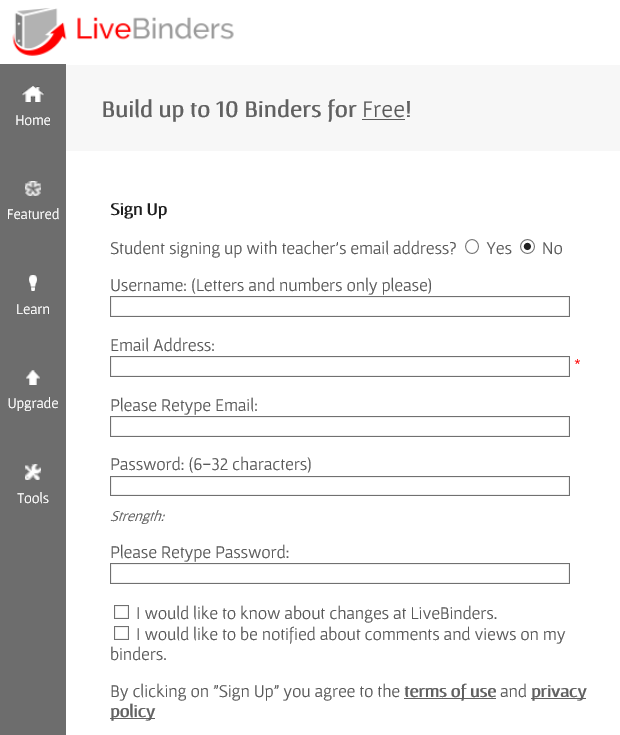
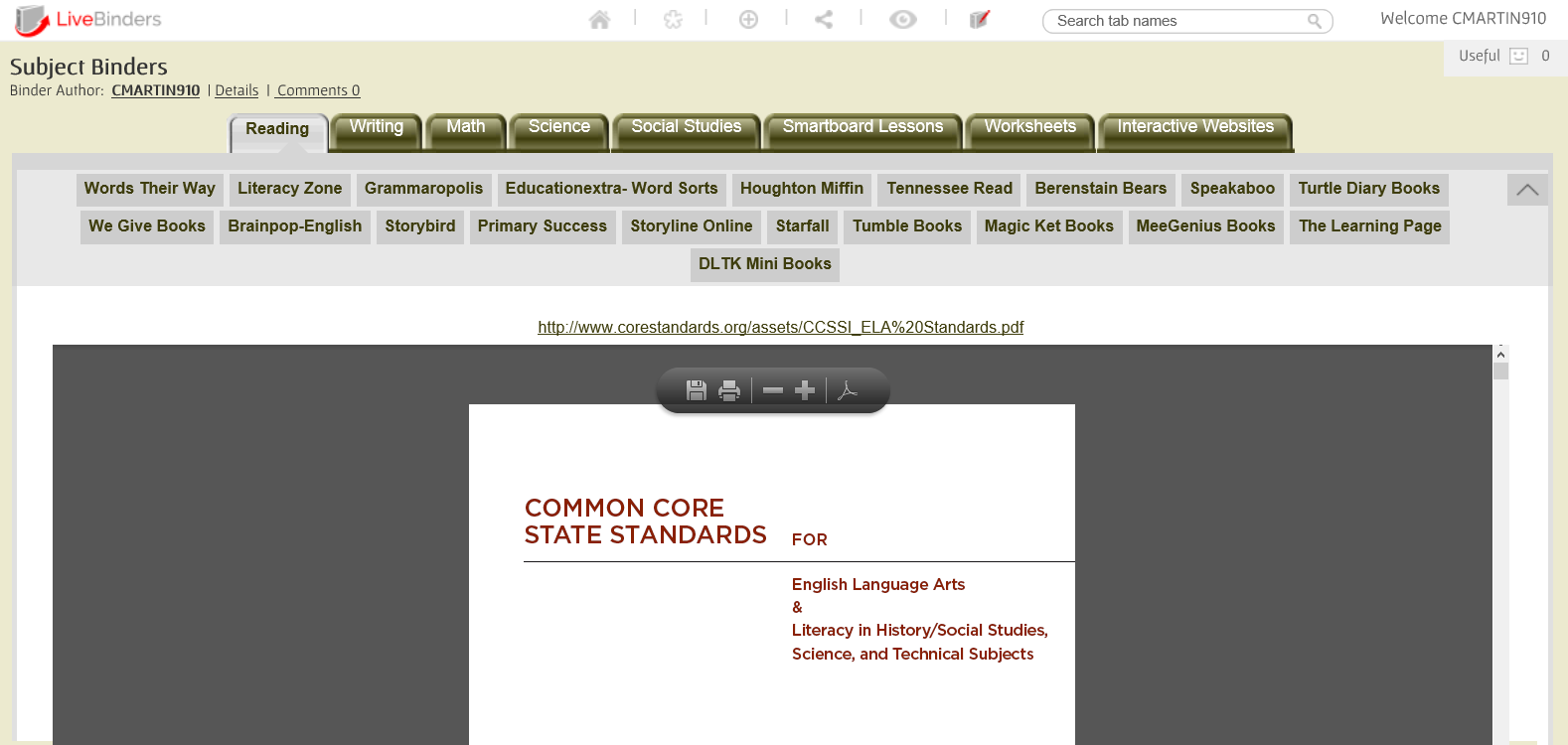
After signing up, you can create up to 10 binders with different links to websites. For elementary teachers, that’s enough for each subject and then some! Take a look 2 binders I have created. The first binder is for the content areas.
 
Live%2BBinder%2B4


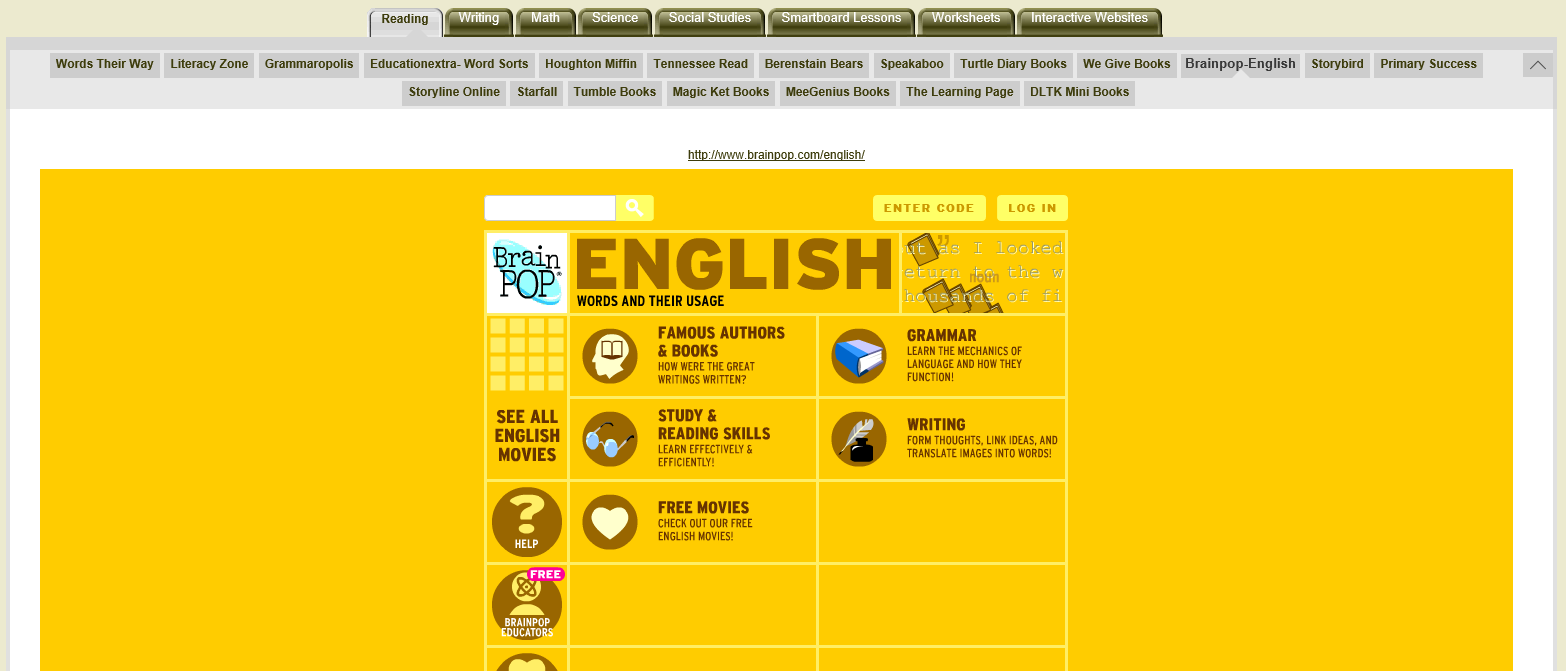
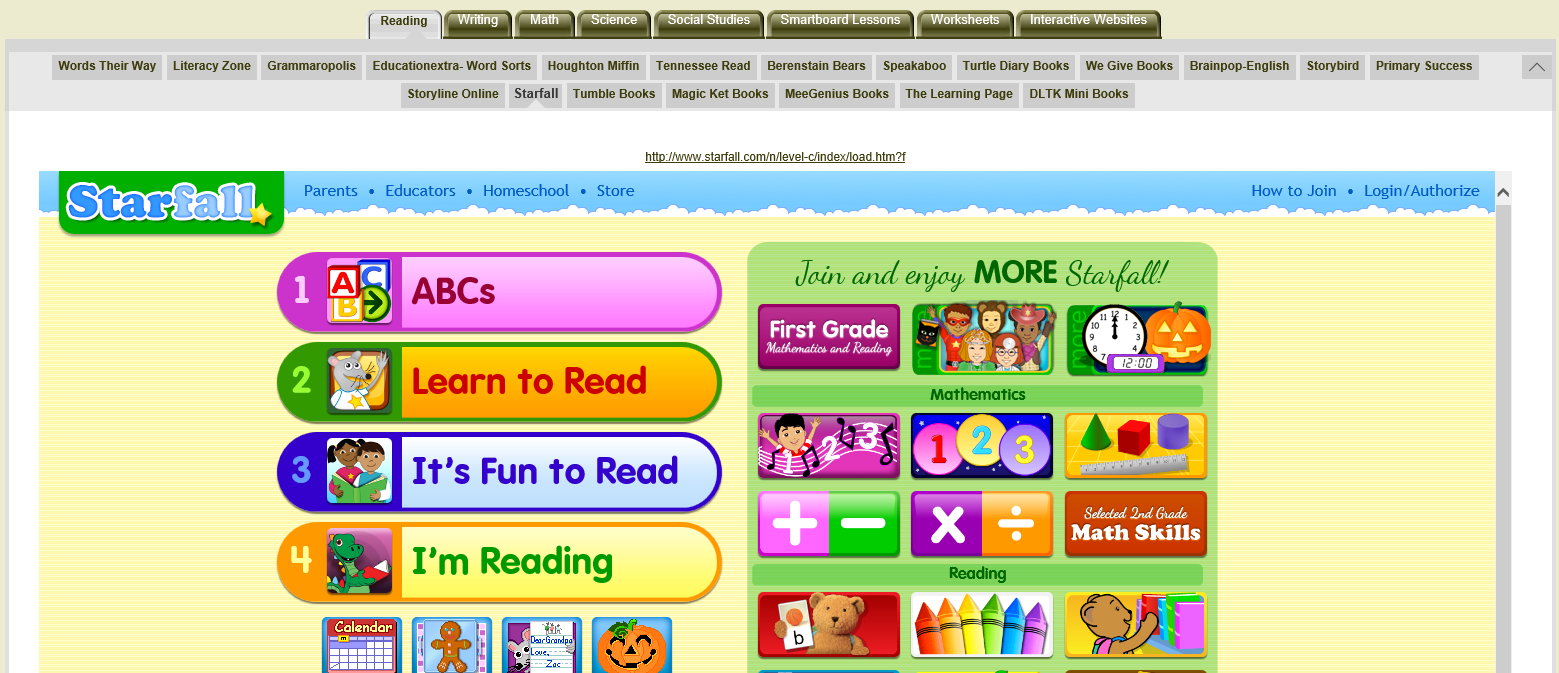
In the first tab, I’ve added all the reading websites I have found while I was teaching. Most of them are free (Tumblebooks, Starfall) . Others require just a log (Houghton Miffin) . One or two of them you have to pay for (Grammaropolis, Speakaboos).
 
 
Live%2BBinder%2B8

Live%2BBinder%2B9
Best part of all: you don’t have to open a new window! With most websites, you can explore the website from within Livebinder. That means no multiple tabs. You can jump from website to website in just one binder.
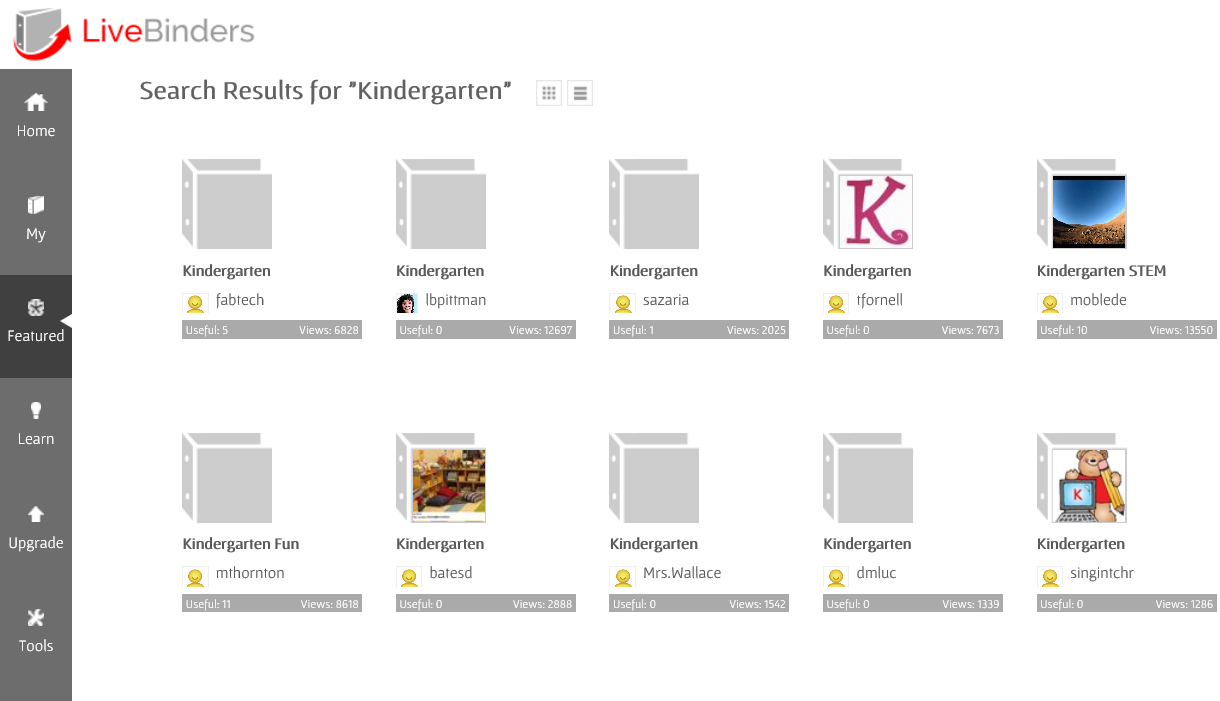
You can even browse other binders that others have created.
Live%2BBinder%2B12

This tool is wonderful! I look for websites at home, add them to Livebinder, and access them on my school computer. I simply keep Livebinder on my favorites bar! I hope Livebinder is as great for you as it is for me!


Posted on 4 Comments

Learn Make a Simple Powerpoint Game in 7 easy Steps!

1


Imagine this: It’s the middle of the school year. You’re reviewing a hard subject and you kids are struggling. A test is coming up and it’s time to give a review before you give that big test. What are you going to do to review that’s fun and engaging. Kids love Jeopardy games, but how do I find the right one, especially for the content I teach? 


I’ve run into this problem many, many times. I think every teacher should know, at least, the basic skills needed to make a jeopardy powerpoint game. Take that old test and make a review game out of it.

Cover%2B2


Here’s how to create a 3 category Jeopardy game in 7 easy steps.


1.) Figure out the questions.

If you’re familiar with Microsoft Word, the Microsoft Powerpoint is very similar. To start making a powerpoint game, think about the questions you want included. Write them down on paper or in a notebook. I write my problems in a “Teacher Journal” I bought from the Dollar Tree. It’s so much easy to have them already figured out when you’re inputting them.

WP 20140720 003


2.) Title Screen and Rules

Start working on the powerpoint! You can make  a slide for the title and rules if you like. Just about everyone knows what Jeopardy is so a rules page might not be necessary. I’ll make a simple Addition Game. Dress it up by changing fonts types and the color.

Pic%2B1

Pic%2B2


2.) Scoreboard

Here’s the hard part. The scoreboard may very well be the hardest part. I think it’s pretty easy after doing it a few times. I used shapes for my boxes. Go to Insert>Shapes> Rounded Square. Input 6 of them.


Type in the appropriate text (ex. Category title, $100, $200, $300, $400, $500). Adjust the size, color, and font as you see fit.


Pic%2B4


Copy and Paste works wonders! Select all the boxes by dragging your mouse. Right click “copy” and “paste”. Move them as you like.


Pic%2B5


3.) Question Board
Now comes one of two hard parts: the question slide! This the part most teachers dread. But alas, if you have the questions already made, it can be a breeze! I suggest you start by creating just one slide and duplicating it. If you like, you can create all the slides you need (no answer slides in this tutorial).  Add the title and the amount it is worth up to $500 (5 slides in all).


Pic%2B6


Again, the joys of Copy and Paste. You can select the 5 slides you created, copy and paste them twice. Change the names of the categories. Now add your questions! Create 2 text boxes: one for the question and one for the answer. Also, create 2 shape buttons named “Answer” and “Scoreboard”.

Pic%2B8


4.) Hyperlinking the scoreboard and questions
The second hardest part. Hyperlinking allows you to click on a certain part of the powerpoint and it will take you somewhere else. This can be another slide, a website, or even to another document. In this case, we will hyperlink to another slide.

Start by right clicking on the “scoreboard” button and click hyperlink.


Pic%2B9


A Box like this should appear. Next, click on “Place in the Document.” Find the “scoreboard” slide and select it. A picture of the slide should appear (red box). Click ok. You can test it out by going into slideshow mode and clicking on “Scoreboard”


Pic%2B10


If you are successful, repeat the same process for you scoreboard. Link each amount to its corresponding slide.


5.) Answer Animation
With the hard parts out of the way, the last thing to do it make the answers appear. Start by clicking “Animations” and “Custom Animations.  A “Custom Animation” box should appear on the right side of your screen. Next, click on the answer to the question (not the answer button like the scoreboard button), click “Add Effect”, and choose and “Entrance” effect such as appear, blinds, or box.


Pic%2B11Pic%2B12


 It will automatically show you a preview. Choose your favorites. Last, we need to make the answer appear when you click on the “Answer” button. Click on the small down arrow on the Custom Animation box and click on Timing. once there, click on “Trigger”>Start Effect on click of”> Answer Button (whatever shape you chose).


Pic%2B15


6.) Disappearing Amounts
Lastly, let’s make those amounts you click on disappear after you click on them. Repeat the above step. Click on the amount, choose a custom animation, only chose “Exit” instead of “Entrance”. Change the trigger to the amount. Repeat the process for all the amounts. Test the animations by going into “Slideshow”

Pic%2B16

7.) Dress it Up
If all the hyperlinks and animations work, you can now customize it yourself! Create a background ground or add some clip art! Even add a “Double Jeopardy” or “Final Jeopardy” questions. Add some music or sound effects.  Here are some backgrounds to get you started.

Don’t have time to make one? You can purchase editable powerpoint game templates! Each template comes with a powerpoint with all the links and buttons ready to go! All you have to do is add the questions and clip art!


I hope you’ve enjoyed this tutorial. Subscribe via email or bloglovin’ for more powerpoint tutorials, tips, and tricks. Check out my TPT Store for awesome Jeopardy games and other games too.