Posted on 13 Comments

You Ought to Know About Binding Machines!

Binding%2B1


Remember when you were in school and your teacher made a class book with each student making a page? I remember doing this, but never knew how the teacher made that book. Today, I thought you should know about CombBind Binding Machines!
103 0173

I’ve used my own personnel CombBind Binding machine for my classroom as well as in my home. There are so many uses! It’s easy to operate (just like a 3 ring hole puncher) and durable. I bought this one in 2006 and it still works 10 years later! Here are 6 ways to use a Combbind Machine.


103 0188


1.) Everyday Planner

You can create a custom planner that fits your needs. Whether it’s a life planner, school planner, or business planner, you’ll be more inclined to use it since you made it! I created a TPT planner on my computer, printed out the pages,  and used it to plan out my projects for each week and each month. It was great because I could plan for holidays and giveaways. You could also add sheets whenever you need to, creating a one of a kind planner.


2.) Daily Lesson Plan Book

103 0180

I would type up my lesson plans for the week and place them in a “Daily Lesson Plan” book. I’d include a copy of all the lessons, worksheets, and any activities I plan to do.  It’s great for reference, especially if an administrator comes in unexpectantly or you’re absent for the day.


3.) Weekly Lesson Plan Book

103 0184

My first few years of teaching, I typed up all my lessons and placed them in a “Lesson Plan” book. I would turn that book into my principal for approval. A few years  later, I gave it to a fellow teacher when I switched grades. It was a great reference to go back to if I needed to as I had listed the materials I needed and included the worksheets I had used in each lesson. Plus, my colleagues loved it!  


4.) Substitute Teacher Guide

103 0181


As a teacher, you must plan for the unexpected, especially when flu season starts. You can create a “Substitute Teacher Guide” book that can include your classroom information, school duties, lessons for the day, worksheets and answer keys, and any other things you would like the substitute to use. Whenever I was absent, I’d leave this book for the substitute to use throughout the day. I even included a Substitute Form where they could fill out before they left about the day they had in my classroom. You can make many at the beginning of the year so you’ll be prepared. 

5.) Student Books and Journals
103 0193
When I taught 5th grade, I had an after-school tutoring group. I would create worksheets we could work on together and added them to their “Math Tutor Journal”. Conversely, when I taught 2nd grade, I would create journal books and add writing paper to each journal. Then, I’d add mailing address labels with the journal prompt on each sheet when needed.
6.) Intervention Log
103 0199
Whenever my students go for intervention or enrichment, I’d always document it in an intervention log. Included are the dates, times, the teacher, the subject, what method they are using (one-on-one, small group, etc), and the teacher’s signature on each log.  Each student had their own page. I kept it at my back table and if my students are responsible enough, they would fill it out themselves.
Other Tricks

  • Combs come in different sizes, holding anywhere from 25 pages to 500 pages.
  • Combs come in different colors including black, white, red, and dark blue (the color I have).
  • You can buy pre-punched paper, cover pages, and back pages.
  • Buy teacher paper (like the apple pictured above) and laminate it to make your own durable and reusable covers.
  • You can even make mini books by cutting the combs in half.
  • You can turn practically anything into a book! For example, a stapled planner into your own personal planner.

Most schools have one so just ask you librarian! If not, you can purchase your own online or at an office supply store (around $60+ depending on where you get it). I think it’s a great investment. It has only jammed on me once and it was a very easy fix!


Office Depot
Staples
Amazon.com


I love my binding machine and can’t imagine life without it!
Posted on 6 Comments

Creating the Ultimate TPT Planner!

Post%2B27


Making products can be a lot of work. Balancing home and making products is even more work. I give kudos to the teacher that work at school, create products in their free, and manage the house. Brownie points all around. TPT is my full time job at the moment so between creating games and watching my niece and nephew can be a little frustrating a times. That’s why I created this:

Untitled


I had created a smaller version of this at the beginning of the school year that I kept up with, but finally decided get one made professionally. I spent about 2 weeks creating all the pages I may need for the entire school year (August to July). Check out each of the pages included and find out how you can score your own!
 
 
The cover is a clear plastic covering over a regular cover sheet I made..  Pretty nice. The binding is a black plastic coil. I had this made at Office Depot and they had other bindings as well. I figured if I’m going to opening and closing it all the time, a coil would best be suited. There are other bindings like the combs, stapled, and taped. 

WP 20141028 007
 
On the inside cover, I created an information sheet with my basic information (name, address, phone, websites, etc).  Next page has the table of contents. My planner contains 160 pages, mostly do to weekly planning sheets.
 

Pic%2B2
 
 A close up of the table of contents.
 
 
Pic%2B3
 

Each of the title pages are in color and the rest of the pages are in black and white. I included clips from EduClips and Ashley Hughes.
 

Pic%2B4Pic%2B5
 
Pic%2B6Pic%2B7
 
 
I keep track if every game I make and place it in my Powerpoint Games Section. This is a way for me to check back on games I may have already created or to give me another topic to cover. 
 
Pic%2B10
 
Every Saturday I plan for the following week. I decide what games I should/will work on, depending on the dates and any upcoming holidays. My planner includes a two page spread of each month, a monthly Blog Topic planner, and 5 weekly product planner sheet for each week in that month.
 
WP 20141023 019
 
Pic%2B8


My WeekIy Product Planner has a space for each day of the week (excluding weekends) and a Project space for my to list what projects I will work on. I also have a space for if the product is completed. I also have two areas at the bottoms for my Blog Topics for that week to write/post and what theme to post on my Facebook page (such as giveaways, blog hops, themed/holiday products, etc). 
 
Pic%2B9
 
The next section is my Bundles section. Here I list all the bundles I have created or will create. There are several pages of these because this is a yearly planner. It is broken up in to Math, Seasonal, and Holiday Bundles.
 
WP 20141023 036

WP 20141023 039

WP 20141023 038


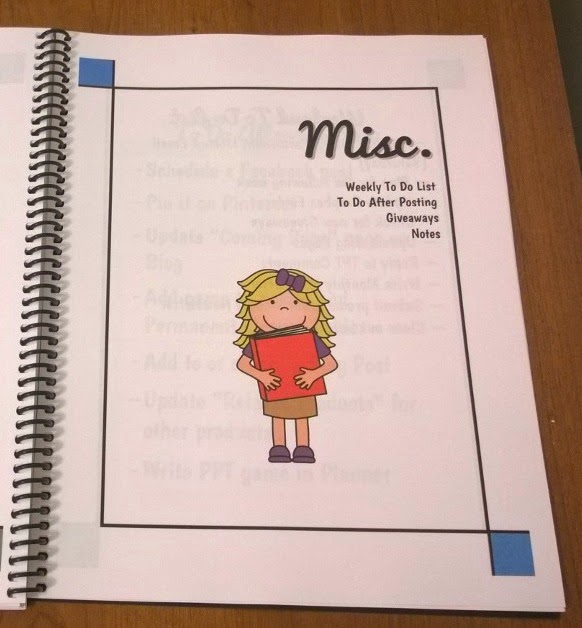
Lastly, there’s the Miscellaneous section which includes a Weekly To-Do List, my “What To Do After Posting” list, “Monthly Giveaway Log”, and Notes section (To be used hopefully for the TPT Conference).
 
WP 20141023 042

WP 20141023 043


Did you know that any donation of your products can be a write off in your taxes? Who knew, right?

WP 20141023 045
 
 
These are taking notes whenever I need them. I plan to use them when I go to the TPT Conference in July.
 
The last pages include my terms of use and a regency black cover (the same you see with most store back covers). I used free fonts I found online and clip art from Zip-A-Dee-Doo-Dah, EduClips, Whimsy Clips, and Ashley Hughes.
 
I made this online at Office Max/Office Depot. You can upload your file and create your own personal planner. You can choose everything, from the covers to the binding to which pages are in color or black and white. Overall, this cost my $32. Luckily, when I purchased this when there was 50% off sale so it cost me $16 for 160 pages (+ $10 shipping). It took a week to be created and shipped (I made it Thursday and received it Wednesday). My Office didn’t have Site-to-Store, but if it, My planner would be all in color.
 
Let me know if you have any questions about my planner. I’d be happy to answer them! Here’s a link to Office Max/Office Depot:http://www.officedepot.com/a/design-print-and-ship/


Class Dismissed!
 
Posted on 4 Comments

Learn Make a Simple Powerpoint Game in 7 easy Steps!

1


Imagine this: It’s the middle of the school year. You’re reviewing a hard subject and you kids are struggling. A test is coming up and it’s time to give a review before you give that big test. What are you going to do to review that’s fun and engaging. Kids love Jeopardy games, but how do I find the right one, especially for the content I teach? 


I’ve run into this problem many, many times. I think every teacher should know, at least, the basic skills needed to make a jeopardy powerpoint game. Take that old test and make a review game out of it.

Cover%2B2


Here’s how to create a 3 category Jeopardy game in 7 easy steps.


1.) Figure out the questions.

If you’re familiar with Microsoft Word, the Microsoft Powerpoint is very similar. To start making a powerpoint game, think about the questions you want included. Write them down on paper or in a notebook. I write my problems in a “Teacher Journal” I bought from the Dollar Tree. It’s so much easy to have them already figured out when you’re inputting them.

WP 20140720 003


2.) Title Screen and Rules

Start working on the powerpoint! You can make  a slide for the title and rules if you like. Just about everyone knows what Jeopardy is so a rules page might not be necessary. I’ll make a simple Addition Game. Dress it up by changing fonts types and the color.

Pic%2B1

Pic%2B2


2.) Scoreboard

Here’s the hard part. The scoreboard may very well be the hardest part. I think it’s pretty easy after doing it a few times. I used shapes for my boxes. Go to Insert>Shapes> Rounded Square. Input 6 of them.


Type in the appropriate text (ex. Category title, $100, $200, $300, $400, $500). Adjust the size, color, and font as you see fit.


Pic%2B4


Copy and Paste works wonders! Select all the boxes by dragging your mouse. Right click “copy” and “paste”. Move them as you like.


Pic%2B5


3.) Question Board
Now comes one of two hard parts: the question slide! This the part most teachers dread. But alas, if you have the questions already made, it can be a breeze! I suggest you start by creating just one slide and duplicating it. If you like, you can create all the slides you need (no answer slides in this tutorial).  Add the title and the amount it is worth up to $500 (5 slides in all).


Pic%2B6


Again, the joys of Copy and Paste. You can select the 5 slides you created, copy and paste them twice. Change the names of the categories. Now add your questions! Create 2 text boxes: one for the question and one for the answer. Also, create 2 shape buttons named “Answer” and “Scoreboard”.

Pic%2B8


4.) Hyperlinking the scoreboard and questions
The second hardest part. Hyperlinking allows you to click on a certain part of the powerpoint and it will take you somewhere else. This can be another slide, a website, or even to another document. In this case, we will hyperlink to another slide.

Start by right clicking on the “scoreboard” button and click hyperlink.


Pic%2B9


A Box like this should appear. Next, click on “Place in the Document.” Find the “scoreboard” slide and select it. A picture of the slide should appear (red box). Click ok. You can test it out by going into slideshow mode and clicking on “Scoreboard”


Pic%2B10


If you are successful, repeat the same process for you scoreboard. Link each amount to its corresponding slide.


5.) Answer Animation
With the hard parts out of the way, the last thing to do it make the answers appear. Start by clicking “Animations” and “Custom Animations.  A “Custom Animation” box should appear on the right side of your screen. Next, click on the answer to the question (not the answer button like the scoreboard button), click “Add Effect”, and choose and “Entrance” effect such as appear, blinds, or box.


Pic%2B11Pic%2B12


 It will automatically show you a preview. Choose your favorites. Last, we need to make the answer appear when you click on the “Answer” button. Click on the small down arrow on the Custom Animation box and click on Timing. once there, click on “Trigger”>Start Effect on click of”> Answer Button (whatever shape you chose).


Pic%2B15


6.) Disappearing Amounts
Lastly, let’s make those amounts you click on disappear after you click on them. Repeat the above step. Click on the amount, choose a custom animation, only chose “Exit” instead of “Entrance”. Change the trigger to the amount. Repeat the process for all the amounts. Test the animations by going into “Slideshow”

Pic%2B16

7.) Dress it Up
If all the hyperlinks and animations work, you can now customize it yourself! Create a background ground or add some clip art! Even add a “Double Jeopardy” or “Final Jeopardy” questions. Add some music or sound effects.  Here are some backgrounds to get you started.

Don’t have time to make one? You can purchase editable powerpoint game templates! Each template comes with a powerpoint with all the links and buttons ready to go! All you have to do is add the questions and clip art!


I hope you’ve enjoyed this tutorial. Subscribe via email or bloglovin’ for more powerpoint tutorials, tips, and tricks. Check out my TPT Store for awesome Jeopardy games and other games too.
Posted on

TpT Tips: What to Do After Posting a Product

Post%2B%2326


Here are some more tips for TpT Beginners. Have you ever finished a product and posted it? Ever thought if there was anything else you could do before moving on to the next product? Here are 7 Things you can do after you’ve posted a product.


1.) Schedule a facebook post.

After posting your new product(s) on TPT, it’s time to start advertising! One of the best places to start is Facebook. If you haven’t set up a facebook page for your store, do so. Post your product, giving a small description to viewers. Offer it half price to really catch them. Use the original picture of your product (the same cover picture you used on TPT). The bigger, the better and don’t forget the link. If you want, you can schedule the product to posted at a later date by clicking on the clock on the bottom left hand corner on your post. You can set it up as later as 5 minutes or 5 days from now.


2.) Have a Flash Freebie or Giveaway

Make your product as a flash freebie is a great way for buyers  look at your product and get instant feedback. Flash Freebies can last anywhere from a few minutes to one day. Having a giveaway is also great too. It exposes your page to other viewers, especially if they share it or tag a friend.
 
3.) Pin it to Pinterest
 
Pin your product! Pinterest is free advertising for your product! Pin it to as many boards as you can! The more you pin it the more exposed your product becomes. Create a nice picture of your product that you upload from your computer.  They look much better than if you pin it using the pin button from the product page. Try using large pictures or real-life pictures of your product in use.
 
4.) Back Up your Product
 
I  can’t tell you how many times my products have jumped from one computer to another. Make sure your completed item is backed up and in a safe location. I recommend Dropbox because you can continue to work on it and it will automatically save to the web. You can also access it via the website from any computer. Other sites like Google Drive, SkyDrive, and MediaFire are great too.
 
5.) Add it to a “List of Inventory”
 
I keep track of every powerpoint game I make. Keeping a record of products helps me to keep track of the many games I have made. It gives me a reference. A place to go to when I need to know if I have made that particular product before. I keep a simple list of the item number, post date, and the product name. TPT also keeps a list of your products, but it nice to have a hands-on list whenever my computer or cellphone is unavailable and an idea comes to mind. I keep this list in a planner I created and use on a daily basis.
 
6.) Blog about it!
 
If you have a blog, write about it! Show buyers it works! The more pictures, the better. Showcase how it works and explain how it can be better for a teacher classroom. Whenever I am excited about a new product, I blog about it. When I created my first game that was not Math (All About Plants), I was estatic! It was the first game I had made since starting TpT that wasn’t a math game. I blogged about it. I continued to blog about new games that I think are awesome!

7.) Promote it on Social Media!

This is a given! I’ve already mention Facebook, Pinterest, and Blogs, but there’s so much more!! Tweet it! Instagram it! Add it to a Linky Party! Use the Seller’s Forum on TPT to promote it! Youtube it! Podcast it! Everyone has at least one of the social media sites I mentioned so why not put them to good use?
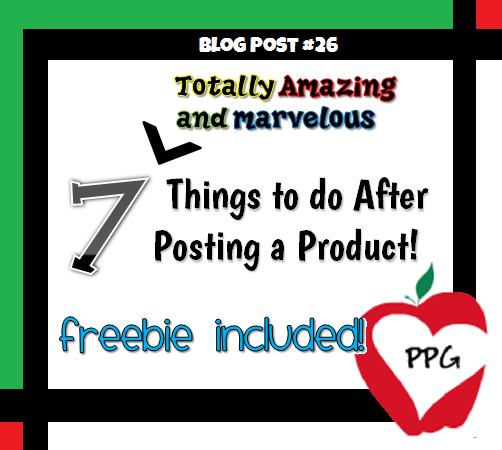


There are so many ways to get your products out there. Doing these things will surely increase sales and expose your store to others. I’ve included a mini poster with these steps to help you out in both color and black & white. Enjoy!

7%2BThings%2B %2BPosting%2Ba%2BProduct%2BpIC%2B17%2BThings%2B %2BPosting%2Ba%2BProduct%2BpIC%2B2

Get this poster by clicking here:


Class Dismissed!

Name


Posted on

TpT Tips: 5 Tips for TpT Beginners

5%2BTips%2BTues%2B1
 
 
I’d thought I’d share a few TpT Starter Tips that I learned over the years and what I think are some important things to do.
I’ve been a TpT Seller sine 2011. It’s been a great journey in the 3 years I’ve been with TpT. I remember trying to find free resources for my 5th grade Math and  Science class. I stumbled upon TpT and loved it. Who would have thought that if you could sell items on eBay, you could sell your classroom products? I’ve sold products on eBay before, but not like this.
 
 
Looking back now, there are so many things I had wished I had done. It would have helped me when I first started. I’m going share what I learned.
 
 
5%2BTips%2BTues%2B2
Being a new seller can be scary. You might be thinking “How do I post a product? Will it sell? How do I know which products do I create? How much should it cost?” These were my questions too. The best way to start is to get an account and follow a few TpT Stores. Don’t worry about your store name. You can change it later. Follow some of your favorite sellers. See what kinds of products they create and what they do to advertise. If possible, email them and ask those questions. Check out the TpT Seller’s Forum for help too.
 
 
5%2BTips%2BTues%2B3
If you think you can handle it, then it’s time to get started with your store. Time to think of a name and design. You can create one yourself or have others create one for you for a price. There are lots of commercial-free designs you can use. Be careful when choosing a name. You want a name that’s easy to remember and not too long. Some TpT sellers use their name like Kim Geswein. Others use names for the products they mostly create like me.  Choose carefully because it will be hard to change your name later if you don’t like it. Think about Wachovia. . . . .
 
 
5%2BTips%2BTues%2B4
 
Once you’ve decided on a name, get on Social Media immediately! That is, establish your name. You want to get your name as soon as possible. You want to be the one and only store with that name. Get on Gmail, Facebook, Twitter, Instagram, BlogSpot/Blogger, Pinterest, BlogLovin, and any other social media you want. You don’t have to do anything yet. Just get your name so that no one else can take it. Don’t wait, especially for Gmail and Facebook. I didn’t get the Gmail name I wanted when I started. Same with BlogSpot. Someone else had the email name “powerpoint gaming” so instead, I had to come up with an alternative.
 
 
5%2BTips%2BTues%2B5
Now that you have a name, you can share those awesome ideas and creations. Remember fair pricing. Don’t over price products, but don’t under price your hard work. Decide on a price range for your products. Ask yourself “Would you pay $$ for this?” Don’t forget about terms of use. Make sure you have decided what buyers can and cannot do with your products.
 
 
5%2BTips%2BTues%2B6
 
Once you have a few products posted, it’s time to advertise.  You can pin it to Pinterest. Share your new products on Facebook. Write a blog about it. Have a quick giveaway or post it as a flash freebie. Do whatever it takes to get your products out there. The TpT Seller’s Forum is great for promoting your products and sharing you social media pages/sites.
 
 
I hope these 5 tips get you off to a great start!
 
 
Class Dismissed!