Category: Tutorials
5 Fantastic Tricks & Tips – Using the Selection Panel to Label Objects
Change your File Folder icon!
Working with Paper Puzzle Pieces

When your working with puzzles, it’s always great to have a little guidance. Whether you’ve been teaching for 1 year or 10 years, it’s always great to have some extra help. Here are some tips and tricks for working with paper puzzle pieces.
Tip #1 – Gather your materials!
Let’s face it. There are not a lot of puzzles for subjects like the 3 Branches of Government or animal life cycles. Time to grab all the materials, clip art included, for the puzzle you’d like to make. Save some time by having the source materials with you for easy access.
Tip #2 – Find some puzzle pieces!

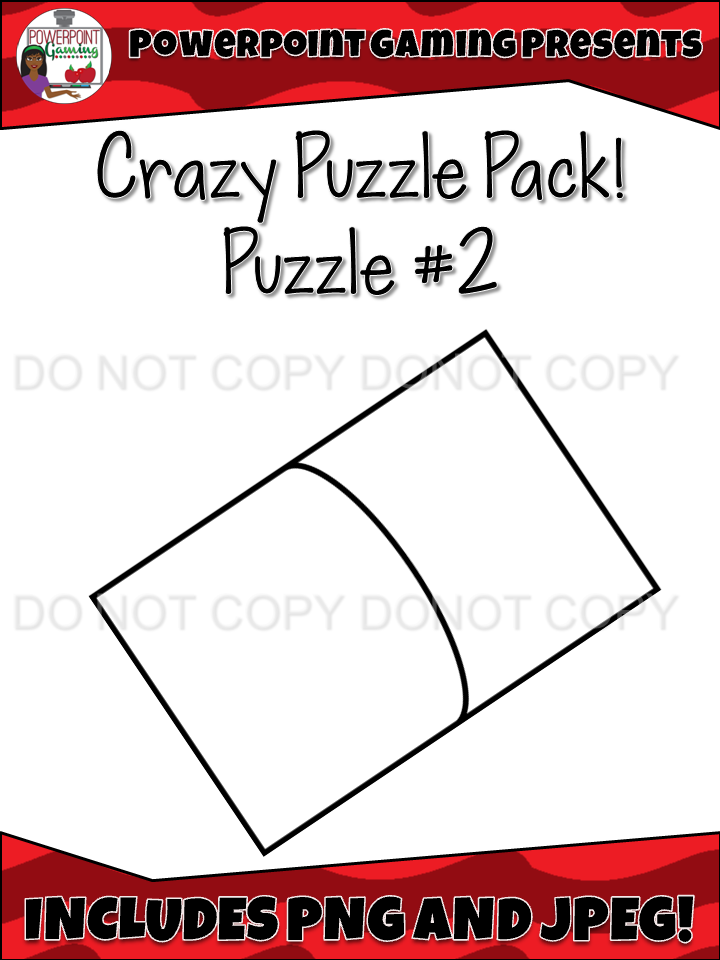
When you have your designs all figured out, it’s time to decide what type of puzzle you want. Do you want the traditional puzzle or something different. Maybe a two piece puzzle or even a 3 or 4 piece. I have a few free puzzle templates in my TPT Store.
Tip #3 – Use strong paper!

If you decide to create your own, print them out on some durable paper. I bought a pack of 75 white cardstock sheets from Big Lots from $2.50. The stronger the paper, the longer they will last!
Tip #4 – Laminate them!

Just about every school has a laminating machine. Once you’re done print and cutting them our, get them laminated. Laminating the cards will help them last much longer. If your school doesn’t have a laminator, simply take them to Office Max, Staples, or a postal store (like Postal Annex) and have them laminated there, though it can get a little pricy.

You could always buy your own lamination machine. They can run anywhere from $20 to $100, depending on the model and make. I bought mine from Wal-Mart for $45 (including the 20 thermal pouches). They do sell starter kits for $20 which includes 3 pouches.
Tip #5 – Store them!

Now your cards are ready for student use, but where to store them? I’ve seen teachers store them in soap bar boxes from the dollar tree. Others have them in plastic bags with rings. If you’re on a budget, I’d go for the latter. You can buy plenty of zip-lock sandwich bags and label them accordingly.
Tip #6 – Buy them
If all else fails, buy them already made! Time is always a factor. If you need it by Friday and it’s already Wednesday, you may have to buy them yourself. There are plenty of sellers on TPT with tons of puzzle pieces sets.
Tip #7 – Teach Kids to handle with care!
One of the most important tips is to teach your students to handle the puzzle pieces with care, especially if you made them. Whether you plan to use them 1 time or 100 times, students should know that these pieces need to be taken care of properly so that student next year can enjoy them too.
I hope you found these tips useful in your classroom. Don’t forget to stop my TPT store for some printable puzzle pieces!
Create an AWESOME Coupon Book!

Do you have coupons or reward tickets in your classroom? Here’s a fun way to organize all those coupons and reward tickets you give out to your students in 5 easy steps.
Here’s everything you’ll need to make your book:
- Coupons/ Reward Tickets
- Scissors
- Stapler
- Scrapbook Scissors (Optional)
Step 1: Print it!
Print out your coupons. There are several different coupons/reward tickets on TPT. You can purchase my coupon book for only $2.
Print out your coupons. There are several different coupons/reward tickets on TPT. You can purchase my coupon book for only $2.

Step 2: Cut it!
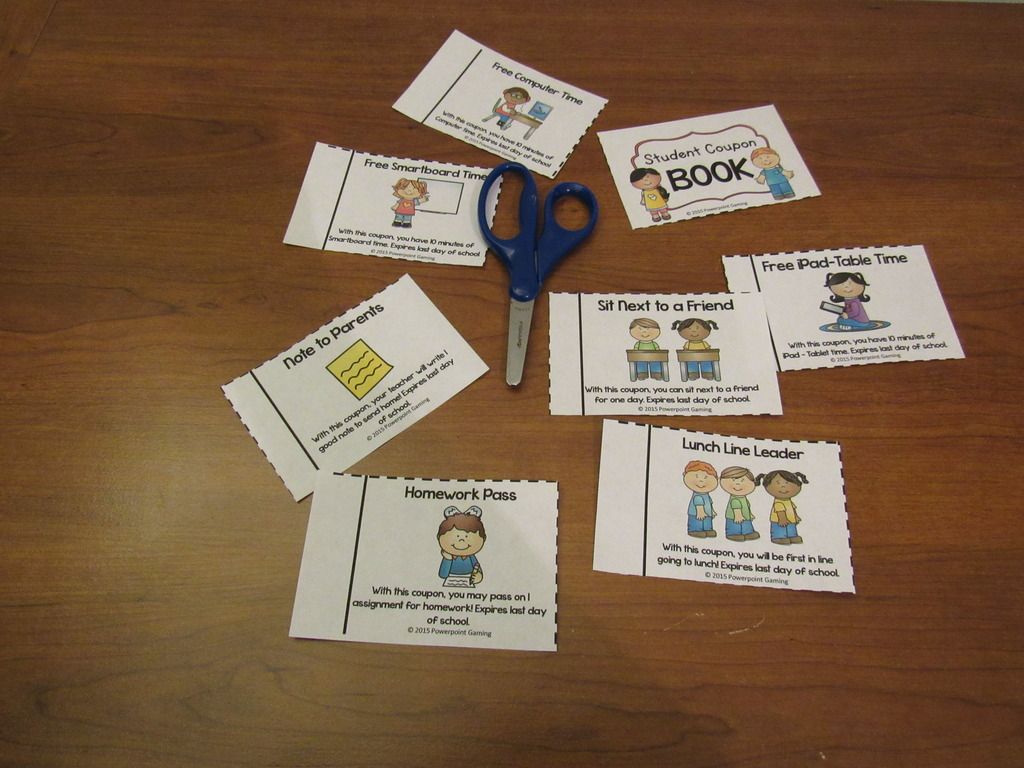
Cut out each coupon/reward ticket. With my coupons, simply cut on the dotted lines.
Cut out each coupon/reward ticket. With my coupons, simply cut on the dotted lines.
Step 3: Organize it!
Add whatever coupon/reward tickets you like. Choose the ones that apply to your class. You don’t want a coupon for “Free Smartboard Time” if you don’t have a Smartboard in your classroom! Line up the solid black lines as best you can.
Add whatever coupon/reward tickets you like. Choose the ones that apply to your class. You don’t want a coupon for “Free Smartboard Time” if you don’t have a Smartboard in your classroom! Line up the solid black lines as best you can.
Step 4: Staple it!
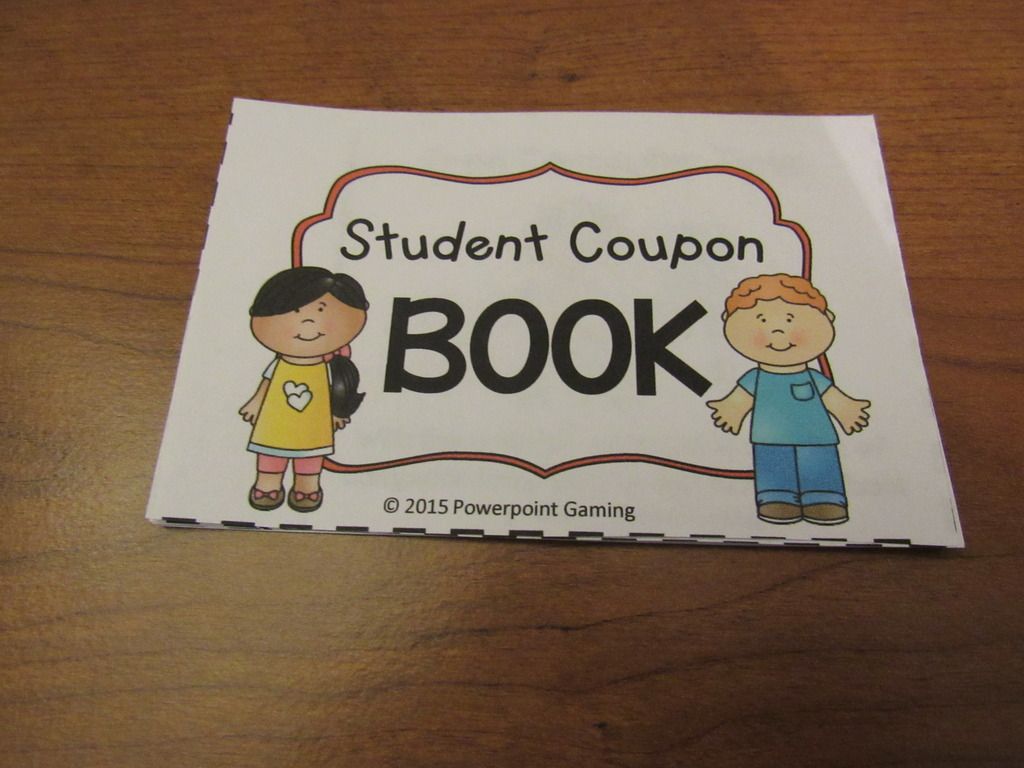
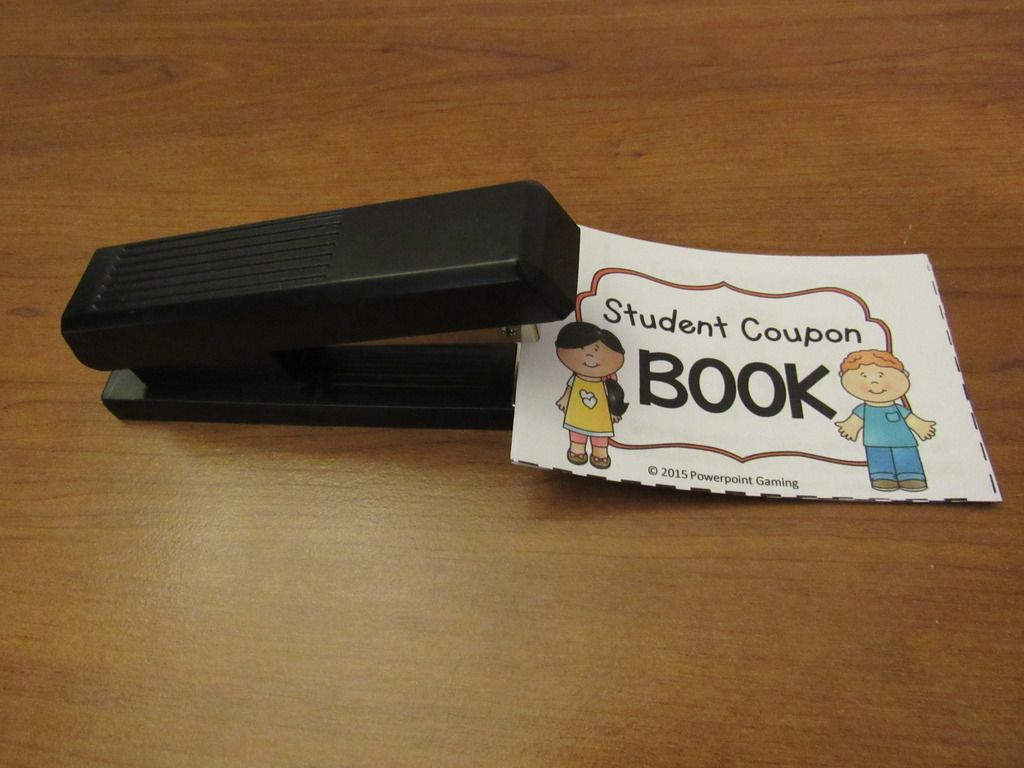
Staple the book together in the center left-hand side.
Step 5: Perforate it!
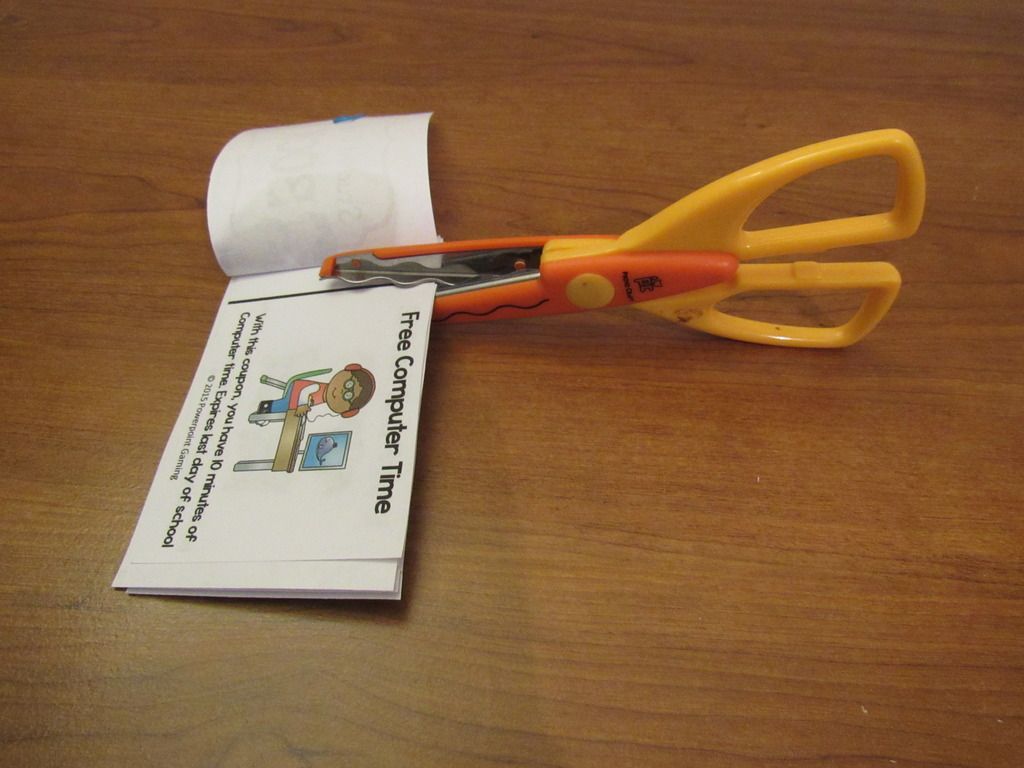
Here the tricky part! Open the book. Cut about 1 inch into the solid black line on the top AND bottom of each coupon. DO NOT CUT ALL THE WAY THROUGH. There should be about 1 inch of paper still there. Depending on how many coupons/reward tickets you have, you can cut them all at once. You can use the Scrap paper scissors for cool wavy designs.
Here the tricky part! Open the book. Cut about 1 inch into the solid black line on the top AND bottom of each coupon. DO NOT CUT ALL THE WAY THROUGH. There should be about 1 inch of paper still there. Depending on how many coupons/reward tickets you have, you can cut them all at once. You can use the Scrap paper scissors for cool wavy designs.
Create books to give out to your students or create a book of the same coupon and hand them out as you go! You can purchase my coupon book which includes 15 different rewards.

I hope you enjoyed this “Create it” tutorial. This DIY coupon book works for just about any set of coupons you use. Be sure to pin this post to use anytime you need it!

5 Helpful Tips for taking TPT End of the Month Inventory

How to do you stay organized in your TPT store?
How do you keep track of all your sales?
Do you really keep every receipt?
These are a few questions TPTers are asking, especially new sellers. Since the beginning of January, I’ve been keeping up with my sales and it’s been great for me! I’d like to share some tips that help me keep track of my expenses.
Tip #1:
Buy an Expandable File Folder!
Buy an Expandable File Folder!


On a whim (and because it was on clearance), I bought this expandable file folder. There are 12 pockets (13 if you use the front pocket), one for each month of the year. It comes with the monthly tabs for you to insert or if you have OCD, like me, you can create your own. It also comes with letters of the alphabet and blank tabs to create your own label.

Every time I made a purchase, I would place the receipt in the appropriate month. This brings me to my next tip.
Tip #2:
Save every receipt!


Yes, save every receipt from every single purchase made for your store, no matter how little. I make trips to the Dollar Tree, sometimes just for some post-its. I save that receipt and when I get home, I place it on the folder.
Use highlighters to highlight purchases on receipts with multiple purchases or just make a separate purchase (just let the cashier know).

If you have to make a purchase using PayPal, print the sale transaction from Paypal.com. Just make a note about what the purchase it so you’ll know what it was for. Let’s face it. You’re not going to remember every purchase made a year from now.

If you have a PayPal account, get a PayPal business debit card. It’s a MasterCard so it’s used practically everywhere.
If you make a purchase on TPT, print it out and place it in the folder. It will come in handy in the future. Did I mention every purchase for your store is Tax-deductible?
Tip #3:
Invest in a printer, ink, and paper!


If you don’t have a printer, get one! Printing receipts for online purchases as you make them can be critical. Even though you can pull it up online, if the power goes out or the IRS wants a physical proof of a purchase, you’ll already have it. You won’t have to find it and pray that you didn’t delete a purchase from your purchase history.

If you need to buy ink or paper, don’t hesitate to buy it! Since it’s for your business, it’s tax deductible. I bought a wireless printer on Black Friday for $27.
Tip #4:
Keep track of all the giveaways!

If you host a giveaway and include gift cards, save your gift card receipts. If you give away a Shopping Spree to your TPT store, keep a record of it. I write down the name of the giveaway, the name(s) of the winners of the giveaway, the start/end date of the giveaway, and what products they won or want (shopping spree/winner’s choice). I keep this record in my TPT Planner until the end of the month.
If you donate to a giveaway hosted by another seller, keep a record of it. I collect the same information as before and I also include the name of the giveaway and the host. This is also recorded in my TPT Planner.
If you donate to Donorschoose or a GoFundme Project, print out a receipt. It may be tax deductible, especially if the donation is from your business. Be sure to check with your tax preparer. It doesn’t hurt to ask!
If you donate to Donorschoose or a GoFundme Project, print out a receipt. It may be tax deductible, especially if the donation is from your business. Be sure to check with your tax preparer. It doesn’t hurt to ask!
Tip #5
Use Microsoft Excel!

This is the part I dislike the most. The last few days of the month, I check through all my expenses and type them ALL in a Microsoft Excel Spreadsheet. Yes, this can be a tiresome ordeal, but this will give you an online copy of all your purchases you’ve made and items you’ve donated throughout the month. You can set the spreadsheet to do all the calculations for you and you can include whatever information you choose. I print it out and place it in my file folder as a cover sheet for each month.
My cover sheet is divided into 3 sections:
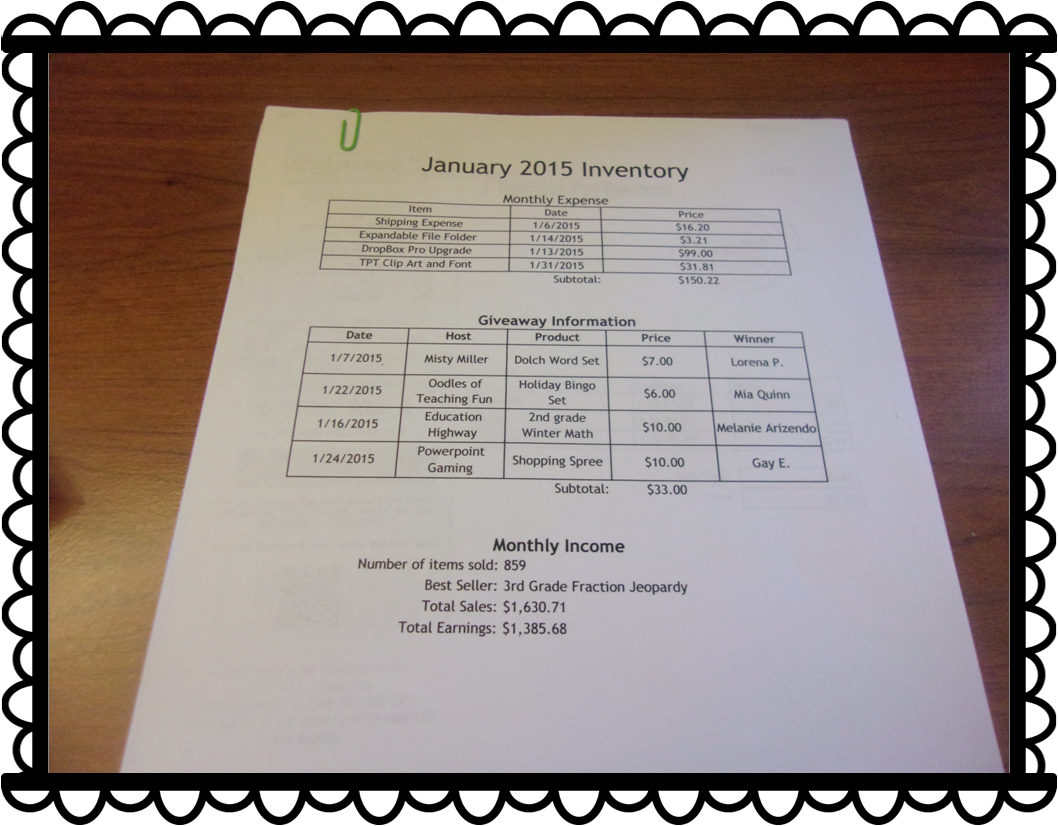
In the Monthly Expenses section, I include the name of the item or purchase, the date of purchase, and the price. All my TPT purchases are added and placed at the bottom.
-
Monthly Expenses
-
Giveaway Information
-
Monthly Income
In the Monthly Expenses section, I include the name of the item or purchase, the date of purchase, and the price. All my TPT purchases are added and placed at the bottom.
In the Giveaway Information section, I include the date, the hosts (even if it was me), products, prices, and the winners.
In the Monthly Income section, I include the number of items sold, the best selling product (and number sold), total sales, and total earnings.
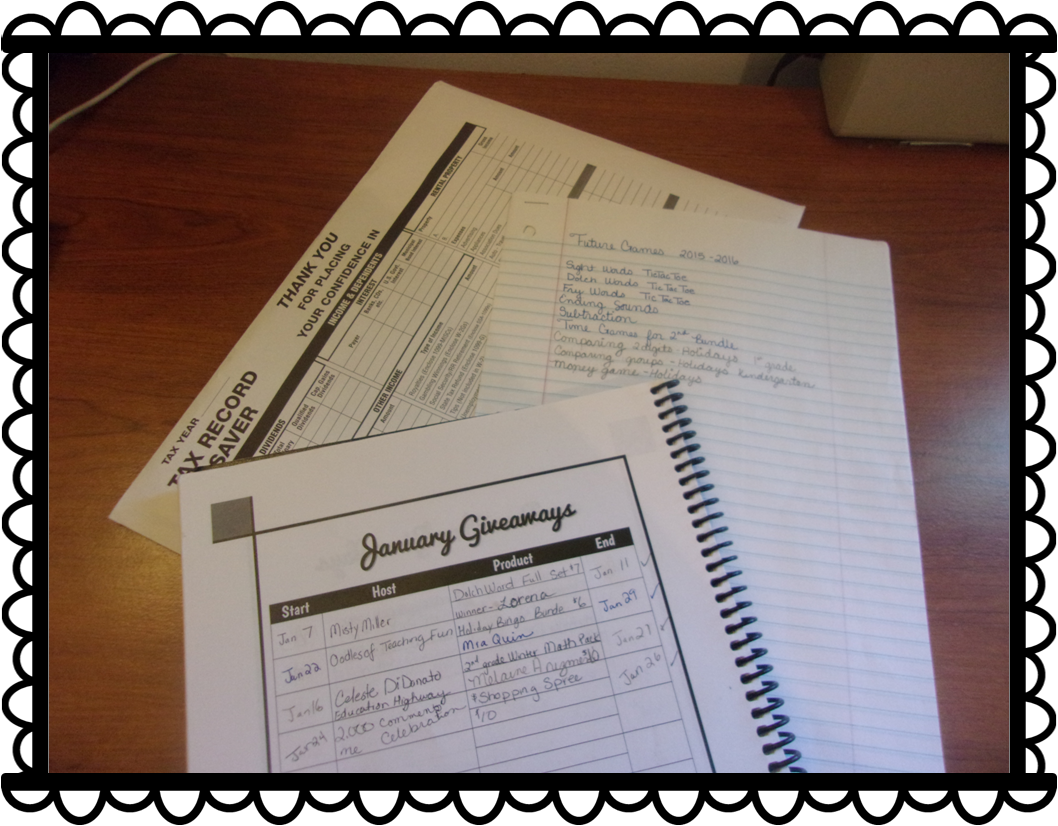
I print it out. I collect all the receipts and paper clip them all together on the top and bottom. For those small in-store receipts, I place them in an envelope and label the envelope whichever month it is.
What does this do in the long run?
Keeping track of my inventory gives me a good reference point. I can check to see what items sold best during certain times of the year. I can decide if I need to cutback on expenses or if I can make more purchases (clip art addict and KG Font addict). It will be even more helpful when it comes Tax Season. I won’t have to search my house for every little receipt. It will all be in the same place all neat and ready to go.
Other things to add to the folder:
- Taxes from the Previous year
- Idea list for next year
- Important emails & forms (like plane tickets and hotel reservations)
- End of the Year Statements
- Annual Purchase Statement from TPT
- Goals Check-List
- Anything Busniess or Tax Related
I hope you found this post to be useful. Here’s a few freebies you can use for your file folder.
Giveaway Information Sheets
Inventory Check-List
Enjoy! Class dismissed!