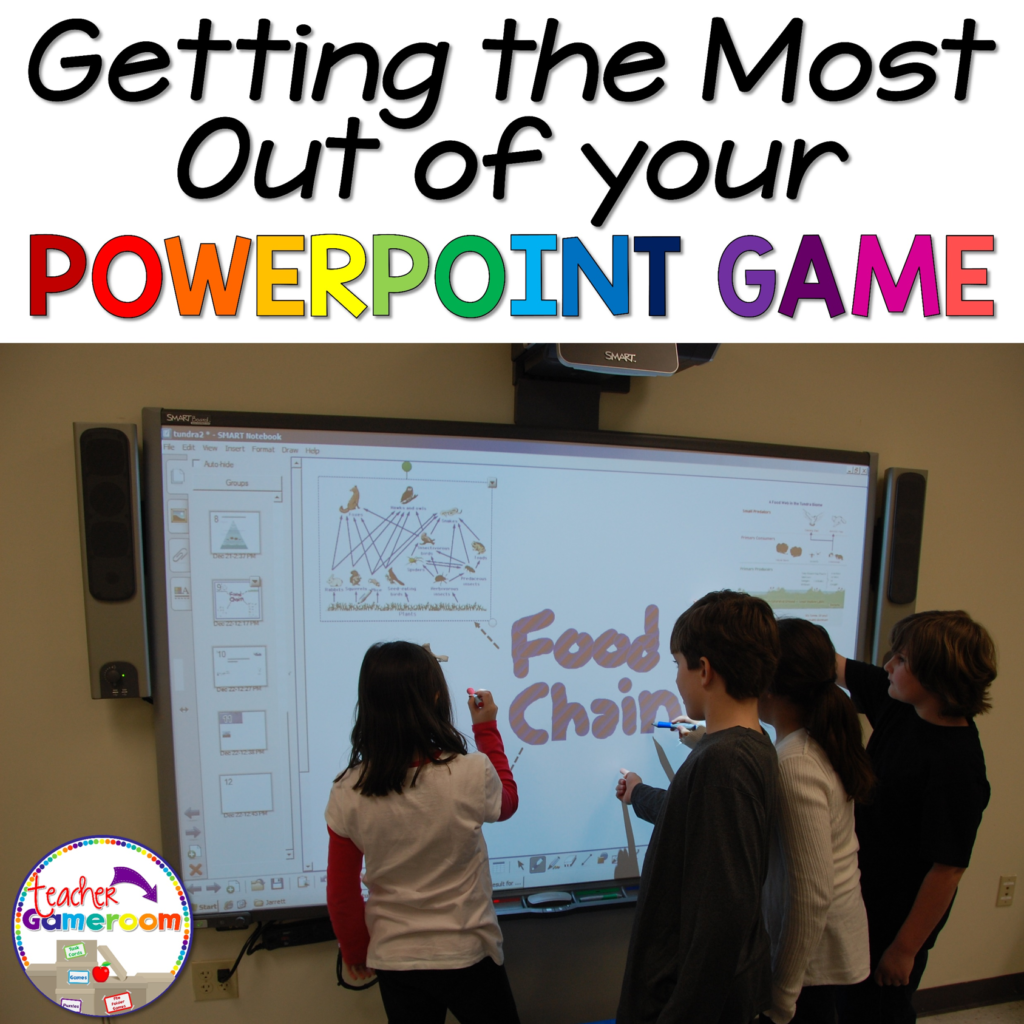
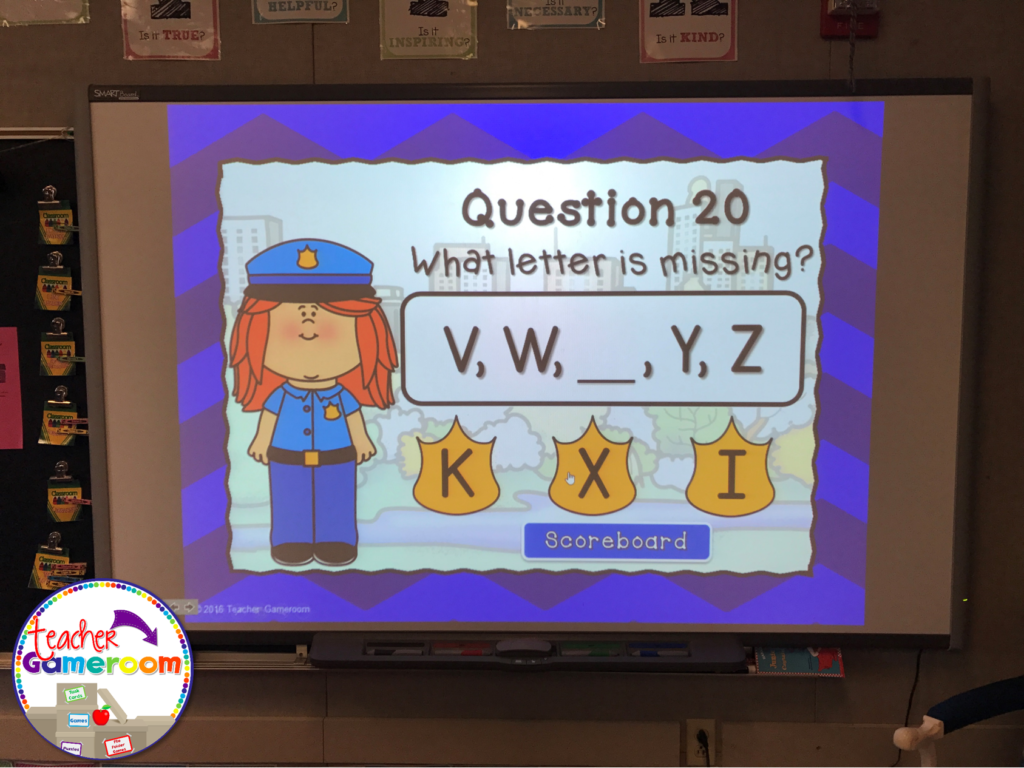
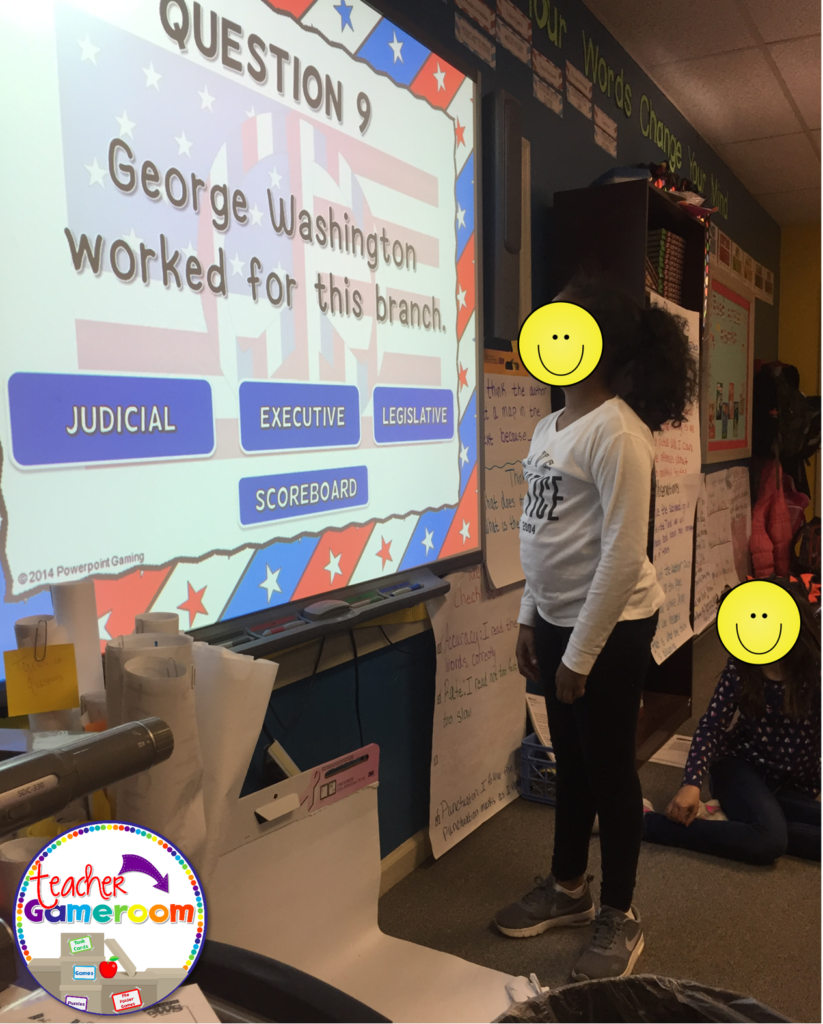
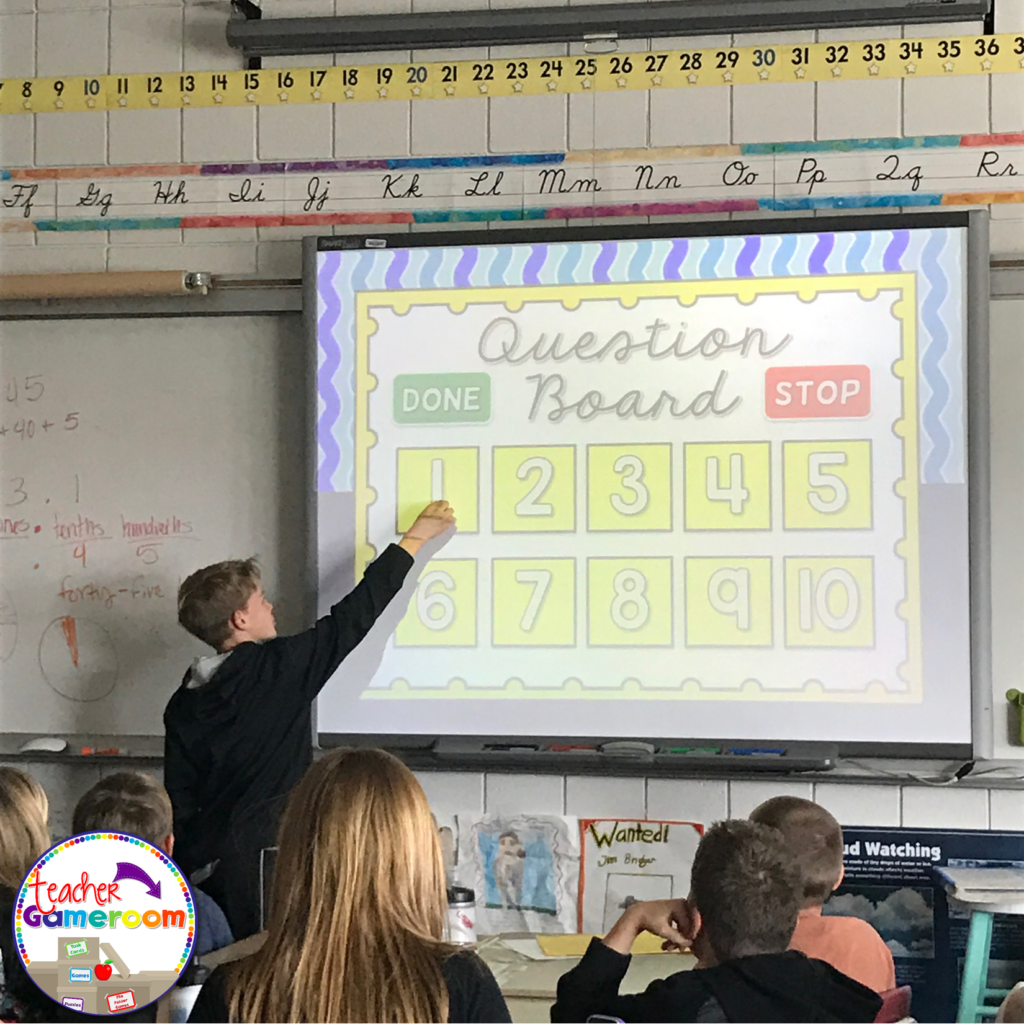
Using PowerPoint games are wonderful! They can truly enhance any lesson and kids love it. The first time I used one, my students were engaged the entire time! I know it was something I definitely wanted to invest in. If you’re unsure about using PowerPoint game, read “Getting the Most of out PowerPoint Games” here.
But did you know there’s more than one way to use them? I was messing around with some games and learned a few things I’d love to share with out. If you don’t have an interactive board, tablet, or Smartboard or a even a classroom computer, this is the post for you! Here are 5 ways to use a PowerPoint game.
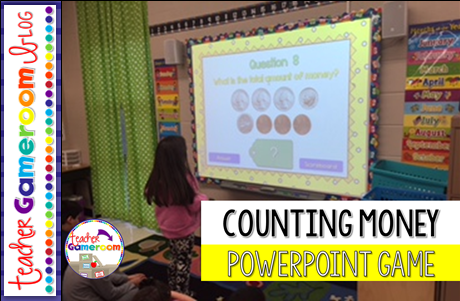
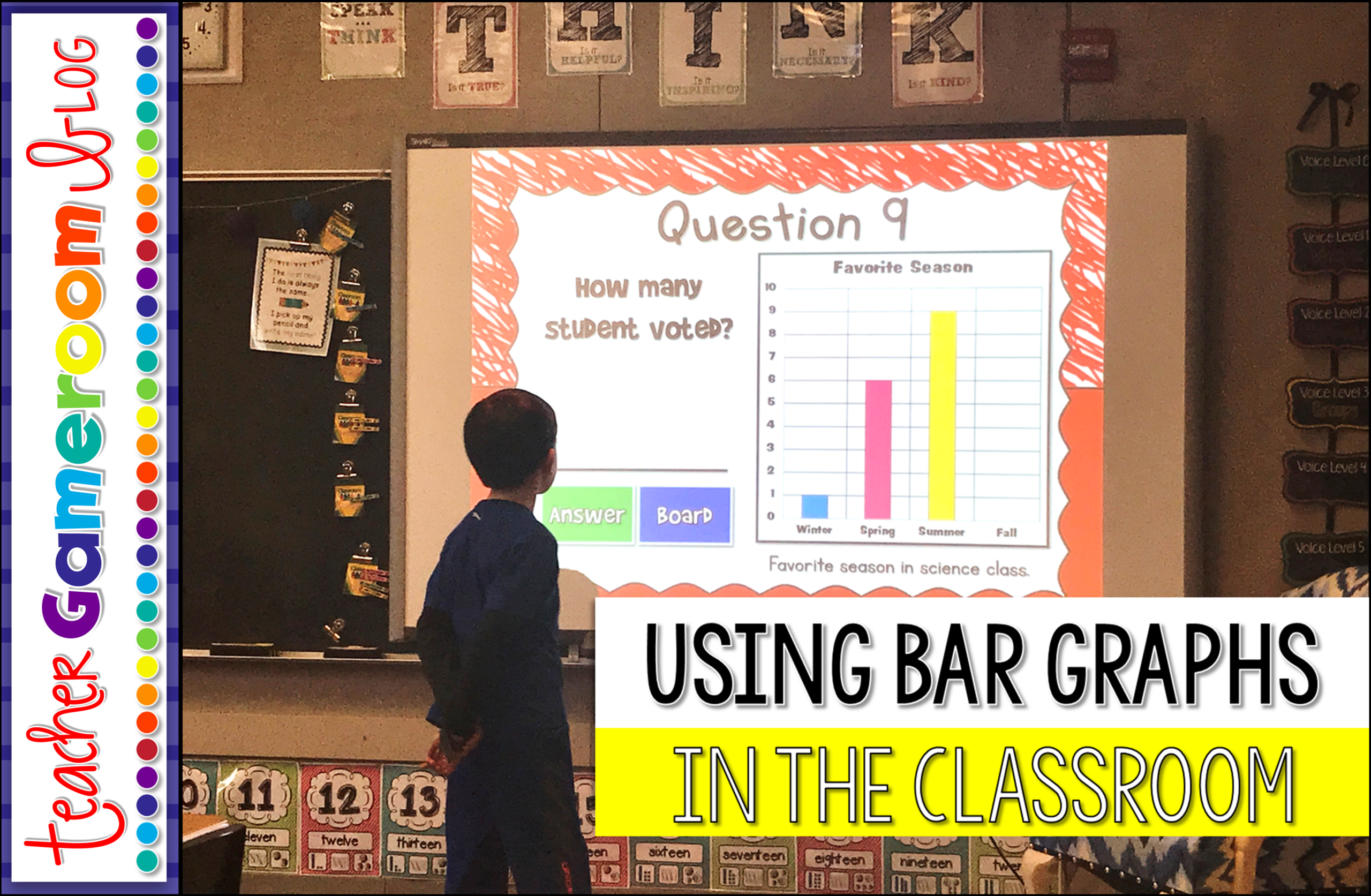
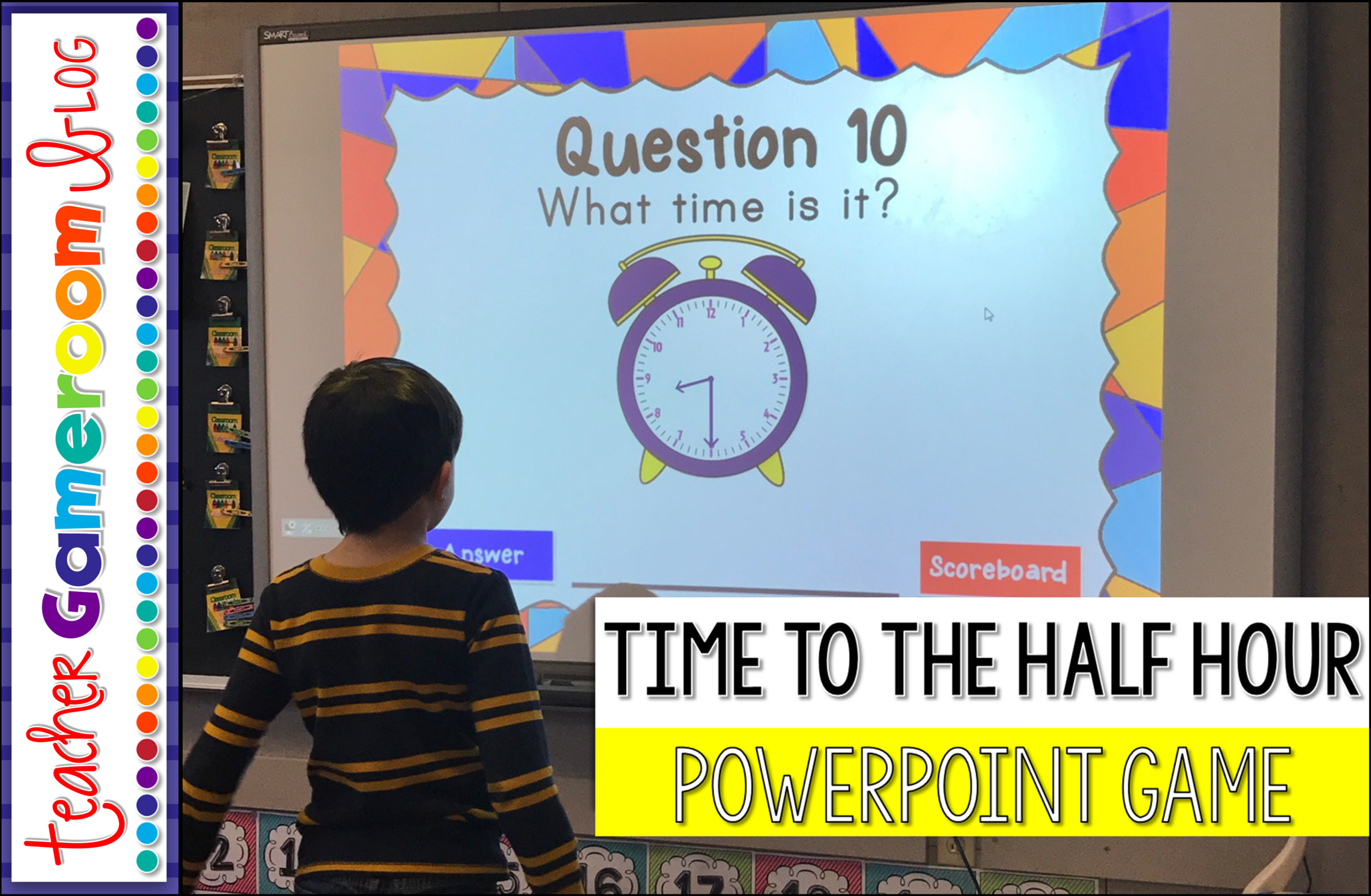
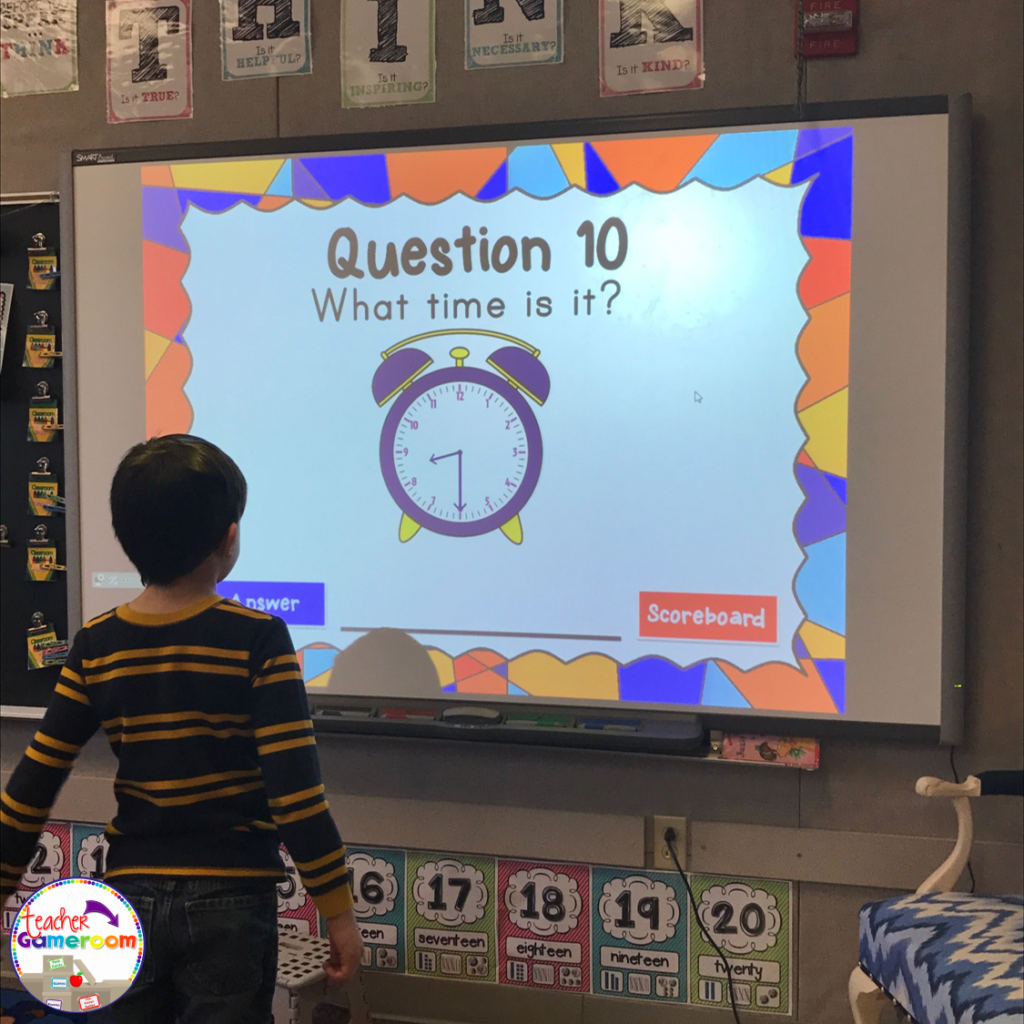
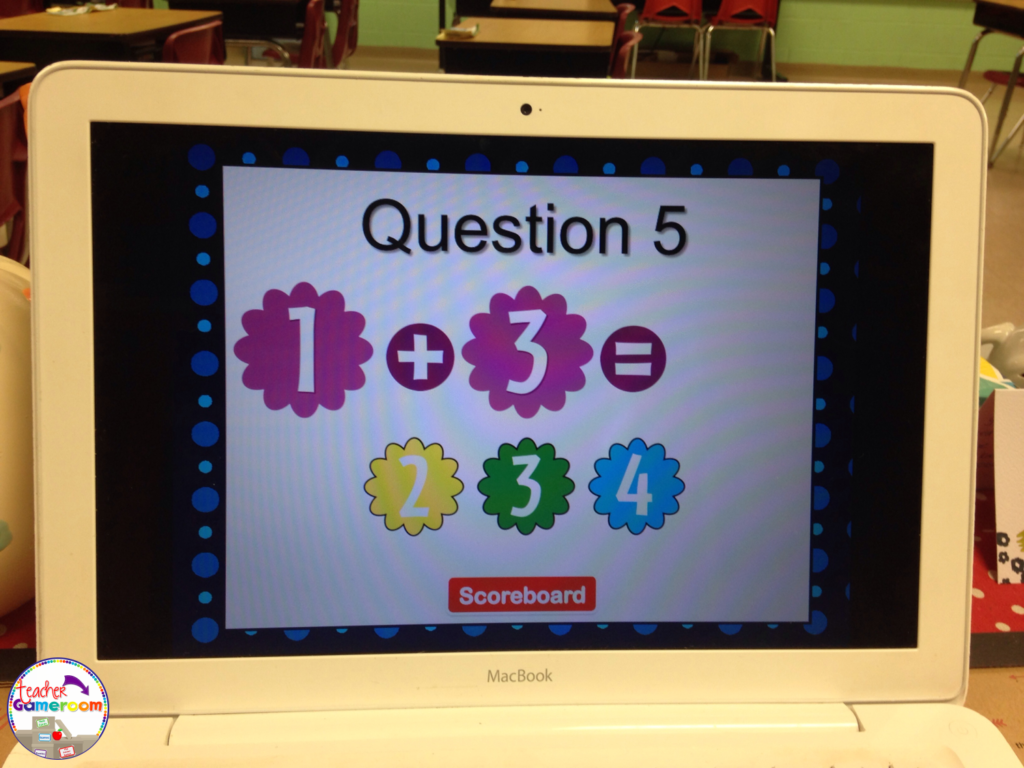
1.) The Traditional Way No explanation needed here. PowerPoint games can be used on any device that has Microsoft PowerPoint or Microsoft PowerPoint Viewer (FREE). Just load it up and your ready to go. NO PREP NEEDED. Such a timesaver and great for centers. Learn about this game in this blog post: Time to the Half Hour PowerPoint Game
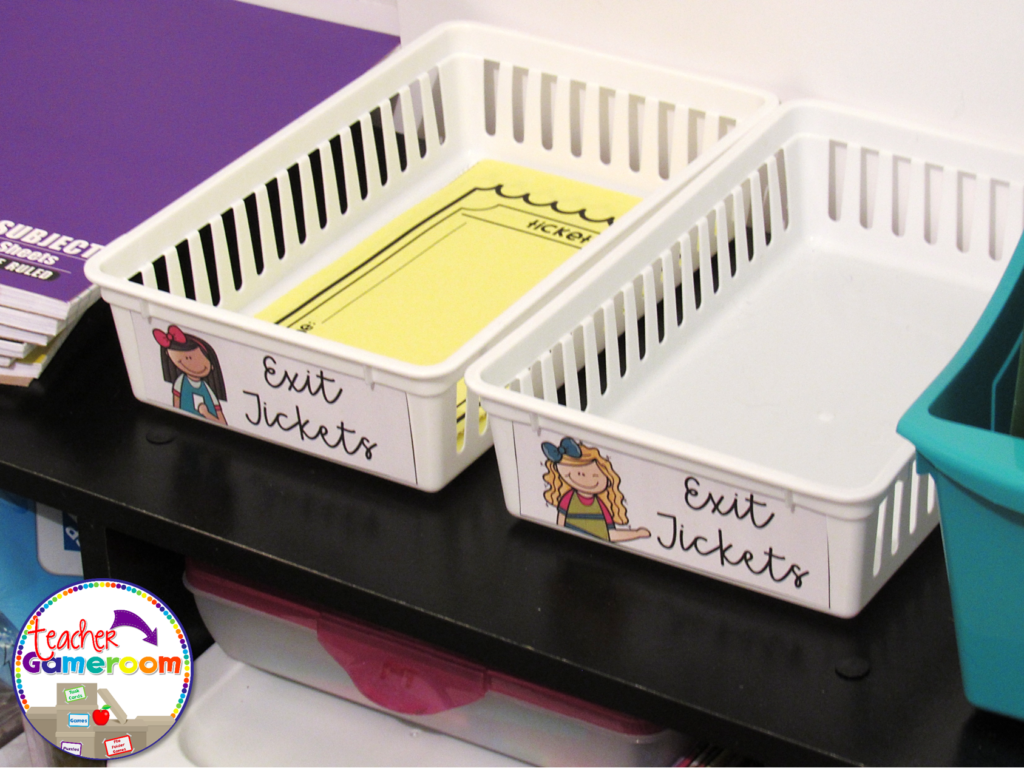
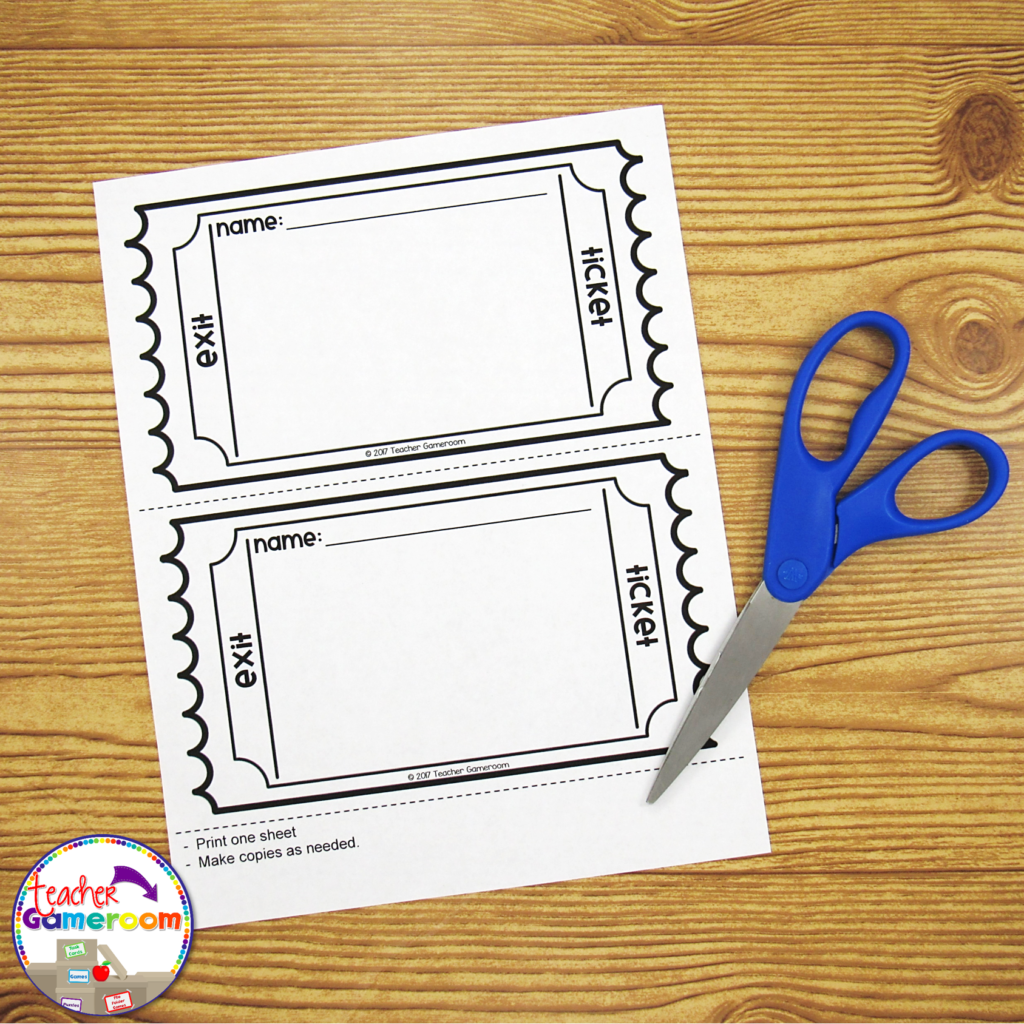
2.) Exit Ticket If you use exit tickets, you’ll love this! Exit Tickets are questions given to students at the end of a lesson to test the knowledge and understanding of that lesson, usually in the form on 1 question on a small piece of paper. The student turns it in and later, the teacher checks it to see which of their students understood the lesson. Learn how to use EXIT TICKETS here: How to use Exit Tickets in the Classroom
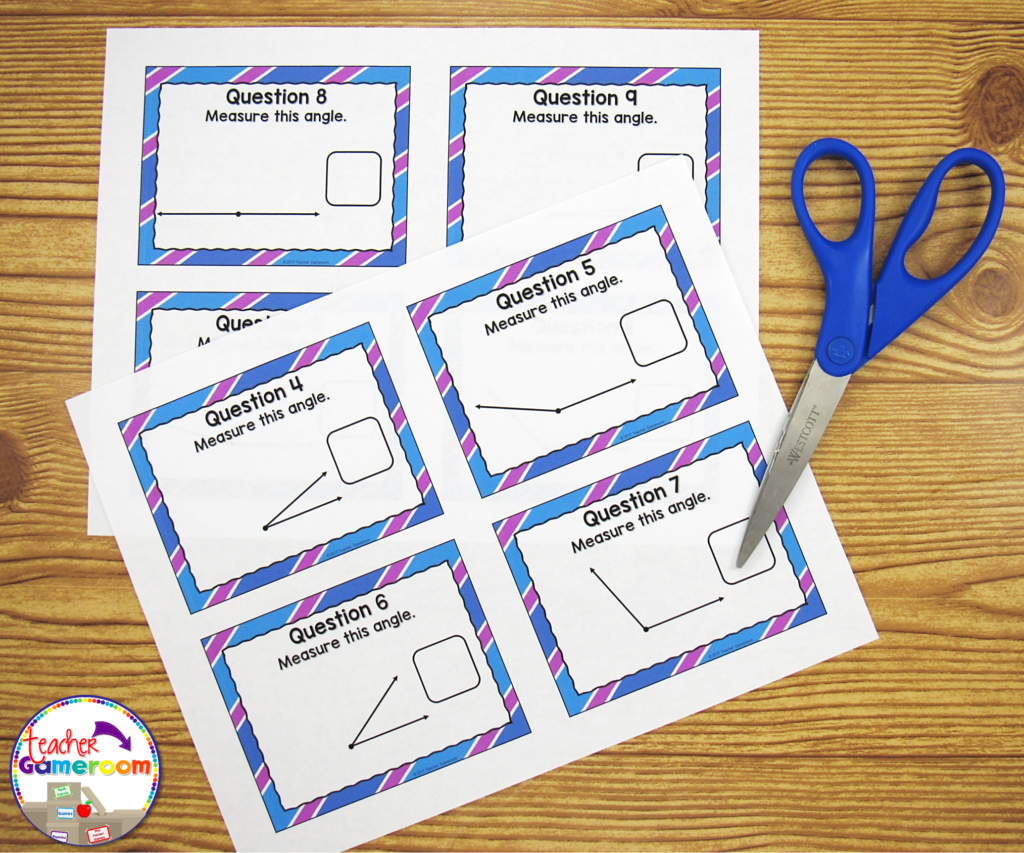
You can use the questions from a PowerPoint game just for that! Print out one question for each day of the topic you’re teaching. Click on the print button and print “4 slides per page”. Make copies and cut them out. Use one question each day as an exit ticket. Most games I create have 20 questions. That’s a whole month’s worth of tickets for one topic!
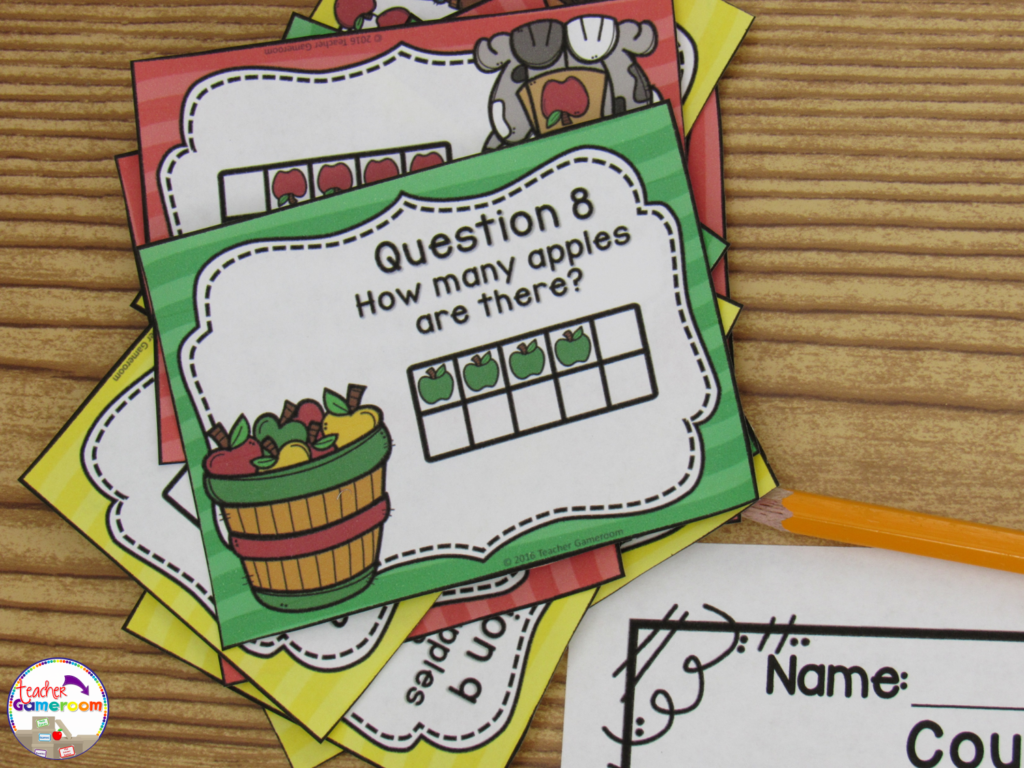
3.) Task Cards
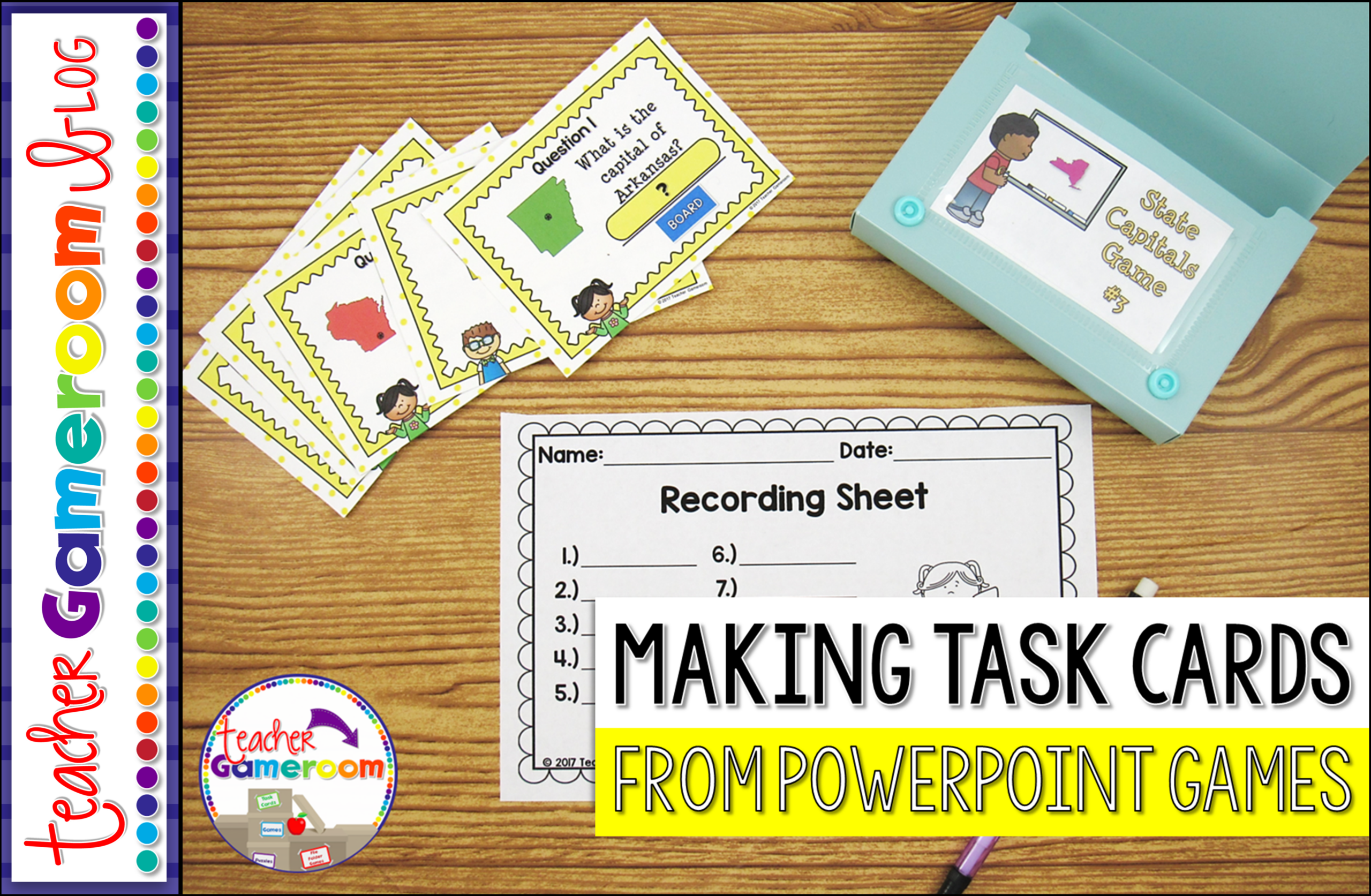
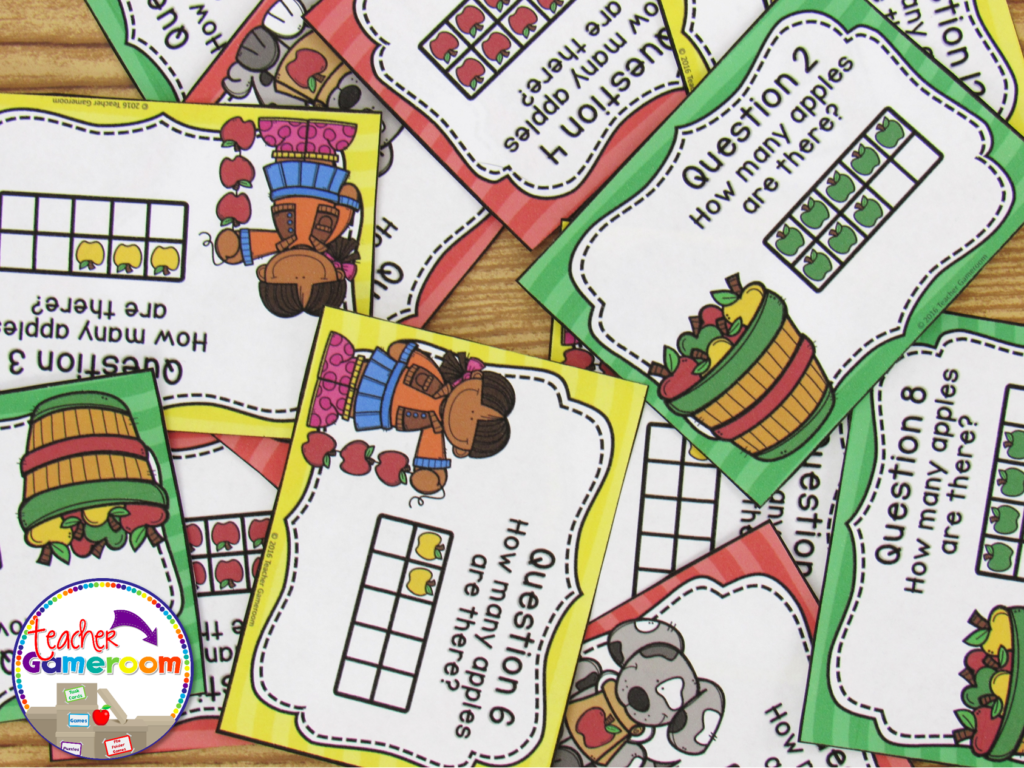
Task cards are cards that have one question on each card. Students answer the question and write their response on a recording sheet to turn in to the teacher.
PowerPoint games can be turned into task cards with a just a few clicks. Did you know you can print PowerPoint games? You can print PowerPoint games by printing “Handout – 4 Slides per page”. Cut and laminate that cards. Store them in mini boxes or on book rings.
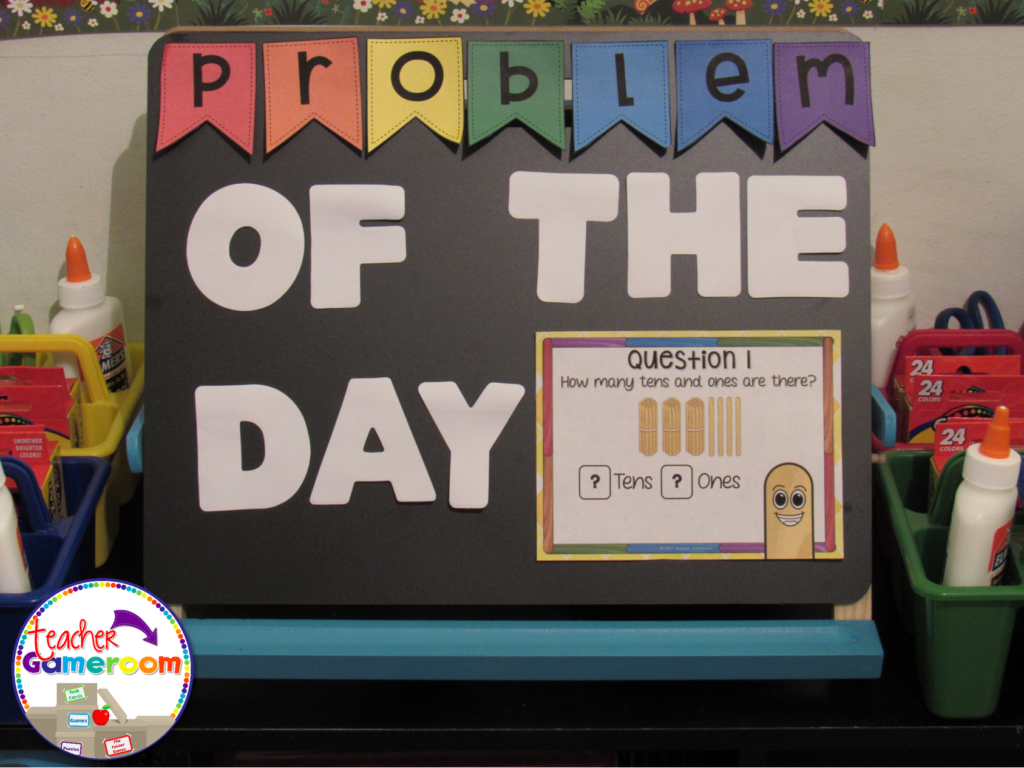
4.) Problem of the Day Conversely to exit tickets, you can use PowerPoint games questions as a problem or question of the day. Print and post each question before the start of any lesson. Print “Handout – 2 slides per page” in Google Slides.
5.) Scoot/Walk the Room Scoot is a popular game where students move from chair to chair answering a single question. Walk the Room is similar in that students walk around the classroom, finding and answering questions. You can print out questions and post them around the room and or on students desks. If you have student computers, you can still play! Students just move from computer to computer.
There are even more ways to use powerpoint games. Try some of these activities out with freebies in my store. Let me know how you use your PowerPoint games. If you need help with any of my games, I’d be happy to help!
I love games. Creating PowerPoint games is as much fun for me as playing them with my students, but there is so much more than just playing them. Here’s a few Teacher tips to making the most of out of each game.
All PowerPoint games are played with Microsoft PowerPoint:
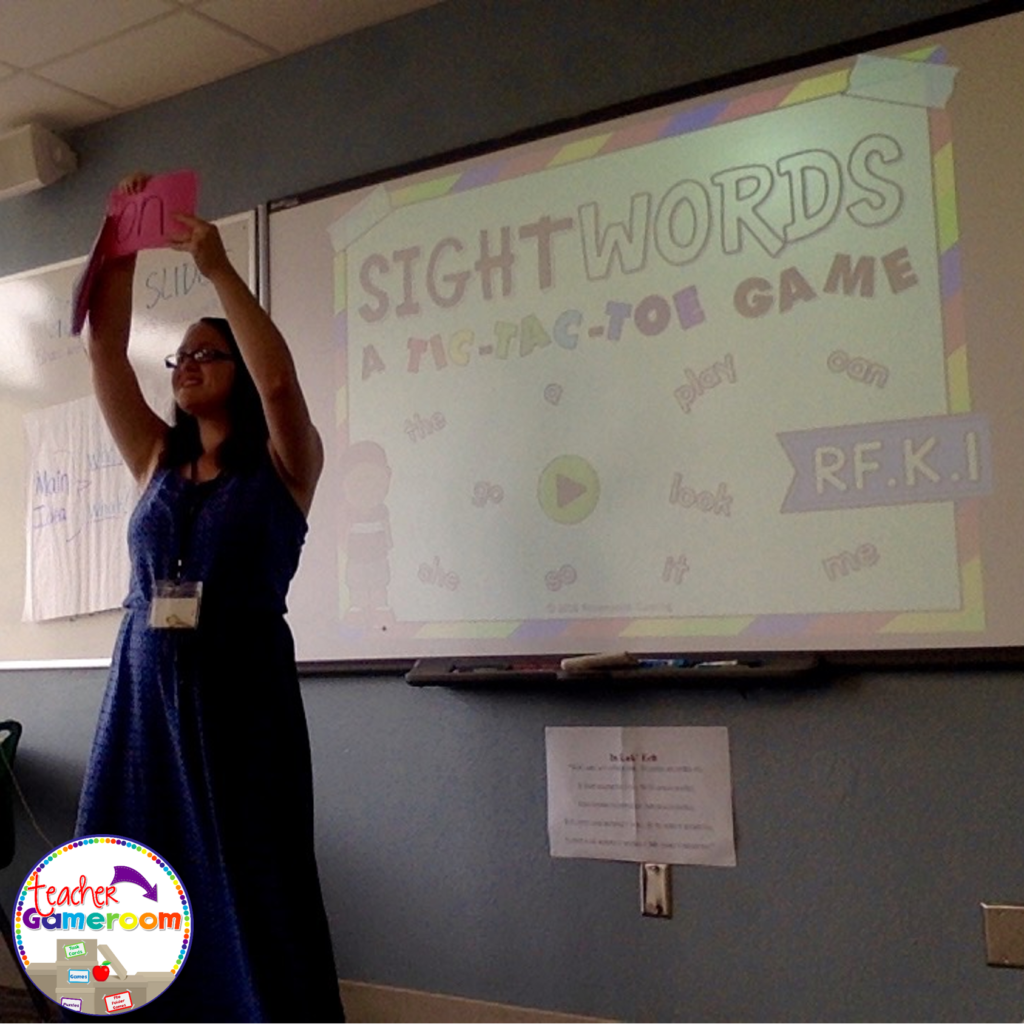
This may seem obvious, but many teachers do not know this. You need Microsoft PowerPoint ($$$) or Microsoft PowerPoint Viewer (FREE) to play them. Each is available on any computer, laptop, or tablet. Games can also be played on any interactive board including Smartboard, ActivInspire, Ipevo, Mimio, and more. Google Slides can work for some games, but if you want animations and music, Microsoft PowerPoint and PowerPoint Viewer is the way to go.
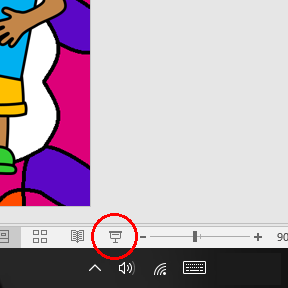
To play a PowerPoint game, simply click “Slideshow” >> “From Beginning”. You can also click on the small Projector Screen at the bottom right hand corner of Microsoft PowerPoint and Viewer.
Play them yourself before playing with your students:
Familiarize yourself with Microsoft PowerPoint first. Once you’re comfortable, get to know the insides and out of a PowerPoint game. Play it a few times to get familiar with the buttons, questions, and answers. Most PowerPoint games include a printable answer key. Do a practice run through to see how long it takes to play each game in your teaching style.
Teach your students how to play them:
Teach your students how to play the games on different devices. Start with your interactive board. Model how the game is played. When students are familiar with the games, introducing new games will be easier.
Teach them how to download, open, and save each game or activity. You can even teach them how to set it up for a substitute teacher, adding a little extra fun to the days when you are absent.
I hope these tips help as you and your students enjoy the PowerPoint games in the classroom. Now that your have a grasp of how to use a game, check out my blog post of the 5 Ways to Use a PowerPoint Game. Don’t forget to pin this if it was helpful!