Posted on

5 Ways to Use a PowerPoint Game

5 Ways to Use a Powerpoint Game Cover

 5 Ways to Use a Powerpoint Game Cover

Using PowerPoint games are wonderful! They can truly enhance any lesson and kids love it. The first time I used one, my students were engaged the entire time! I know it was something I definitely wanted to invest in. If you’re unsure about using PowerPoint game, read “Getting the Most of out PowerPoint Games” here

But did you know there’s more than one way to use them? I was messing around with some games and learned a few things I’d love to share with out. If you don’t have an interactive board, tablet, or Smartboard or a even a classroom computer, this is the post for you! Here are 5 ways to use a PowerPoint game.


1.) The Traditional Way
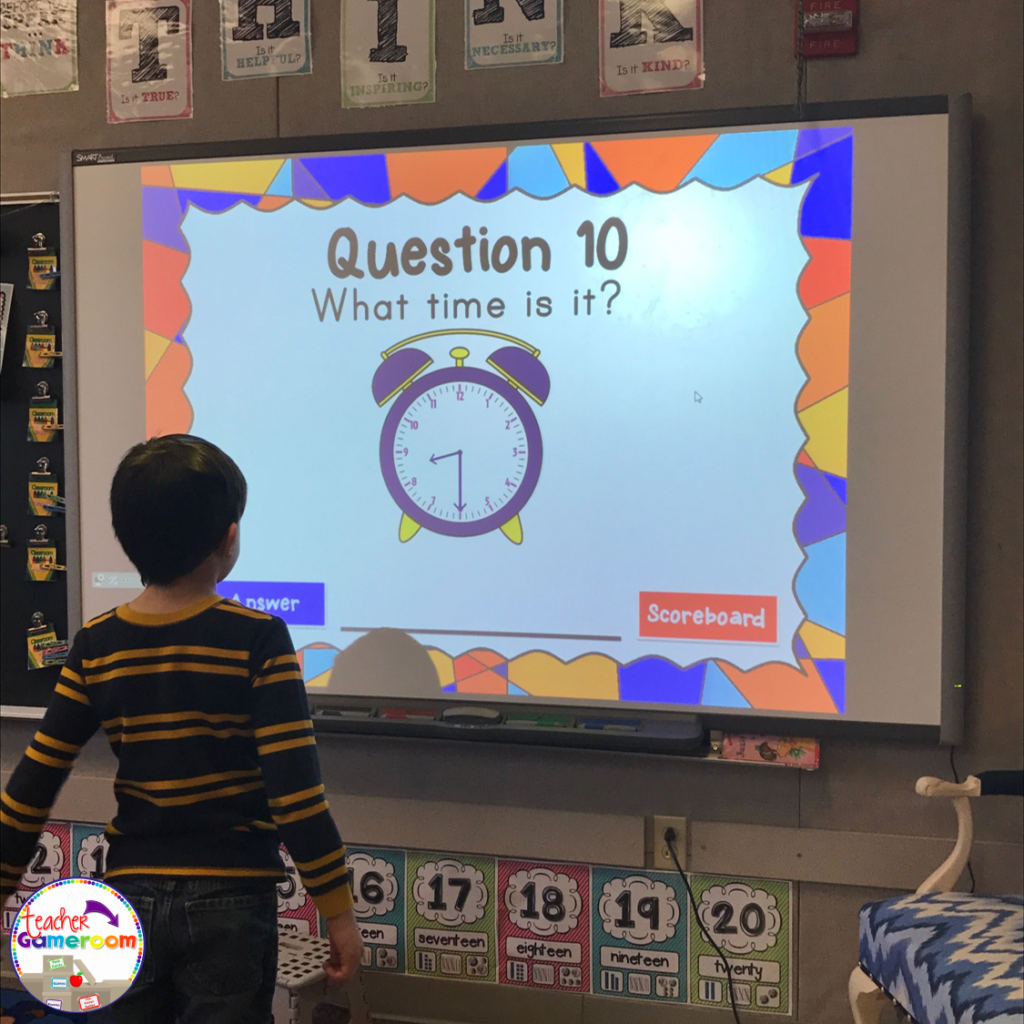
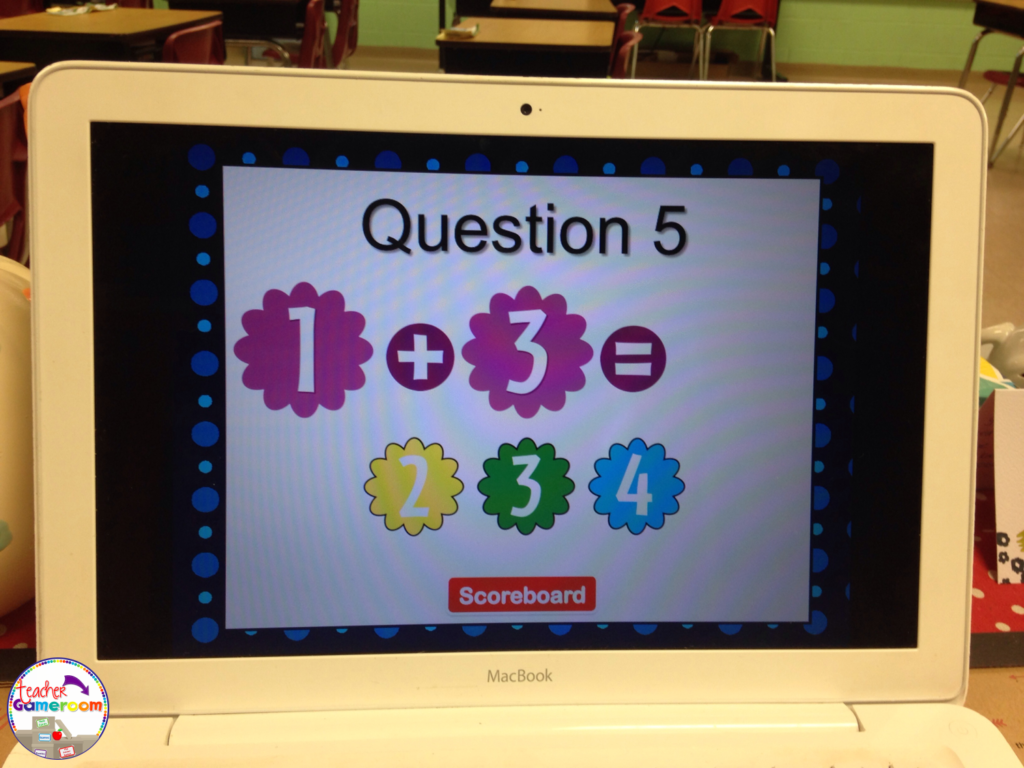
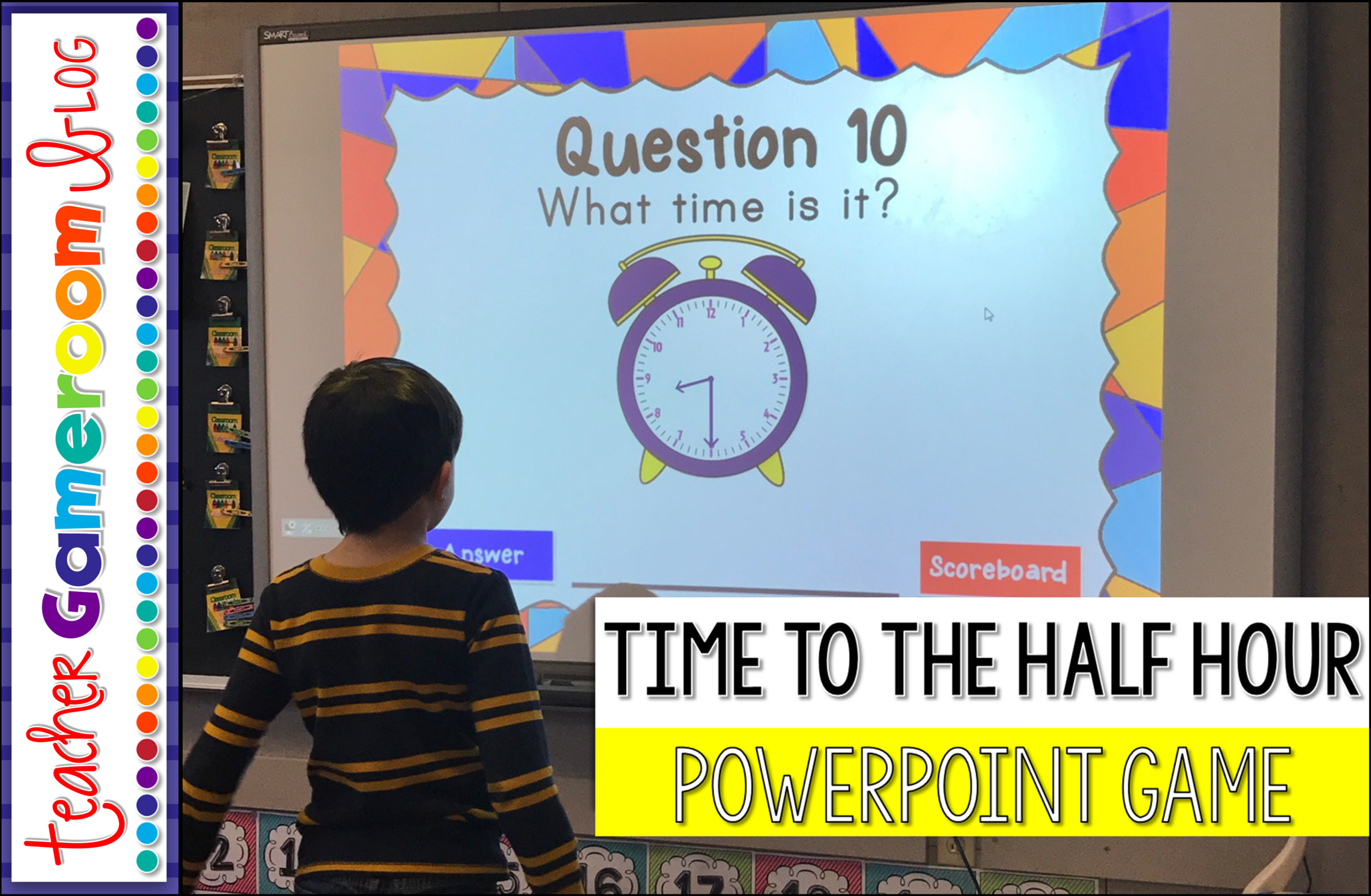
No explanation needed here. PowerPoint games can be used on any device that has Microsoft PowerPoint or Microsoft PowerPoint Viewer (FREE). Just load it up and your ready to go. NO PREP NEEDED. Such a timesaver and great for centers. Learn about this game in this blog post: Time to the Half Hour PowerPoint Game


Time to the 1/2 Hour

2.) Exit Ticket
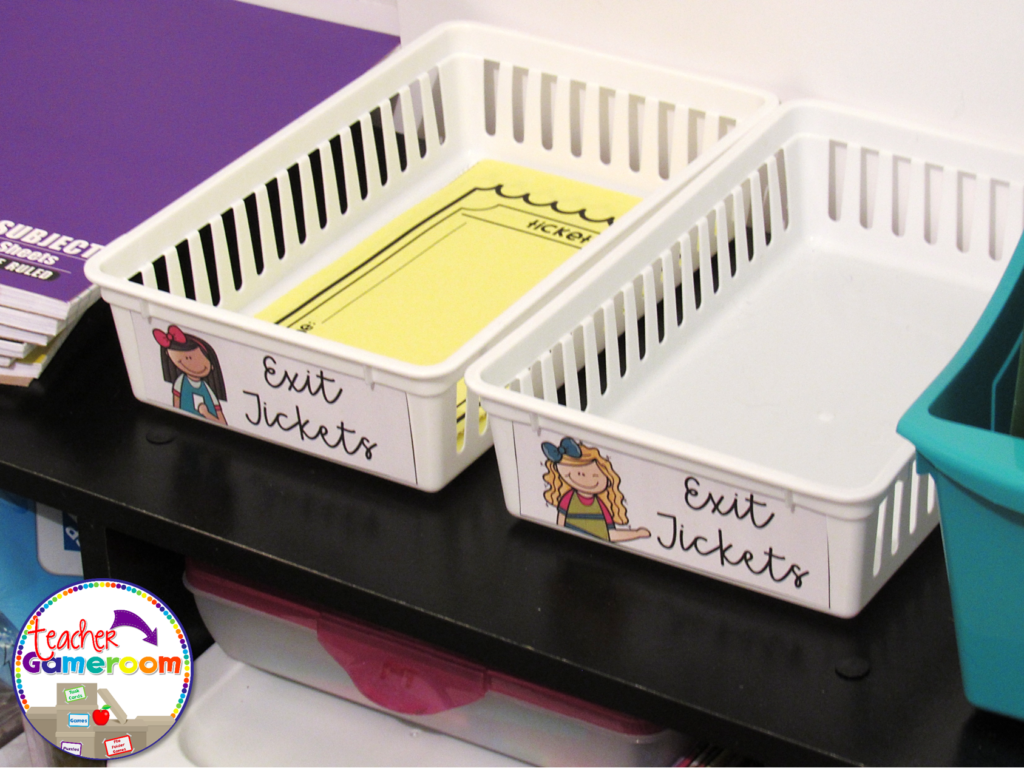
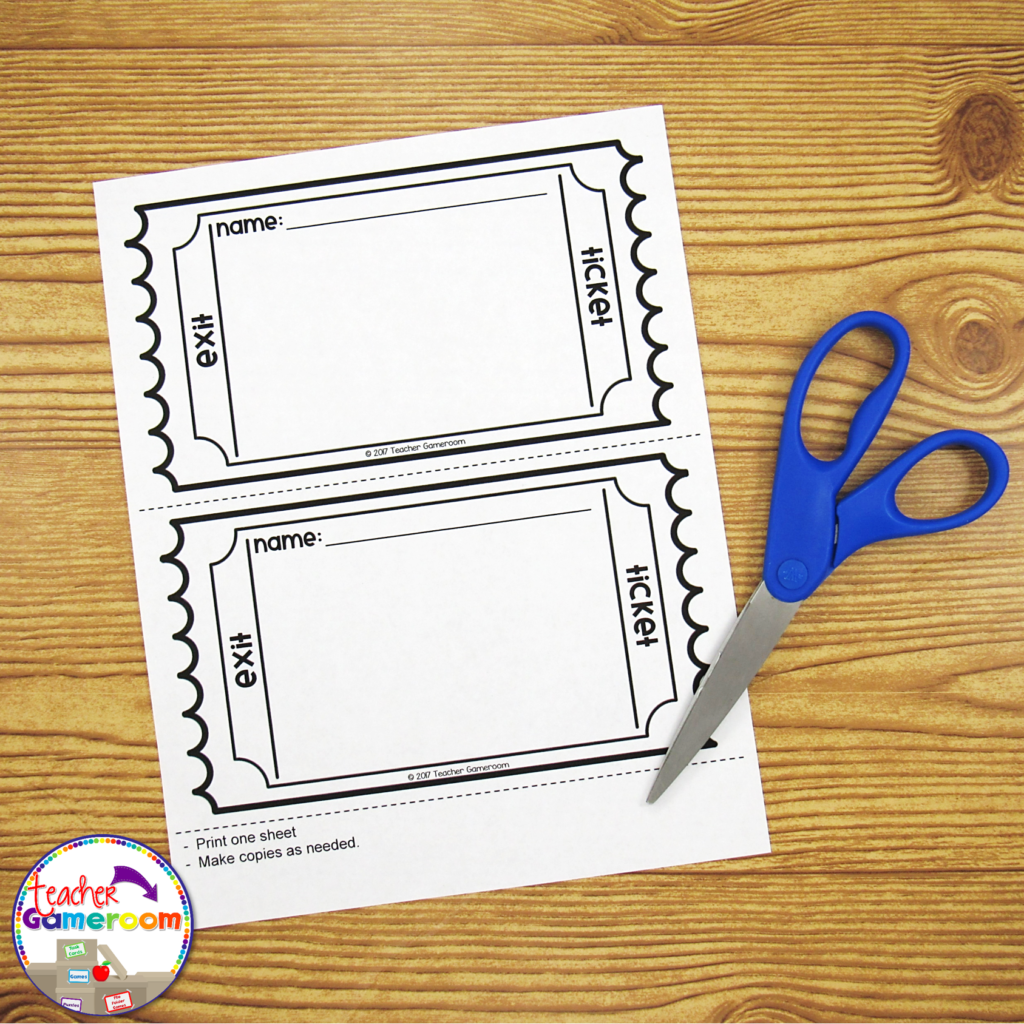
If you use exit tickets, you’ll love this! Exit Tickets are questions given to students at the end of a lesson to test the knowledge and understanding of that lesson, usually in the form on 1 question on a small piece of paper. The student turns it in and later, the teacher checks it to see which of their students understood the lesson. Learn how to use EXIT TICKETS here: How to use Exit Tickets in the Classroom 

 Thumbnail 1 1024x768

Thumbnail 3 1024x1024

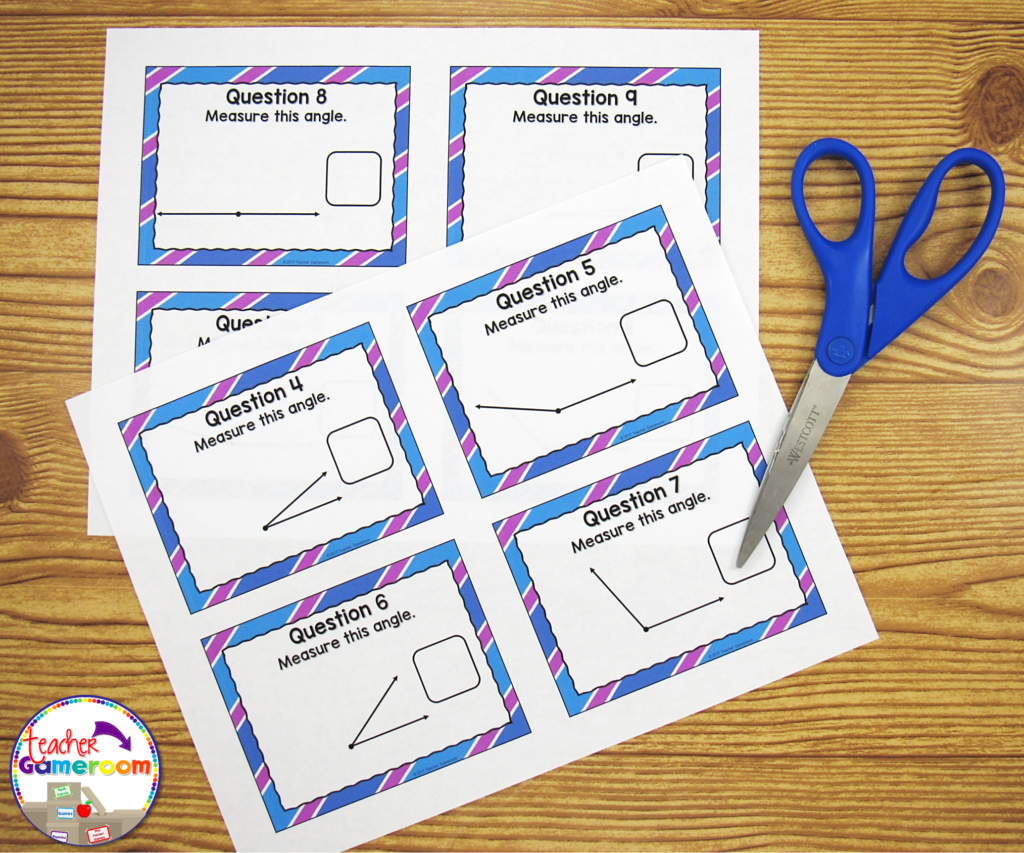
You can use the questions from a PowerPoint game just for that! Print out one question for each day of the topic you’re teaching. Click on the print button and print “4 slides per page”. Make copies and cut them out. Use one question each day as an exit ticket. Most games I create have 20 questions. That’s a whole month’s worth of tickets for one topic!

Thumbnail 4 1024x853


3.) Task Cards

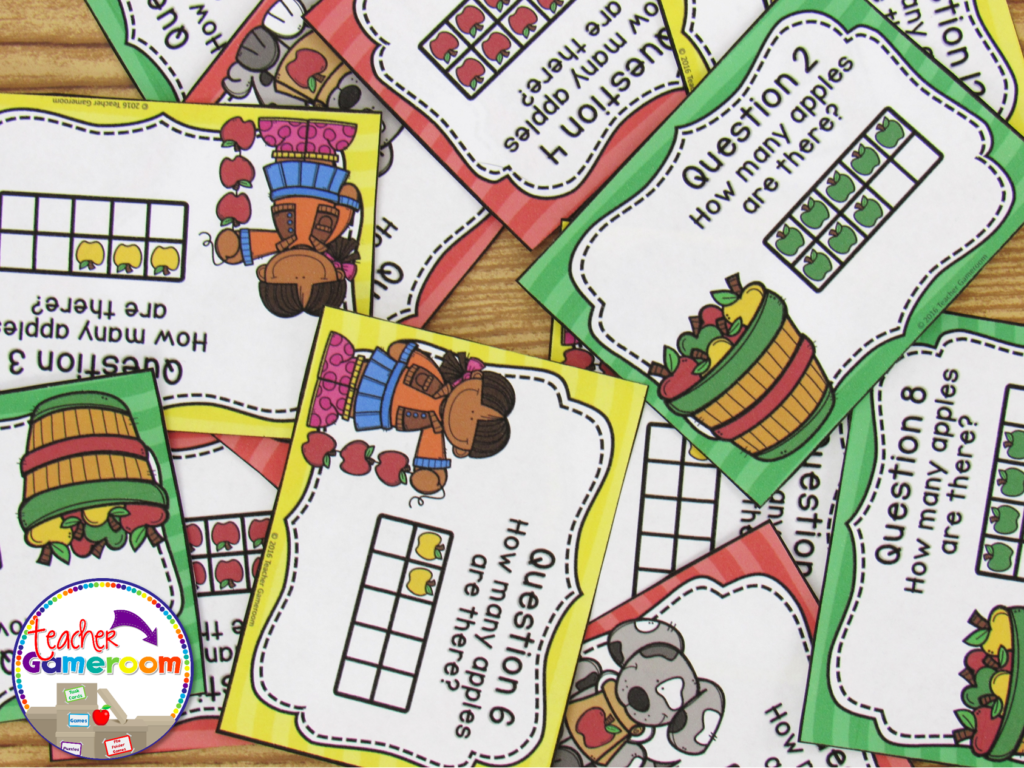
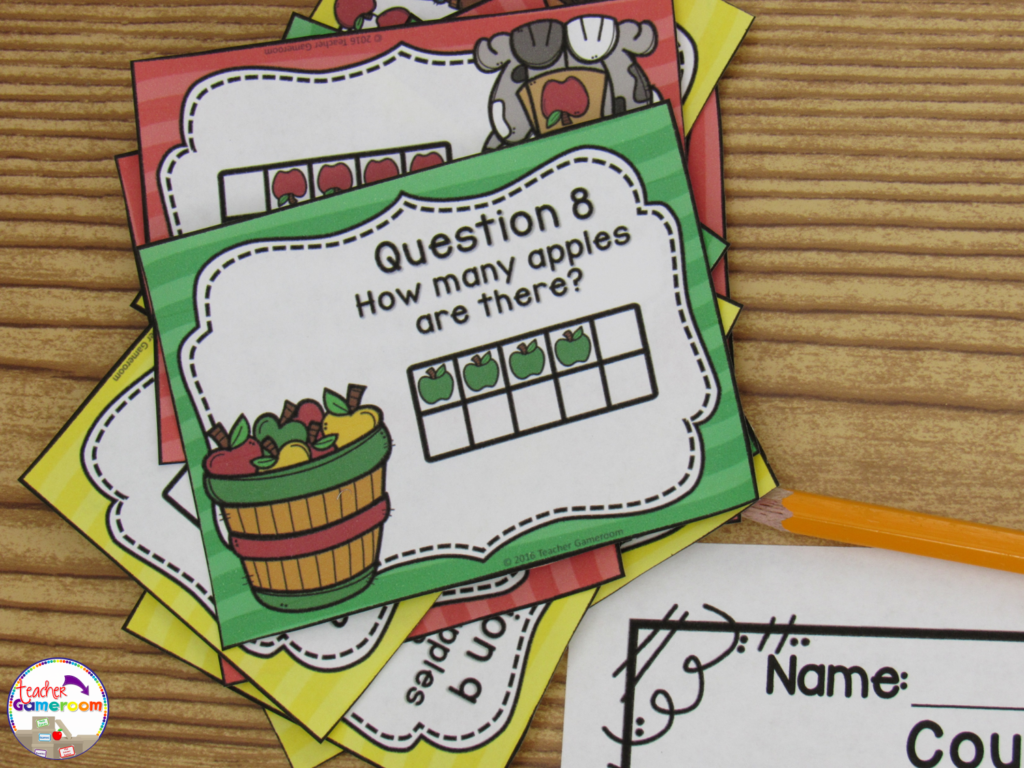
Task cards are cards that have one question on each card. Students answer the question and write their response on a recording sheet to turn in to the teacher. 

Thumbnail 7 1024x768

PowerPoint games can be turned into task cards with a just a few clicks. Did you know you can print PowerPoint games? You can print PowerPoint games by printing “Handout – 4 Slides per page”. Cut and laminate that cards. Store them in mini boxes or on book rings.

Counting to 10 With Ten Frames

4.) Problem of the Day
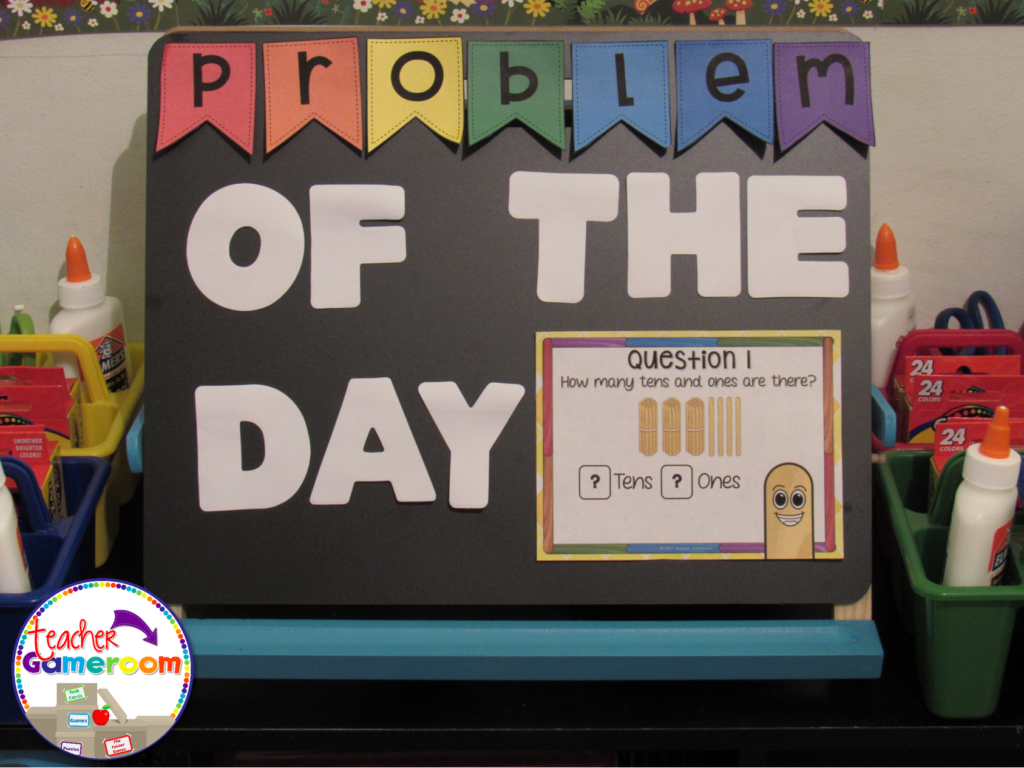
Conversely to exit tickets, you can use PowerPoint games questions as a problem or question of the day. Print and post each question before the start of any lesson. Print “Handout – 2 slides per page” in Google Slides.

5 Ways to Use a Powerpoint Game 5

5 Ways to Use a Powerpoint Game 6


5.) Scoot/Walk the Room
Scoot is a popular game where students move from chair to chair answering a single question. Walk the Room is similar in that students walk around the classroom, finding and answering questions. You can print out questions and post them around the room and or on students desks. If you have student computers, you can still play! Students just move from computer to computer.

5 Ways to Use a Powerpoint Game 8


There are even more ways to use powerpoint games. Try some of these activities out with freebies in my store. Let me know how you use your PowerPoint games. If you need help with any of my games, I’d be happy to help!

Until next week, enjoy your weekend!  


5 Ways to Use a Powerpoint Game Pinterest

Posted on 5 Comments

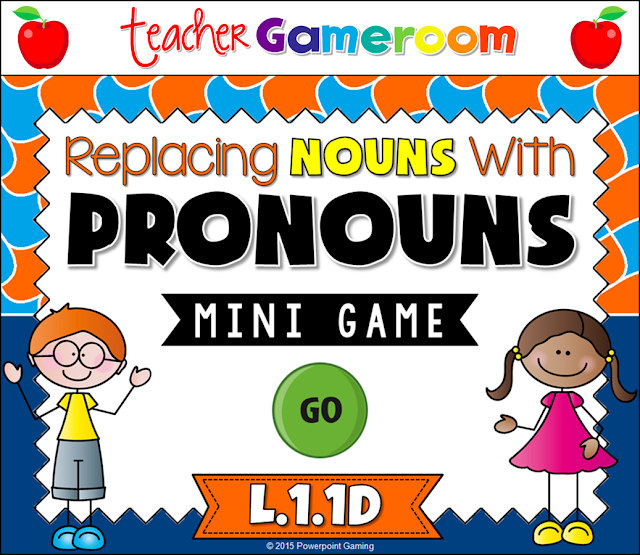
Replacing Nouns with Pronouns Powerpoint Game

Slide2
Cover

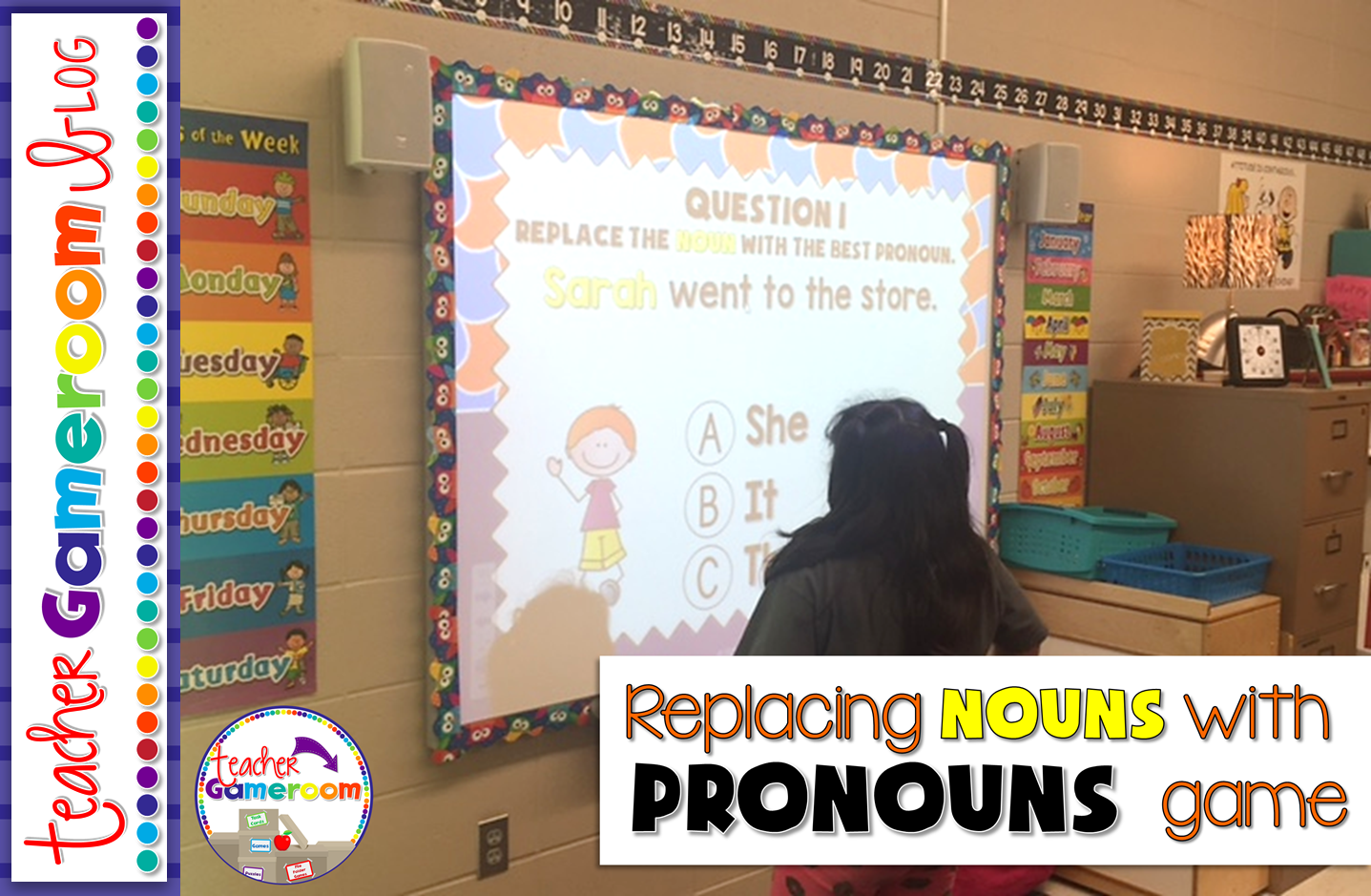
I love working with the 8 parts of speech, especially if I use School House Rock videos. To help assess want students learned (and to have a bit of fun) I made this wonderful game for my students to play.

Slide1

This is great for a quick review since there are only 10 questions and is multiple choice. This is great for centers as students can take turns answering questions or you can use it a whole class review. I would choose a random student by drawing popsicle sticks and they choose a question.


Slide2


Sometimes my students would go in order. Other times, they would pick a random number. Best part: once they’ve answered the question, it disappeared and I don’t have to worry about whether they’ve already answered it. 
Slide3
Slide4
Slide5

Each question gives students a sentence. The noun to be replaced is highlighted in yellow. Students must decided from 3 answer choices is best to replace the noun. X’s appear for wrong answers and checks appear for correct answers.

You can get this game here: Replacing Nouns with Pronouns PPT Game. You can also check out my other Parts of Speech products. Mac and PC versions are included! It even works on ipads and tablets, making it great for 1:1 classrooms.

Pin it for later:

Mini%2BGame%2B %2BReplacing%2BNouns%2Bwith%2BPronouns%2BPinterest%2B2


Posted on

Making 10 PowerPoint Game

Practicing addition is a basic skill for kindergartners. This games reinforces those skills in a fun, interactive way.
Z5Y9RCdlWcNiLbwN9wc MYQFVzn8ccDPf85IO N79QQ?size=1600x1200&size Mode=3

This game is a teacher versus student game. The students answer all the questions and if they get the answer correct, they get the points, but if they get it wrong, I get the points! Great motivator! Who doesn’t want to defeat their teacher?

 
Making Ten Gameboard
 
There are 20 questions in all. Students can choose 1 of 20 questions. Students are given an addition problem with an addend and a missing addend that equals to 10.
 Making Ten Gameboard

Students work out the problems and give their answer. They click on the “Answer Button” to see if they are correct. Then, they click on “Scoreboard” to choose another question to answer.

Making Ten Gameboard

Making Ten Gameboard

 
There are 20 questions in all. It even includes a type-in scoreboard that is used while in “Slideshow Mode.”

Making Ten Gameboard

Making Ten Gameboard

You can get this game here: Making Ten Powerpoint Game. Makes a great game for whole class, in small groups, or even for the substitute teacher. Here’s what other teachers are saying about this game

“My students LOVE this game! They beg to play every day. Thanks so much!” – Donnalyn T.

“Great resource to practice this standard. Perfect for leaving for sub.” – Kendria M.

Don’t forget to check out my other Making 10 games including seasonal and holiday themed games. Don’t forget to pin this for later!
 
A special thank you to Mercedes for taking these wonderful pictures for me!

Making Ten Pinterest

Posted on

5 Fantastic Tricks & Tips – Using Alignment in Microsoft Powerpoint

 
Header
 
Welcome to my 5-part series of  “5 Fantastic Tricks & Tips”. This series shows you some awesome tricks and tips for building your PowerPoint presentations. Posts go up every Wednesday. 
 
Today, I’ll show you all about alignments.
 
What do I mean by alignments? In terms of PowerPoint, it’s where objects, pictures, and text boxes are located on a slides. It can be on the left or right side, the bottom or top, or in the center. If you like to have all your objects perfectly aligned, this is the tool for you. Making sure everything is straight can be nerve-wrecking, but with a few clicks, everything will be as you like it.
 
6
 
To align objects, first select the objects you wish to align. Next, click on “Format” and choose how you wish to align your objects. There are many options to choose from.
 
5


There are several options to choose from. You can align objects to the:
  • left, center, right
  • top, middle, bottom
 
3
 
You can also distribute objects so that they are evenly spaced out horizontally and vertically. Simply click on all the object you wish to space out evenly and distribute horizontally or vertically.
 
Another way to help with alignment is to use guidelines on the slide.
 
7
 
Guidelines can be used to help place clip art and pictures onto a slide. The guidelines will appear on all the slides, but won’t appear when you print out the slides or play the PowerPoint in slideshow mode.
 
To turn on the guidelines, click on “View” and check the box labeled “Guidelines”. There’s also options for a ruler (similar to the ruler in Microsoft Word) or a guide (1 vertical and 1 horizontal line).
 
8
 
I hope these tips come in handy! They’re a big help when you create product covers, worksheets, games, and other teaching materials. Please share & comment if this was helpful Don’t forget to check out Part 1: Selection Pane and Part 2: Using Sections.
Aligning Objects In Microsoft Powerpoint Pinterest 213x300
Pin for later.