Welcome to my 5-part series of “5 Fantastic Tricks & Tips”. This series shows you some awesome tricks and tips for building your PowerPoint presentations. Posts go up every Wednesday.
Today, I’ll show you all about alignments.
What do I mean by alignments? In terms of PowerPoint, it’s where objects, pictures, and text boxes are located on a slides. It can be on the left or right side, the bottom or top, or in the center. If you like to have all your objects perfectly aligned, this is the tool for you. Making sure everything is straight can be nerve-wrecking, but with a few clicks, everything will be as you like it.
To align objects, first select the objects you wish to align. Next, click on “Format” and choose how you wish to align your objects. There are many options to choose from.
There are several options to choose from. You can align objects to the:
left, center, right
top, middle, bottom
You can also distribute objects so that they are evenly spaced out horizontally and vertically. Simply click on all the object you wish to space out evenly and distribute horizontally or vertically.
Another way to help with alignment is to use guidelines on the slide.
Guidelines can be used to help place clip art and pictures onto a slide. The guidelines will appear on all the slides, but won’t appear when you print out the slides or play the PowerPoint in slideshow mode.
To turn on the guidelines, click on “View” and check the box labeled “Guidelines”. There’s also options for a ruler (similar to the ruler in Microsoft Word) or a guide (1 vertical and 1 horizontal line).
I hope these tips come in handy! They’re a big help when you create product covers, worksheets, games, and other teaching materials. Please share & comment if this was helpful Don’t forget to check out Part 1: Selection Pane and Part 2: Using Sections.
Planning your TPT store can be a hassle. Finding the right planner can be even more of a hassle. With so many things to manage and so many different forms to choose from, I decided to make one for myself!
In 2014-2015, I created a planner to help my TPT business. You can read about the previous TPT seller here. It’s been over a year since I made it and many things have changed including my store colors, logos, and new social media. I’ve made a similar planner for TPT sellers in my TPT store. I uploaded it and designed it online at Office Depot/Office Max. It arrived on the second to last day of estimated delivery but there was something wrong: it was all in color. I wasn’t going to complain. I paid for only a few pages to be in color and the rest black and white. Believe me when I say getting 150+ pages in color can be expensive ($70 and up). I was happy with the mistake.
Here’s the cover. It’s in my store colors. It’s a “Glossy Supreme” Cardstock cover.
The next page includes my store information. After that, the next page includes the table of contents and “The Dream”. The “Table of Contents” is wrong, but I knew only a few people would actually see it. Never imagined Office Depot would send me an extra one. “The Dream” is a story about myself and why I became a teacher in the first place. Sort of motivation.
The next page started the actual planner. It includes the months from September 2015 to September 2016. Each month is in color, lists all the major holidays, the start of a new season, and reminders of when a new month of promotions opens up on TPT (the 20th of every month). Since this was mine, I added in a few reminders for myself (like mini game releases every 15th of the month). It also includes a “Notes” section for you to write down any notes for that month. I use it to write down product topics that sell really well that month. At the bottom, there’s a quote to help motivate you.
Behind each month is a set of different sheets. First is the Monthly Blog Planner and the Monthly Giveaway Planner.
The Monthly Blog Planner lays out every single day of the month and allows you plan when you wish to write a new blogpost. This is great for long term planning and if you participate in blog hops, linky parties, and more.
The Monthly Giveaway planner helps to remind you of any giveaways you signed up for or plan to do. This is perfect for tax time because every donation your make or giveaway you do is tax deductible.
Next pages include the Weekly Planner and the Monthly Overview.
In the Weekly Planner, there are 5 pages for the Weekly Planner (one for each week of the month). Each sheet has a space for each day of the week and what product you’d like to work on. I tend to work on one project a day. There is space to write upcoming events (suchs as sales, giveaways, blog hops, etc). I made a “Games to Post” section to write what I needed to post. A helpful reminder. Last, there’s space to let you know what blog posts are going out this week.
The monthly Overview is probably my favorite page! Here you can write down and keep track of your business each month. This includes followers on your social media pages, number of products and best sellers in your store, your income and expenses, and TPT rankings. There’s even an area for notes. You can read about taking end of the month inventory here.
The next section is a List of Ideas. Here you can write down any ideas you have throughout the year. There are 4 pages.
The next pages are lists of things to do “Before Posting a Product” and “After Posting a Product”.
These are reminders of what to do for your TPT products. It can be a little overwhelming so this will help to make sure your product is safe and protected. It also helps to get your product out there. You read more about “After Posting a Product” here. Next, we have the “Weekend To-Do List” and “Game Requests”.
Although I usually leave the weekends for family time, using the “Weekend To-Do List” is a great time to catch up on some things.
The “Game Request” page I made for myself because I am always asking my followers what they are working on and what they need. Sometimes they’ll request a game and I write it down but lose it. This helps tremendously!
Next, we have pages where you can list your Short Term and Long Term goals. Pretty self exclamatory.
Next is the “Graph Game Questions” and “Milestones”.
The “Graph Game Questions” I made to help remind me of some of the questions I needed to make for all my graphing games. The “Milestones” page is self exclamatory as well.
Next, you have a Newsletter Tracker and Information sheet.
Here you can track your newsletter. I use Mailchimp to send out a weekly newsletter. You can use these pages to keep track of what letter you sent out, how many members it was sent to, and if you lost or gained more subscribers. The “Newsletter Info” sheet lets you write the date for each issue, what the topic was, and (for me) what freebie was included. You can sign up for my weekly newsletter here. It’s free!
The last page is a Log-in and Password.
Here you can write down all your logs for your business. This includes the website, username, and hint. I chose hint just in case I lose the book or when I share the book. The back is a Regency. I’ve used it before and it was very durable.
I love my planner. I can’t imagine myself using anything else. I created a similar planner for TPT sellers. It’s a one time purchase and updates from year to year (free of charge).
I’m so excited! I’ve been nominated for the Liebster Award!. Thank you so much M&M Bilingual for the nomination! I’d never thought I’d be one to receive this award but will gladly accept it! =)
This is such a wonderful button and I’m happy to add it to my blog. I’ve seen it on a few other blogs and had no clue how they received it. A week or 2 ago, M&M Bilingual nominated me and learned a great deal about it. The Liebster Award is given to new bloggers. It’s a great way to get support and encourage others as they blog!
1. Why and how long ago did you start blogging?
I started blogging way back in 2013. I was pretty new to it at the time. I wanted to share my thoughts about education as well as a little bit about my store and myself. I heard it was a great for me to connect with other educators. This definitely proves it!
2. What one word sums up the heart of your blog and why?
Passion! I love what I do! Even though at the moment I don’t have a classroom, I love education and helping others. Before blogging and my store, I just wanted to help students, but through my blogging journey, I came to love helping students, teachers ,and educators alike.
3. Is there something you learned late in your blogging journey that you wished you knew before?
How to schedule posts. I would always just write a blog post and post it that same day. About a year ago I learned how to schedule posts and now I could schedule them ahead of time! Makes blogging a bit easier.
4. What is your favorite pastime other than blogging?
Besides making ppt games, playing video games (Hint hint – that’s where the name came from!). I come from a family of gamers. We all love playing games. From board games to card games, computer games to video games, my family can’t get enough of them. My recent obsession has been Minecraft. I find myself playing it quite often, mostly for the building aspect. Who doesn’t love to build stuff!?
5. How many hours per week do you dedicate to your blog/TPT?
If it weren’t for sleeping, eating, and my niece and nephews, practically every hour. Since TPT is my full-time job, I try my hardest to put in 40 hours each week. Being self-employed has it perks. =)
6. What category of blog posts do you enjoy the most?
I love blog hops about classroom ideas. It’s great to go from one teacher/blogger to the next and get wonderful ideas that I can use in the classroom.
7. Where does your blog inspiration come from?
My inspiration comes my own experiences in the classroom as well as my day-to-day life. My youngest nephew is starting preschool this coming year and my oldest nephew will be in kindergarten this fall. They are also my inspiration!
8. Which post that you’ve written are you most proud of?
My New Year’s Resolution post. I had 3 goals this year —> Blog more, get healthy, and finish projects. I’m happy to say I am definitely blogging more. I am trying hard to get healthy. I’m exercising more and eating better. I am finishing up projects that I started so I very proud that I am sticking to those goals.
9. Is there a post that you are planning to do but have been postponing it for a while?
I have 2 that I plan on doing. One I know will be done before I go to the TPT Conference. The other is a post about using PPT Games in a new way (besides the traditional way). Pictures are the only thing keeping me for doing it.
10. What is your favorite aspect of blogging?
The writing! I love to write so it’s pretty natural for me to write a blog post. I’ve even written and published a book, not to mention notebooks full of fantasy and realistic stories I’ve written since high school.
11. Which idea from a blog would you like to try yourself?
Simply a blog hop! I’ve join several blog hops over the years and I want to try to do a blog hop of my own. The idea I have is very original and I think many will want to try it out. I love Jessica McClain’s You Ought to know Blog hop. It’s one of my favorites!
Here are some blogs that I follow and would love to nominate!
These are a few questions TPTers are asking, especially new sellers. Since the beginning of January, I’ve been keeping up with my sales and it’s been great for me! I’d like to share some tips that help me keep track of my expenses.
Tip #1: Buy an Expandable File Folder!
On a whim (and because it was on clearance), I bought this expandable file folder. There are 12 pockets (13 if you use the front pocket), one for each month of the year. It comes with the monthly tabs for you to insert or if you have OCD, like me, you can create your own. It also comes with letters of the alphabet and blank tabs to create your own label.
Every time I made a purchase, I would place the receipt in the appropriate month. This brings me to my next tip.
Tip #2:
Save every receipt!
Yes, save every receipt from every single purchase made for your store, no matter how little. I make trips to the Dollar Tree, sometimes just for some post-its. I save that receipt and when I get home, I place it on the folder.
Use highlighters to highlight purchases on receipts with multiple purchases or just make a separate purchase (just let the cashier know).
If you have to make a purchase using PayPal, print the sale transaction from Paypal.com. Just make a note about what the purchase it so you’ll know what it was for. Let’s face it. You’re not going to remember every purchase made a year from now.
If you have a PayPal account, get a PayPal business debit card. It’s a MasterCard so it’s used practically everywhere.
If you make a purchase on TPT, print it out and place it in the folder. It will come in handy in the future. Did I mention every purchase for your store is Tax-deductible?
Tip #3:
Invest in a printer, ink, and paper!
If you don’t have a printer, get one! Printing receipts for online purchases as you make them can be critical. Even though you can pull it up online, if the power goes out or the IRS wants a physical proof of a purchase, you’ll already have it. You won’t have to find it and pray that you didn’t delete a purchase from your purchase history.
If you need to buy ink or paper, don’t hesitate to buy it! Since it’s for your business, it’s tax deductible. I bought a wireless printer on Black Friday for $27.
Tip #4:
Keep track of all the giveaways!
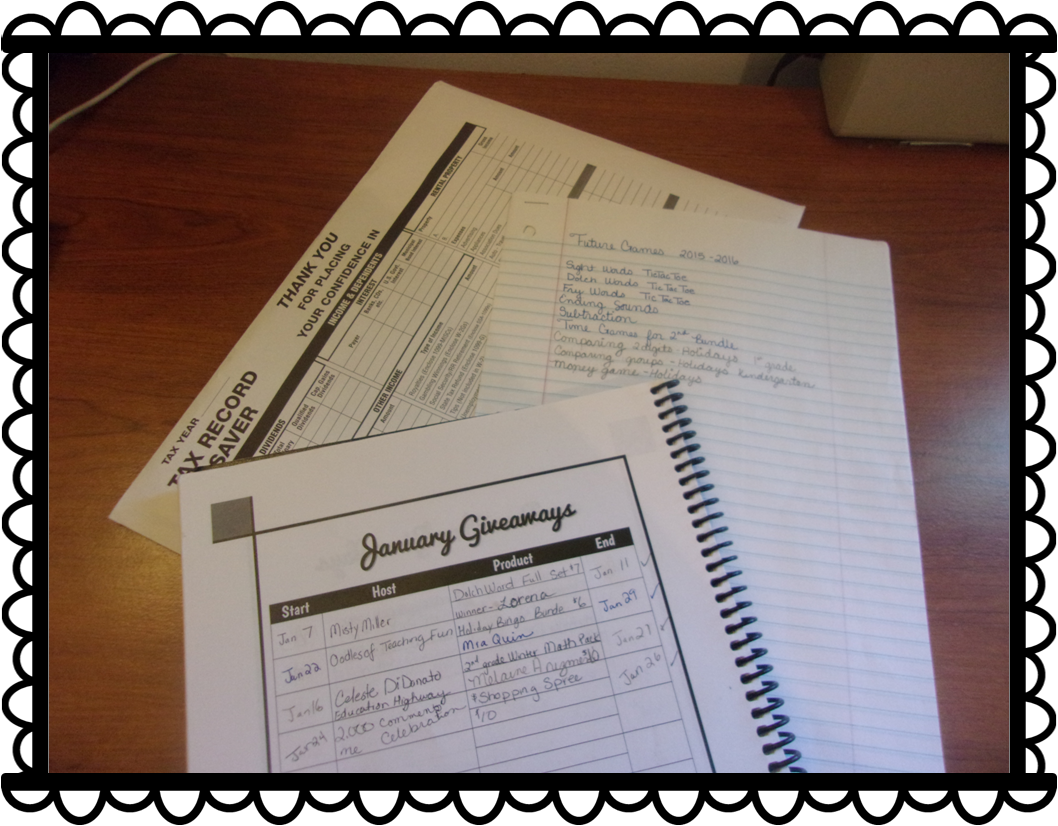
If you host a giveaway and include gift cards, save your gift card receipts. If you give away a Shopping Spree to your TPT store, keep a record of it. I write down the name of the giveaway, the name(s) of the winners of the giveaway, the start/end date of the giveaway, and what products they won or want (shopping spree/winner’s choice). I keep this record in my TPT Planner until the end of the month.
If you donate to a giveaway hosted by another seller, keep a record of it. I collect the same information as before and I also include the name of the giveaway and the host. This is also recorded in my TPT Planner. If you donate to Donorschoose or a GoFundme Project, print out a receipt. It may be tax deductible, especially if the donation is from your business. Be sure to check with your tax preparer. It doesn’t hurt to ask!
Tip #5
Use Microsoft Excel!
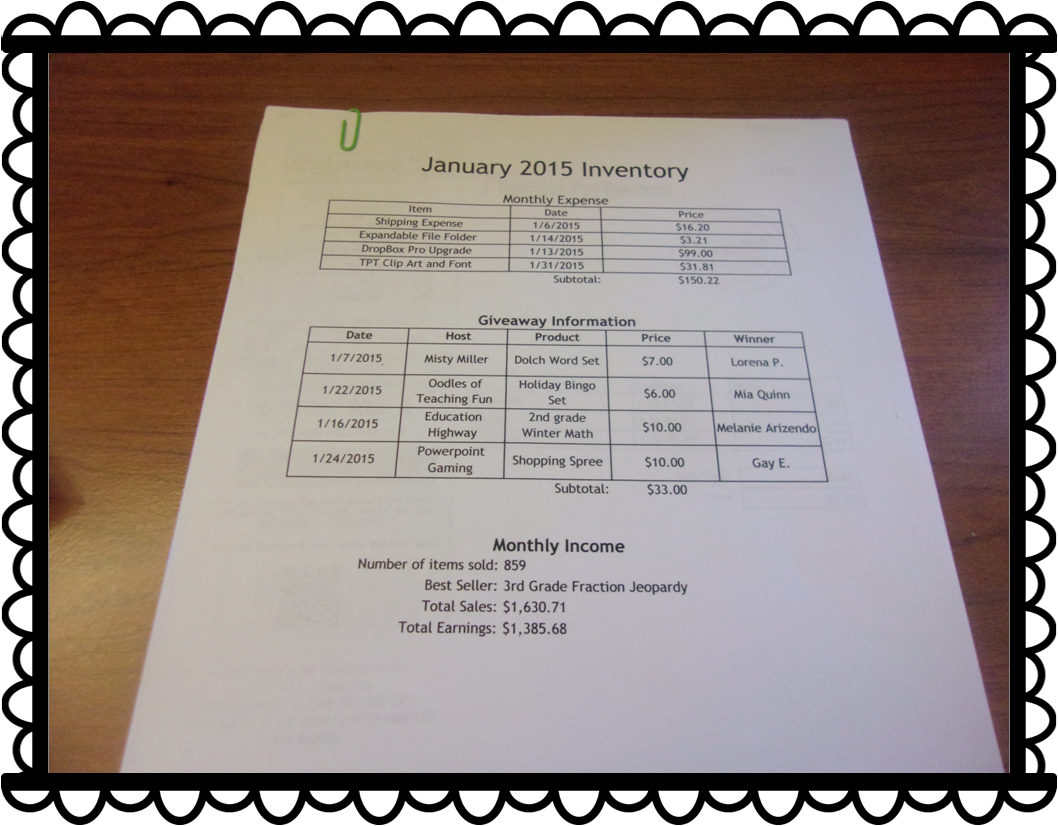
This is the part I dislike the most. The last few days of the month, I check through all my expenses and type them ALL in a Microsoft Excel Spreadsheet. Yes, this can be a tiresome ordeal, butthis will give you an online copy of all your purchases you’ve made and items you’ve donated throughout the month. You can set the spreadsheet to do all the calculations for you and you can include whatever information you choose. I print it out and place it in my file folder as a cover sheet for each month.
My cover sheet is divided into 3 sections:
Monthly Expenses
Giveaway Information
Monthly Income
In the Monthly Expenses section, I include the name of the item or purchase, the date of purchase, and the price. All my TPT purchases are added and placed at the bottom.
In the Giveaway Information section, I include the date, the hosts (even if it was me), products, prices, and the winners.
In the Monthly Income section, I include the number of items sold, the best selling product (and number sold), total sales, and total earnings.
I print it out. I collect all the receipts and paper clip them all together on the top and bottom. For those small in-store receipts, I place them in an envelope and label the envelope whichever month it is.
What does this do in the long run?
Keeping track of my inventory gives me a good reference point. I can check to see what items sold best during certain times of the year. I can decide if I need to cutback on expenses or if I can make more purchases (clip art addict and KG Font addict). It will be even more helpful when it comes Tax Season. I won’t have to search my house for every little receipt. It will all be in the same place all neat and ready to go.
Other things to add to the folder:
Taxes from the Previous year
Idea list for next year
Important emails & forms (like plane tickets and hotel reservations)
End of the Year Statements
Annual Purchase Statement from TPT
Goals Check-List
Anything Busniess or Tax Related
I hope you found this post to be useful. Here’s a few freebies you can use for your file folder.
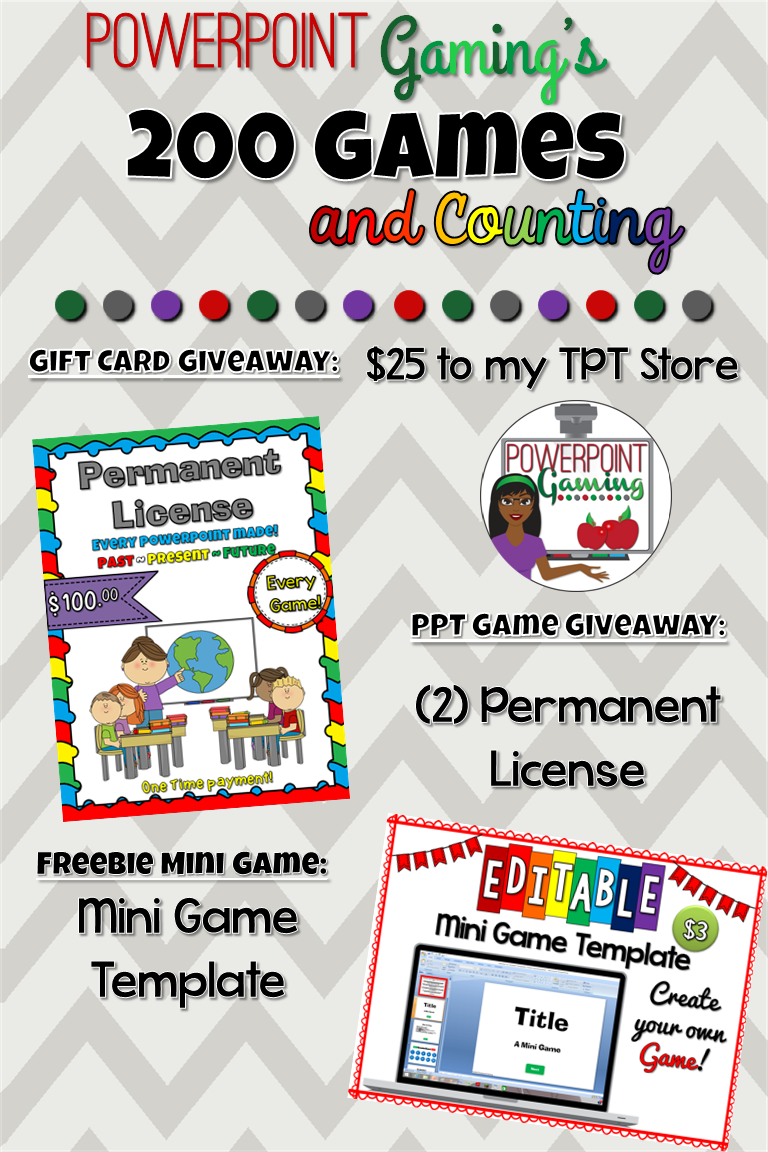
It’s Saturday, everyone! This week has been truly amazing! It’s the final day of my celebration. Here’s what up for grabs today!
Today’s gift card is for a $25 shopping spree to my TPT store. I know that I’ve already given this away, but I can’t help it! So many of you love my games that I just wanna give more away! So many that I’ll giveaway 2 shopping sprees! Here’s where you can enter
Today’s powerpoint game that’s up for grabs is for everyone! I don’t usually give these away, but I’m so excited about making 300 games, I’d make the exception.
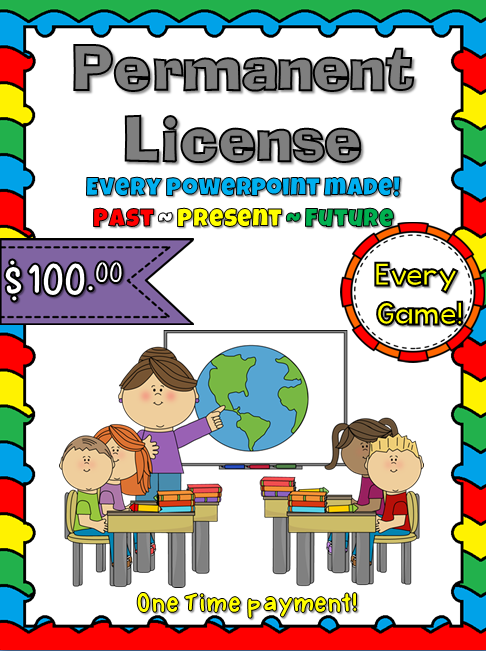
If you love my games, you should consider purchasing a permanent license. This license give you access to every powerpoint game I’ve created over the years. To be exact, I’ve created
Today’s mini game freebie is a mini game template.
Now you can make your own mini games! There are 1 questions for you to create your very own game. Best of all, you can use it commercially.
Don’t forget to stop by my Facebook page each night for some games and flash freebies starting at 6 PM EST!