Posted on 5 Comments

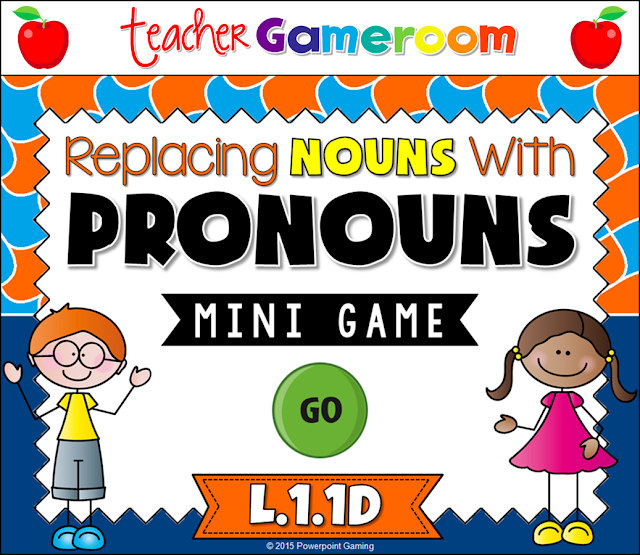
Replacing Nouns with Pronouns Powerpoint Game

Slide2
Cover

I love working with the 8 parts of speech, especially if I use School House Rock videos. To help assess want students learned (and to have a bit of fun) I made this wonderful game for my students to play.

Slide1

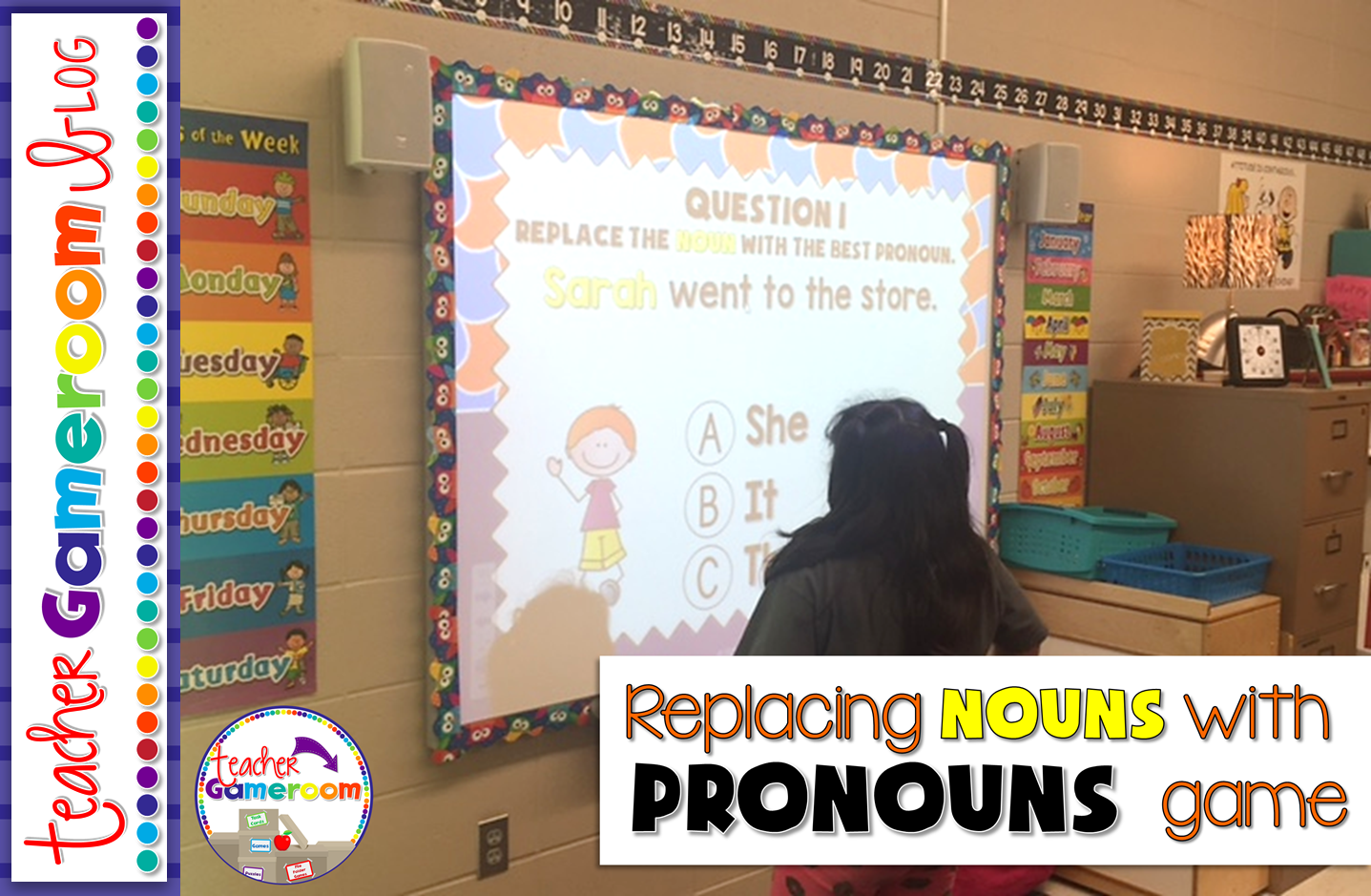
This is great for a quick review since there are only 10 questions and is multiple choice. This is great for centers as students can take turns answering questions or you can use it a whole class review. I would choose a random student by drawing popsicle sticks and they choose a question.


Slide2


Sometimes my students would go in order. Other times, they would pick a random number. Best part: once they’ve answered the question, it disappeared and I don’t have to worry about whether they’ve already answered it. 
Slide3
Slide4
Slide5

Each question gives students a sentence. The noun to be replaced is highlighted in yellow. Students must decided from 3 answer choices is best to replace the noun. X’s appear for wrong answers and checks appear for correct answers.

You can get this game here: Replacing Nouns with Pronouns PPT Game. You can also check out my other Parts of Speech products. Mac and PC versions are included! It even works on ipads and tablets, making it great for 1:1 classrooms.

Pin it for later:

Mini%2BGame%2B %2BReplacing%2BNouns%2Bwith%2BPronouns%2BPinterest%2B2


Posted on 2 Comments

Springing into Learning Blog Hop

I’m so excited to join Elementary Antics for a spring time blog hop! Spring is one of my favorite times of the year. Flowers are blooming, the weather is warmer, and the clear blue skies are beautiful.


When spring comes around, it’s one of the best time for students to learn about plants. During my student teaching, I did a fun plants unit. Students learned about plants.

I had students decorate Styrofoam cups to look like vases. Then they got to choose what flower they wanted to grow. Later, they would take them home and give them to their moms for Mother’s day. =)


Most of them grew slowly. There was one that grew very well. So much so that the vine wrapped around my desk.


Here’s a wonderful freebie to use with your older students. Task cards are a big hit, but not one has time to print and cut them out. These digital task cut the work in half. All you have to do is print the recording sheet.


All you need is a tablet or iPad. You could even use your interactive board and play as a whole class. You can get this freebie here, but only for a limited time!


Don’t forget to check out these other wonderful teacher bloggers for more ideas and freebies!

Posted on

5 Fantastic Tricks & Tips – Using Alignment in Microsoft Powerpoint

 
Header
 
Welcome to my 5-part series of  “5 Fantastic Tricks & Tips”. This series shows you some awesome tricks and tips for building your PowerPoint presentations. Posts go up every Wednesday. 
 
Today, I’ll show you all about alignments.
 
What do I mean by alignments? In terms of PowerPoint, it’s where objects, pictures, and text boxes are located on a slides. It can be on the left or right side, the bottom or top, or in the center. If you like to have all your objects perfectly aligned, this is the tool for you. Making sure everything is straight can be nerve-wrecking, but with a few clicks, everything will be as you like it.
 
6
 
To align objects, first select the objects you wish to align. Next, click on “Format” and choose how you wish to align your objects. There are many options to choose from.
 
5


There are several options to choose from. You can align objects to the:
  • left, center, right
  • top, middle, bottom
 
3
 
You can also distribute objects so that they are evenly spaced out horizontally and vertically. Simply click on all the object you wish to space out evenly and distribute horizontally or vertically.
 
Another way to help with alignment is to use guidelines on the slide.
 
7
 
Guidelines can be used to help place clip art and pictures onto a slide. The guidelines will appear on all the slides, but won’t appear when you print out the slides or play the PowerPoint in slideshow mode.
 
To turn on the guidelines, click on “View” and check the box labeled “Guidelines”. There’s also options for a ruler (similar to the ruler in Microsoft Word) or a guide (1 vertical and 1 horizontal line).
 
8
 
I hope these tips come in handy! They’re a big help when you create product covers, worksheets, games, and other teaching materials. Please share & comment if this was helpful Don’t forget to check out Part 1: Selection Pane and Part 2: Using Sections.
Aligning Objects In Microsoft Powerpoint Pinterest 213x300
Pin for later.


Posted on 12 Comments

Thanksgiving Blog Hop 2015

Header%2B1
      The Classroom clique proudly presents our Thanksgiving hop! Jump from blog to blog and gather some wonderful Thanksgiving traditions, recipes, and freebies.

Header%2B2

    
     I have so much to be thankful for! Over this past year has been a real struggle for me. Doing TPT full time, helping my sister take care of her 3 beautiful children, and managing my seizures has made me strong and so thankful for every thing I have. I thank my family, especially my mother who was always there for me. My friends who still put up with me and antics. My friends in the Classroom Clique. Lastly, I thank my followers. You guys keep me running and motivated, especially through the exciting moments and the toughs moments. Thank you. Thank you. Thank you!


Kiddy%2BCollage


Header%2B4

      As is tradition in our house, I do the baking. It’s mostly desserts. A few years ago, I challenged myself to make an apple pie from scratch (minus the pie dough). I have to say it was the most delicious pie we ever had. It was gone the next day. The recipe is very simple. I found it online at Pilsbury.com for Perfect Apple Pie. I added some a little powder sugar and apple juice to the filling to sweeten up the Granny Smith apples I used.

WP 20141016 006

WP 20141016 009

    I figured out how to do the Lattice topping for the pie crust. It wasn’t as hard as I thought it would be. I used eggs whites as a glaze for the top and covered the edges with foil (to stop the burnt edges).

WP 20141016 011

WP 20141016 012

     It came out beautifully and served with vanilla ice cream, it was the best dessert I had ever made.

WP 20141017 003


Each year at Thanksgiving I make a new dessert so my sister asked me to make peach pie. I’m up for the challenge! =)

Header%2B5


     I don’t have many Thanksgiving games in my store, but I made new a freebie just for this blog hop. Moreover, it’s a forever freebie!

Slide1


In this game, students use dry erase boards to write the lower case letter that matches the capital letter.

Slide3


This game covers all 26 letters of the alphabet. It’s a perfect game to review to check for understanding.

Slide4

Slide5


Students are given the capital letter and on their dry-erase boards, write the lowercase letter. Great for the entire class or in small groups. Students can also practice individually on the iPad.

You can grab this game here:

Thank you for stopping by. Be sure to stop by other teacher bloggers for more recipes, traditions, and freebies!