Posted on 12 Comments

5 Helpful Tips for taking TPT End of the Month Inventory

Post%2B70%2BP15

How to do you stay organized in your TPT store?
How do you keep track of all your sales?
Do you really keep every receipt?

These are a few questions TPTers are asking, especially new sellers. Since the beginning of January, I’ve been keeping up with my sales and it’s been great for me! I’d like to share some tips that help me keep track of my expenses.

Tip #1:
Buy an Expandable File Folder!

Post%2B70%2BP1

Post%2B70%2BP2
Post%2B70%2BP12


On a whim (and because it was on clearance), I bought this expandable file folder. There are 12 pockets (13 if you use the front pocket), one for each month of the year. It comes with the monthly tabs for you to insert or if you have OCD, like me, you can create your own. It also comes with letters of the alphabet and blank tabs to create your own label.

Post%2B70%2BP3
Every time I made a purchase, I would place the receipt in the appropriate month. This brings me to my next tip.

Tip #2:

Save every receipt!

Post%2B70%2BP4
Yes, save every receipt from every single purchase made for your store, no matter how little. I make trips to the Dollar Tree, sometimes just for some post-its. I save that receipt and when I get home, I place it on the folder.
Use highlighters to highlight purchases on receipts with multiple purchases or just make a separate purchase (just let the cashier know). 

Post%2B70%2BP5

If you have to make a purchase using PayPal, print the sale transaction from Paypal.com. Just make a note about what the purchase it so you’ll know what it was for. Let’s face it. You’re not going to remember every purchase made a year from now.

Post%2B70%2BP6
If you have a PayPal account, get a PayPal business debit card. It’s a MasterCard so it’s used practically everywhere.

If you make a purchase on TPT, print it out and place it in the folder. It will come in handy in the future. Did I mention every purchase for your store is Tax-deductible?

Tip #3:
Invest in a printer, ink, and paper!

Post%2B70%2BP7
If you don’t have a printer, get one! Printing receipts for online purchases as you make them can be critical. Even though you can pull it up online, if the power goes out or the IRS wants a physical proof of a purchase, you’ll already have it. You won’t have to find it and pray that you didn’t delete a purchase from your purchase history.

Post%2B70%2BP8

If you need to buy ink or paper, don’t hesitate to buy it! Since it’s for your business, it’s tax deductible. I bought a wireless printer on Black Friday for $27.


Tip #4:
Keep track of all the giveaways!

Post%2B70%2BP9

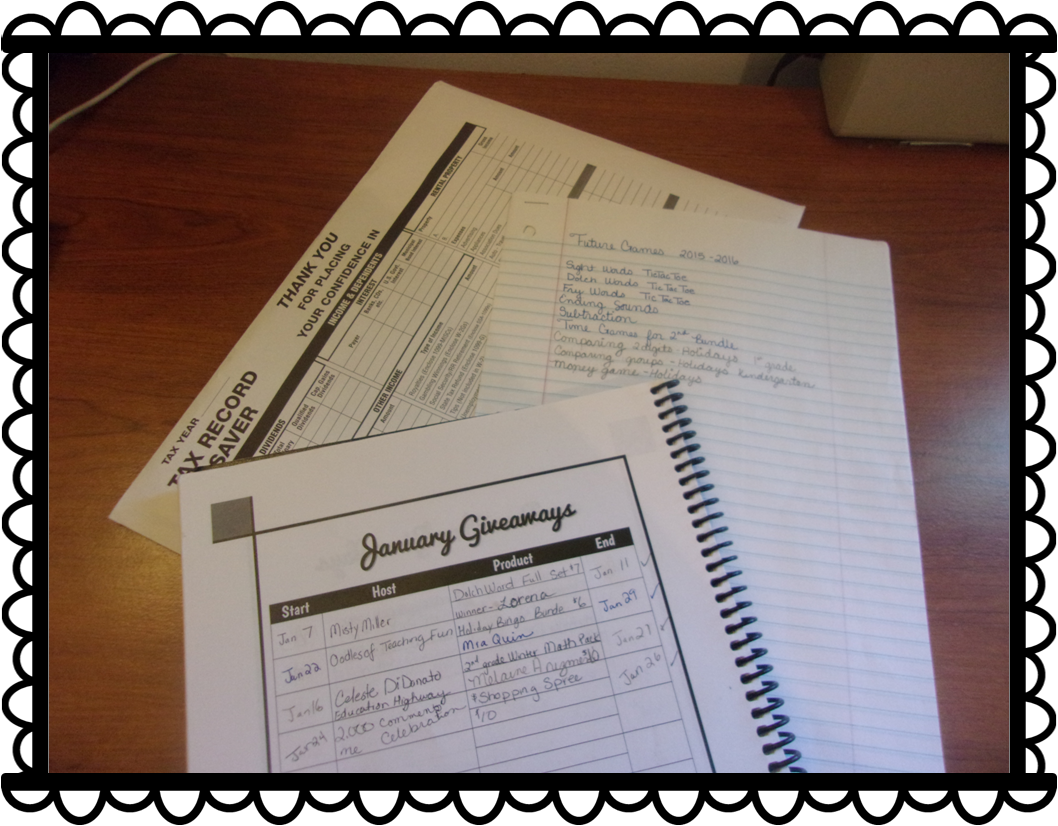
If you host a giveaway and include gift cards, save your gift card receipts. If you give away a Shopping Spree to your TPT store, keep a record of it. I write down the  name of the giveaway, the name(s) of the winners of the giveaway, the start/end date of the giveaway,  and what products they won or want (shopping spree/winner’s choice). I keep this record in my TPT Planner until the end of the month.

If you donate to a giveaway hosted by another seller, keep a record of it. I collect the same information as before and I also include the name of the giveaway and the host. This is also recorded in my TPT Planner.

If you donate to Donorschoose or a GoFundme Project, print out a receipt. It may be tax deductible, especially if the donation is from your business. Be sure to check with your tax preparer. It doesn’t hurt to ask!

Tip #5

Use Microsoft Excel!

Post%2B70%2BP10


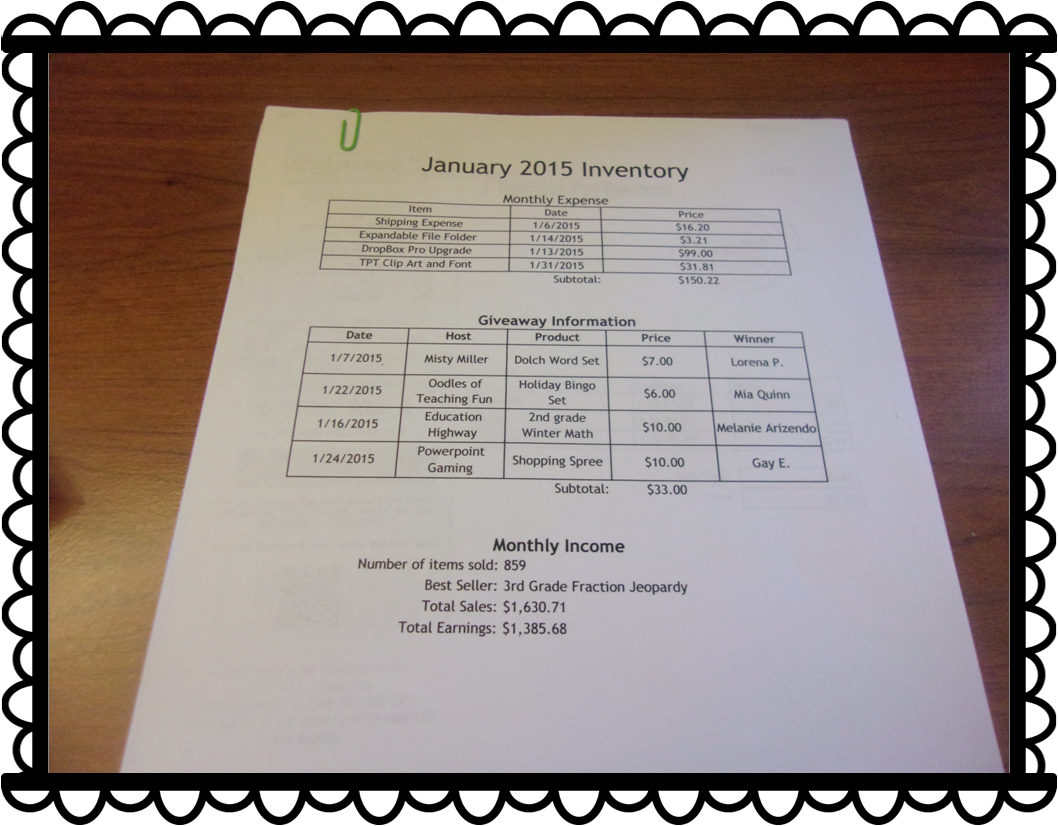
This is the part I dislike the most. The last few days of the month, I check through all my expenses and type them ALL in a Microsoft Excel Spreadsheet. Yes, this can be a tiresome ordeal, but this will give you an online copy of all your purchases you’ve made and items you’ve donated throughout the month. You can set the spreadsheet to do all the calculations for you and you can include whatever information you choose. I print it out and place it in my file folder as a cover sheet for each month.

My cover sheet is divided into 3 sections:

  • Monthly Expenses
  • Giveaway Information
  • Monthly Income

Post%2B70%2BP11


In the Monthly Expenses section, I include the name of the item or purchase, the date of purchase, and the price. All my TPT purchases are added and placed at the bottom.

In the Giveaway Information section, I include the date, the hosts (even if it was me), products, prices, and the winners. 

In the Monthly Income section, I include the number of items sold, the best selling product (and number sold), total sales, and total earnings.

I print it out. I collect all the receipts and paper clip them all together on the top and bottom. For those small in-store receipts, I place them in an envelope and label the envelope whichever month it is.

What does this do in the long run?

Keeping track of my inventory gives me a good reference point. I can check to see what items sold best during certain times of the year. I can decide if I need to cutback on expenses or if I can make more purchases (clip art addict and KG Font addict). It will be even more helpful when it comes Tax Season. I won’t have to search my house for every little receipt. It will all be in the same place all neat and ready to go.

Other things to add to the folder:

    • Taxes from the Previous year
    • Idea list for next year
    • Important emails & forms (like plane tickets and hotel reservations)
    • End of the Year Statements
    • Annual Purchase Statement from TPT
    • Goals Check-List
    • Anything Busniess or Tax Related


    Post%2B70%2BP13

     
    I hope you found this post to be useful. Here’s a few freebies you can use for your file folder.

    Giveaway Information Sheets
    Inventory Check-List

    Enjoy! Class dismissed!
    Posted on

    Powerpoint Gaming’s 200 Games and Counting Celebration – Day 7

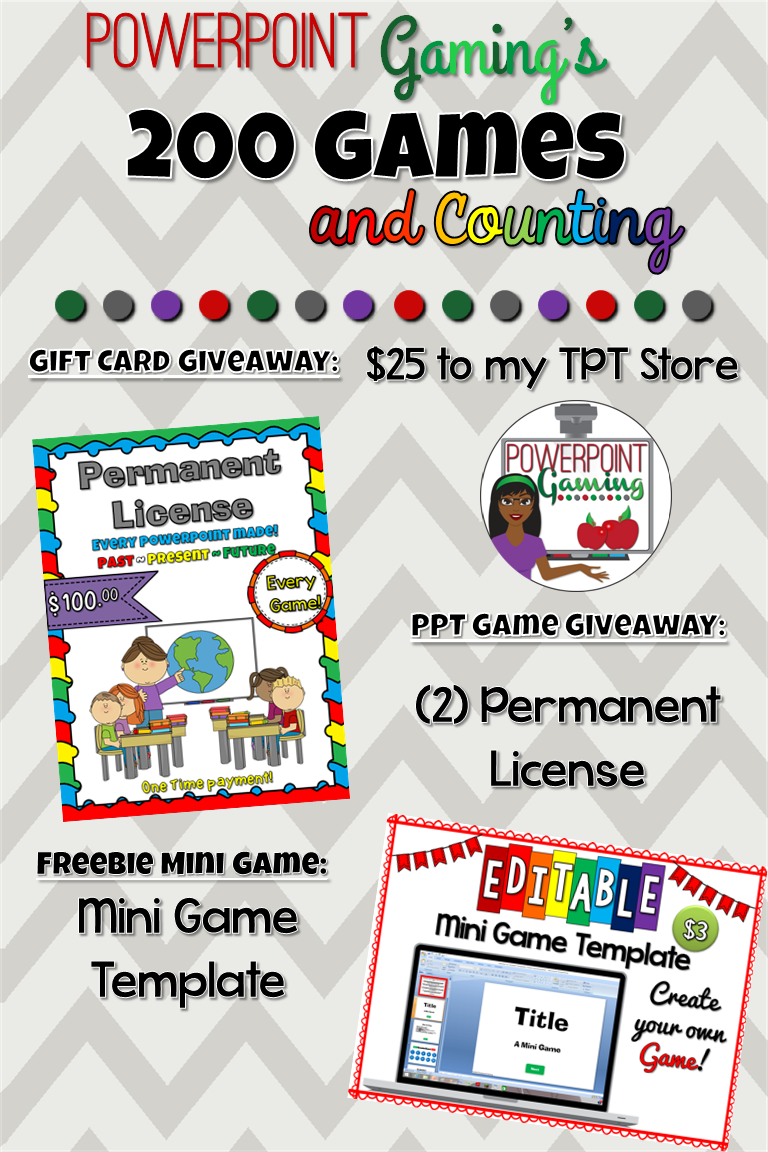
    It’s Saturday, everyone! This week has been truly amazing! It’s the final day of my celebration. Here’s what up for grabs today!
     
    Day%2B7

     Today’s gift card is for a $25 shopping spree to my TPT store. I know that I’ve already given this away, but I can’t help it! So many of you love my games that I just wanna give more away! So many that I’ll giveaway 2 shopping sprees! Here’s where you can enter 
     
     
    Today’s powerpoint game that’s up for grabs is for everyone! I don’t usually give these away, but I’m so excited about making 300 games, I’d make the exception.
     
    Cover
     
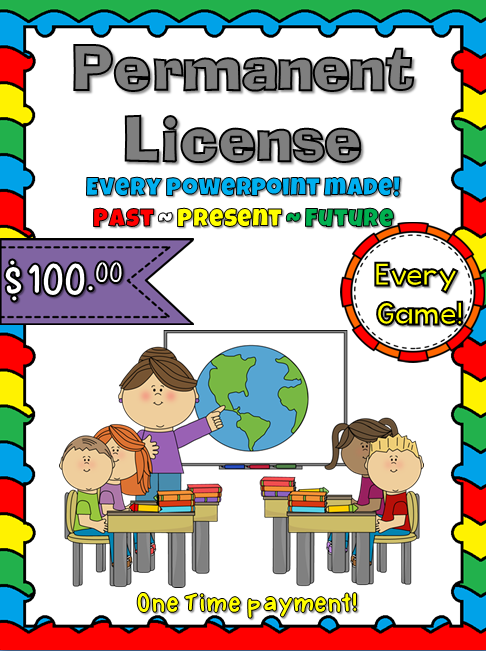
    If you love my games, you should consider purchasing a permanent license. This license give you access to every powerpoint game I’ve created over the years. To be exact, I’ve created
     
     
    Today’s mini game freebie is a mini game template.

    Cover
     
    Now you can make your own mini games! There are 1 questions for you to create your  very own game. Best of all, you can use it commercially.
     
    Don’t forget to stop by my Facebook page each night for some games and flash freebies starting at 6 PM EST!
     
    Class dismissed!
    Posted on 10 Comments

    You Ought to Know About Livebinder!

    Yououghtaknowbloghopbanner

    You ought to know about this website I found that is wonderful and perfect for any teacher in any grade or subject. Ladies and gentlemen, I present Livebinder!
     
    Live%2BBinder%2B1
     
    Before I start, I did update my blog. I spent about 2 weeks on it and I must say I am impressed with myself! Anyway, I taught in a 1:1 school. If your unfamiliar with that term, it means that every student in every grade has their own digital device, whether it’s a laptop, netbook, or tablet. I taught 2nd so we had netbooks.
     
    As a teacher with students having laptops, it was kinda frustrating to have my favorite bar full of 20+ links to websites. Don’t even get me started on what my favorites folder actually looked like. During a professional development that was particularly useful, they introduced this website that acts as a favorites bar except its online! Yes, that means logging in, but after that, you can access your favorite websites from ANY computer!
     
    For those who continue working at home (pretty much all of us!), it’s frustrating to find a website you love and then get to work and totally forget the website address because we saved it to our home computer. Livebinder is the solution!
     
    Live%2BBinder%2B2


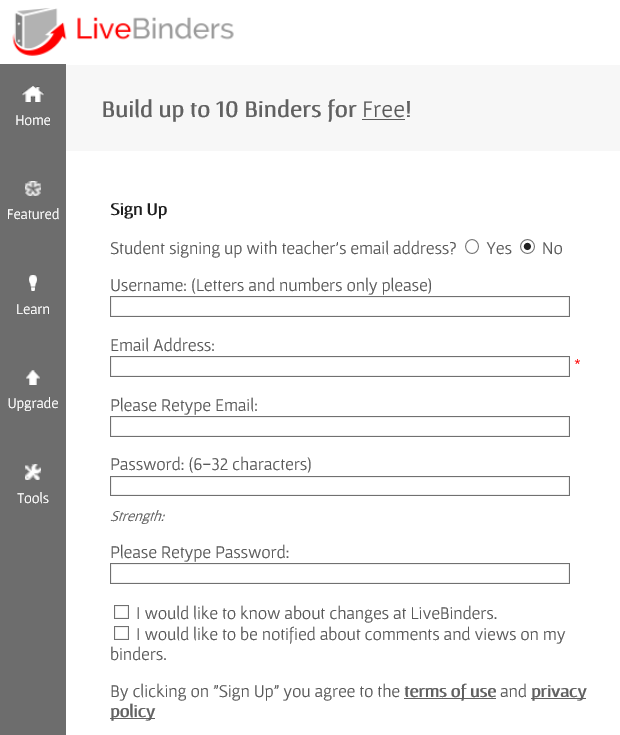
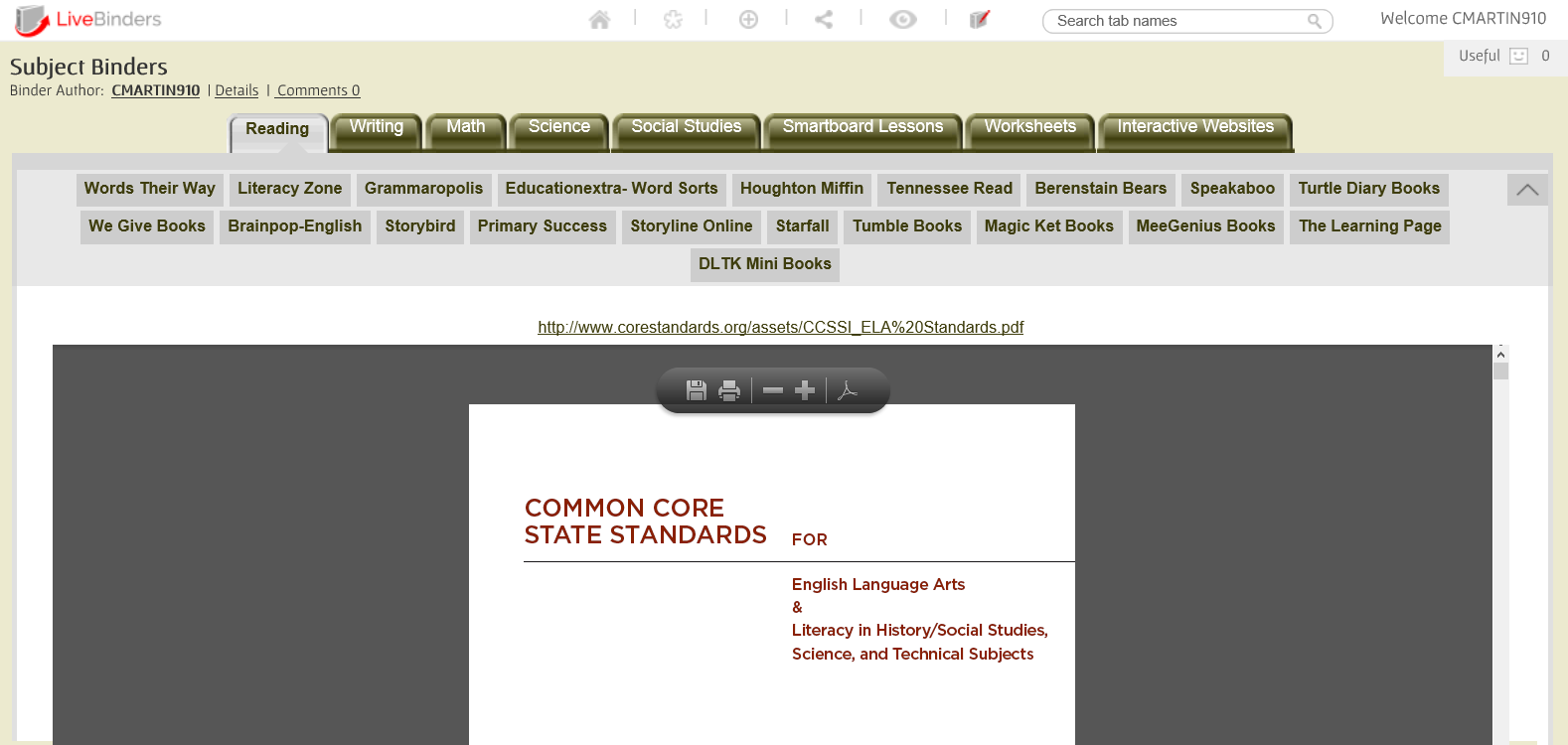
    After signing up, you can create up to 10 binders with different links to websites. For elementary teachers, that’s enough for each subject and then some! Take a look 2 binders I have created. The first binder is for the content areas.
     
    Live%2BBinder%2B4


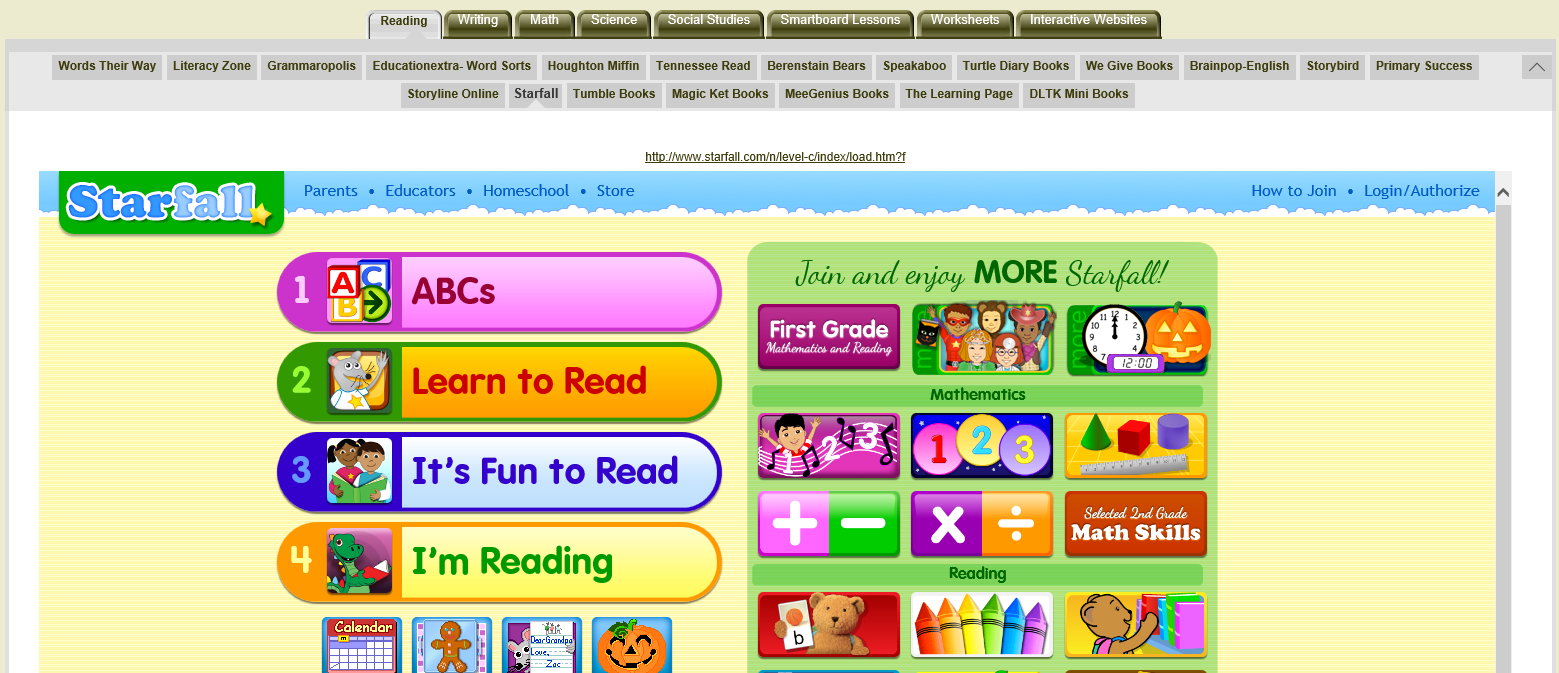
    In the first tab, I’ve added all the reading websites I have found while I was teaching. Most of them are free (Tumblebooks, Starfall) . Others require just a log (Houghton Miffin) . One or two of them you have to pay for (Grammaropolis, Speakaboos).
     
     
    Live%2BBinder%2B8

    Live%2BBinder%2B9
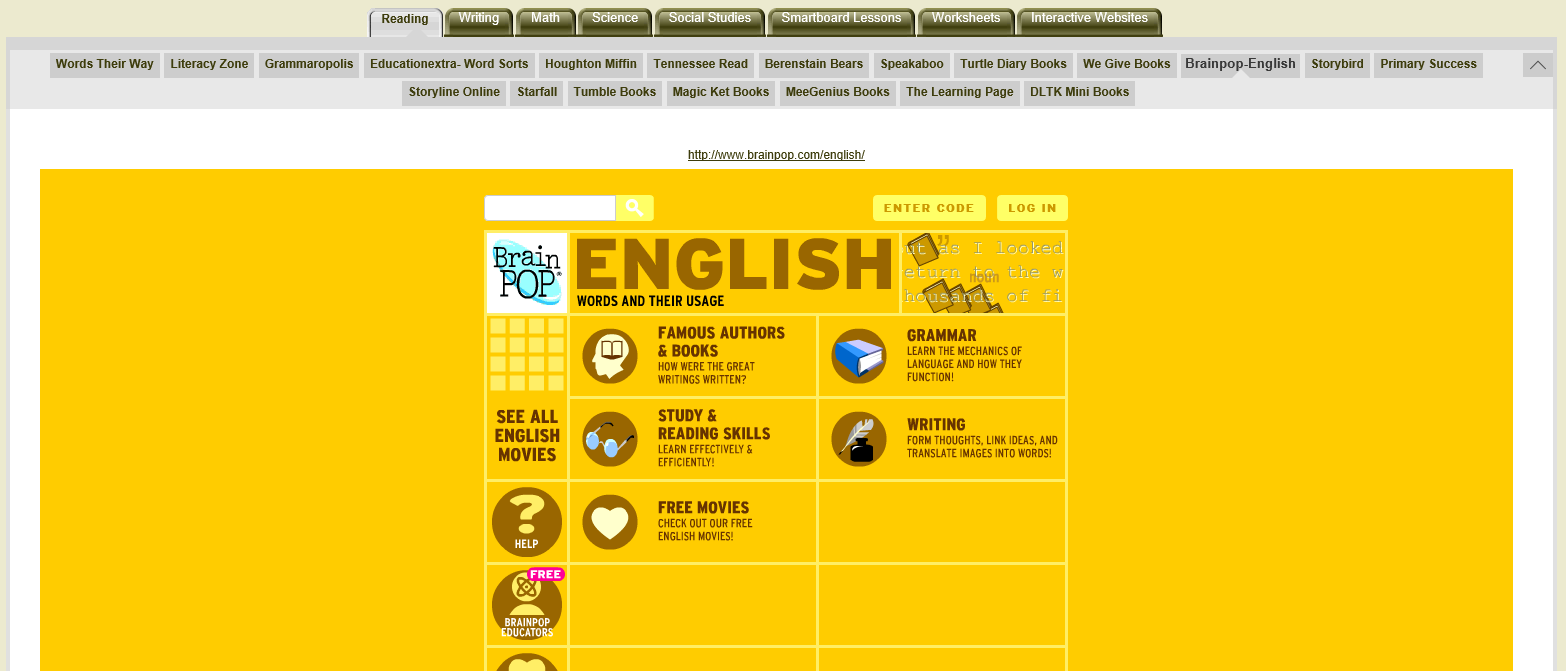
    Best part of all: you don’t have to open a new window! With most websites, you can explore the website from within Livebinder. That means no multiple tabs. You can jump from website to website in just one binder.

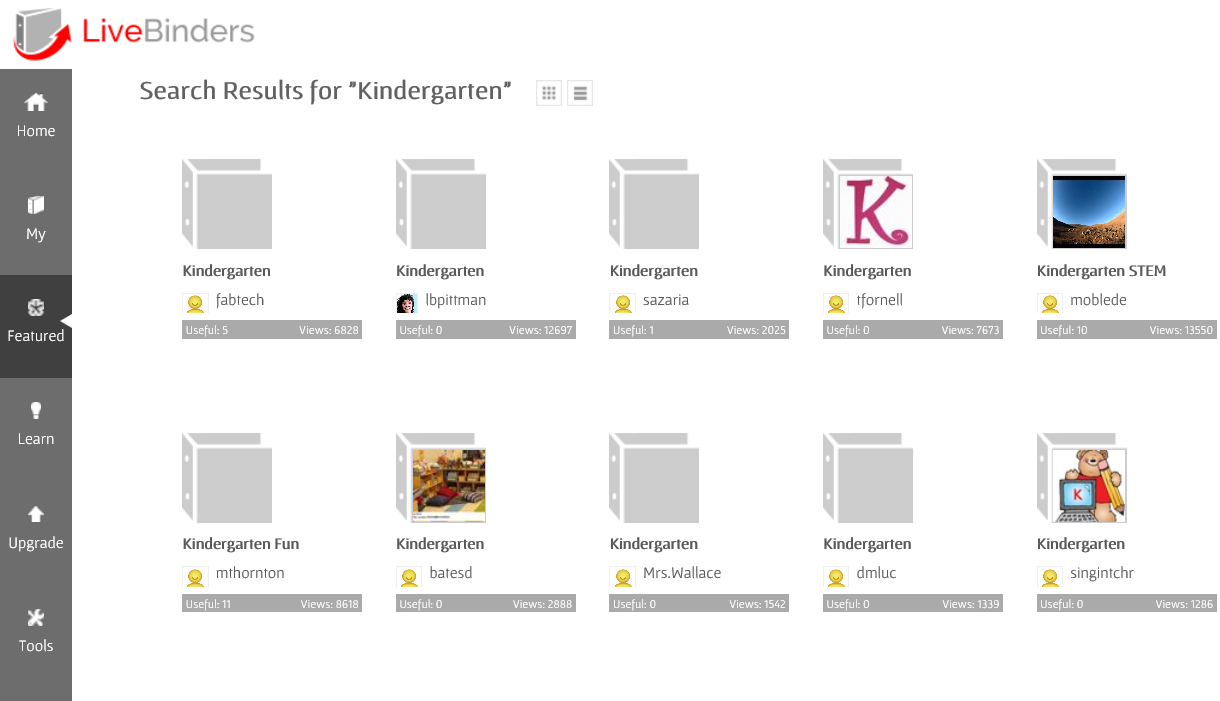
    You can even browse other binders that others have created.

    Live%2BBinder%2B12

    This tool is wonderful! I look for websites at home, add them to Livebinder, and access them on my school computer. I simply keep Livebinder on my favorites bar! I hope Livebinder is as great for you as it is for me!


    Posted on 6 Comments

    Creating the Ultimate TPT Planner!

    Post%2B27


    Making products can be a lot of work. Balancing home and making products is even more work. I give kudos to the teacher that work at school, create products in their free, and manage the house. Brownie points all around. TPT is my full time job at the moment so between creating games and watching my niece and nephew can be a little frustrating a times. That’s why I created this:

    Untitled


    I had created a smaller version of this at the beginning of the school year that I kept up with, but finally decided get one made professionally. I spent about 2 weeks creating all the pages I may need for the entire school year (August to July). Check out each of the pages included and find out how you can score your own!
     
     
    The cover is a clear plastic covering over a regular cover sheet I made..  Pretty nice. The binding is a black plastic coil. I had this made at Office Depot and they had other bindings as well. I figured if I’m going to opening and closing it all the time, a coil would best be suited. There are other bindings like the combs, stapled, and taped. 

    WP 20141028 007
     
    On the inside cover, I created an information sheet with my basic information (name, address, phone, websites, etc).  Next page has the table of contents. My planner contains 160 pages, mostly do to weekly planning sheets.
     

    Pic%2B2
     
     A close up of the table of contents.
     
     
    Pic%2B3
     
    
    Each of the title pages are in color and the rest of the pages are in black and white. I included clips from EduClips and Ashley Hughes.
     

    Pic%2B4Pic%2B5
     
    Pic%2B6Pic%2B7
     
     
    I keep track if every game I make and place it in my Powerpoint Games Section. This is a way for me to check back on games I may have already created or to give me another topic to cover. 
     
    Pic%2B10
     
    Every Saturday I plan for the following week. I decide what games I should/will work on, depending on the dates and any upcoming holidays. My planner includes a two page spread of each month, a monthly Blog Topic planner, and 5 weekly product planner sheet for each week in that month.
     
    WP 20141023 019
     
    Pic%2B8

    
    My WeekIy Product Planner has a space for each day of the week (excluding weekends) and a Project space for my to list what projects I will work on. I also have a space for if the product is completed. I also have two areas at the bottoms for my Blog Topics for that week to write/post and what theme to post on my Facebook page (such as giveaways, blog hops, themed/holiday products, etc). 
     
    Pic%2B9
     
    The next section is my Bundles section. Here I list all the bundles I have created or will create. There are several pages of these because this is a yearly planner. It is broken up in to Math, Seasonal, and Holiday Bundles.
     
    WP 20141023 036

    WP 20141023 039

    WP 20141023 038


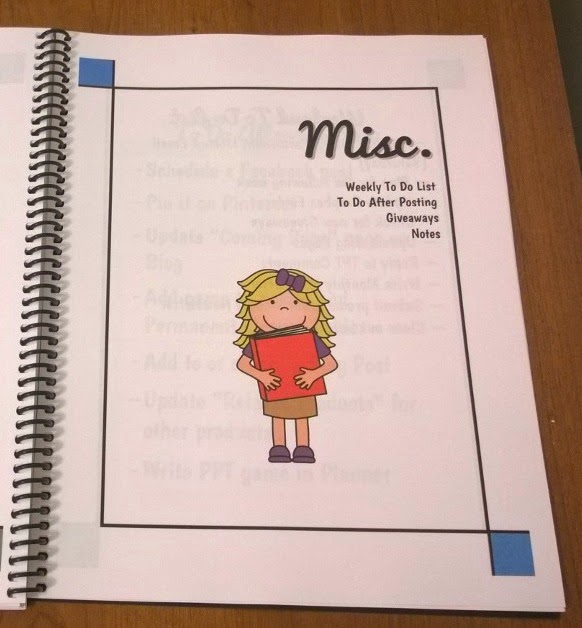
    Lastly, there’s the Miscellaneous section which includes a Weekly To-Do List, my “What To Do After Posting” list, “Monthly Giveaway Log”, and Notes section (To be used hopefully for the TPT Conference).
     
    WP 20141023 042

    WP 20141023 043


    Did you know that any donation of your products can be a write off in your taxes? Who knew, right?

    WP 20141023 045
     
     
    These are taking notes whenever I need them. I plan to use them when I go to the TPT Conference in July.
     
    The last pages include my terms of use and a regency black cover (the same you see with most store back covers). I used free fonts I found online and clip art from Zip-A-Dee-Doo-Dah, EduClips, Whimsy Clips, and Ashley Hughes.
     
    I made this online at Office Max/Office Depot. You can upload your file and create your own personal planner. You can choose everything, from the covers to the binding to which pages are in color or black and white. Overall, this cost my $32. Luckily, when I purchased this when there was 50% off sale so it cost me $16 for 160 pages (+ $10 shipping). It took a week to be created and shipped (I made it Thursday and received it Wednesday). My Office didn’t have Site-to-Store, but if it, My planner would be all in color.
     
    Let me know if you have any questions about my planner. I’d be happy to answer them! Here’s a link to Office Max/Office Depot:http://www.officedepot.com/a/design-print-and-ship/


    Class Dismissed!
     
    Posted on 4 Comments

    Learn Make a Simple Powerpoint Game in 7 easy Steps!

    1


    Imagine this: It’s the middle of the school year. You’re reviewing a hard subject and you kids are struggling. A test is coming up and it’s time to give a review before you give that big test. What are you going to do to review that’s fun and engaging. Kids love Jeopardy games, but how do I find the right one, especially for the content I teach? 


    I’ve run into this problem many, many times. I think every teacher should know, at least, the basic skills needed to make a jeopardy powerpoint game. Take that old test and make a review game out of it.

    Cover%2B2


    Here’s how to create a 3 category Jeopardy game in 7 easy steps.


    1.) Figure out the questions.

    If you’re familiar with Microsoft Word, the Microsoft Powerpoint is very similar. To start making a powerpoint game, think about the questions you want included. Write them down on paper or in a notebook. I write my problems in a “Teacher Journal” I bought from the Dollar Tree. It’s so much easy to have them already figured out when you’re inputting them.

    WP 20140720 003


    2.) Title Screen and Rules

    Start working on the powerpoint! You can make  a slide for the title and rules if you like. Just about everyone knows what Jeopardy is so a rules page might not be necessary. I’ll make a simple Addition Game. Dress it up by changing fonts types and the color.

    Pic%2B1

    Pic%2B2


    2.) Scoreboard

    Here’s the hard part. The scoreboard may very well be the hardest part. I think it’s pretty easy after doing it a few times. I used shapes for my boxes. Go to Insert>Shapes> Rounded Square. Input 6 of them.


    Type in the appropriate text (ex. Category title, $100, $200, $300, $400, $500). Adjust the size, color, and font as you see fit.


    Pic%2B4


    Copy and Paste works wonders! Select all the boxes by dragging your mouse. Right click “copy” and “paste”. Move them as you like.


    Pic%2B5


    3.) Question Board
    Now comes one of two hard parts: the question slide! This the part most teachers dread. But alas, if you have the questions already made, it can be a breeze! I suggest you start by creating just one slide and duplicating it. If you like, you can create all the slides you need (no answer slides in this tutorial).  Add the title and the amount it is worth up to $500 (5 slides in all).


    Pic%2B6


    Again, the joys of Copy and Paste. You can select the 5 slides you created, copy and paste them twice. Change the names of the categories. Now add your questions! Create 2 text boxes: one for the question and one for the answer. Also, create 2 shape buttons named “Answer” and “Scoreboard”.

    Pic%2B8


    4.) Hyperlinking the scoreboard and questions
    The second hardest part. Hyperlinking allows you to click on a certain part of the powerpoint and it will take you somewhere else. This can be another slide, a website, or even to another document. In this case, we will hyperlink to another slide.

    Start by right clicking on the “scoreboard” button and click hyperlink.


    Pic%2B9


    A Box like this should appear. Next, click on “Place in the Document.” Find the “scoreboard” slide and select it. A picture of the slide should appear (red box). Click ok. You can test it out by going into slideshow mode and clicking on “Scoreboard”


    Pic%2B10


    If you are successful, repeat the same process for you scoreboard. Link each amount to its corresponding slide.


    5.) Answer Animation
    With the hard parts out of the way, the last thing to do it make the answers appear. Start by clicking “Animations” and “Custom Animations.  A “Custom Animation” box should appear on the right side of your screen. Next, click on the answer to the question (not the answer button like the scoreboard button), click “Add Effect”, and choose and “Entrance” effect such as appear, blinds, or box.


    Pic%2B11Pic%2B12


     It will automatically show you a preview. Choose your favorites. Last, we need to make the answer appear when you click on the “Answer” button. Click on the small down arrow on the Custom Animation box and click on Timing. once there, click on “Trigger”>Start Effect on click of”> Answer Button (whatever shape you chose).


    Pic%2B15


    6.) Disappearing Amounts
    Lastly, let’s make those amounts you click on disappear after you click on them. Repeat the above step. Click on the amount, choose a custom animation, only chose “Exit” instead of “Entrance”. Change the trigger to the amount. Repeat the process for all the amounts. Test the animations by going into “Slideshow”

    Pic%2B16

    7.) Dress it Up
    If all the hyperlinks and animations work, you can now customize it yourself! Create a background ground or add some clip art! Even add a “Double Jeopardy” or “Final Jeopardy” questions. Add some music or sound effects.  Here are some backgrounds to get you started.

    Don’t have time to make one? You can purchase editable powerpoint game templates! Each template comes with a powerpoint with all the links and buttons ready to go! All you have to do is add the questions and clip art!


    I hope you’ve enjoyed this tutorial. Subscribe via email or bloglovin’ for more powerpoint tutorials, tips, and tricks. Check out my TPT Store for awesome Jeopardy games and other games too.