Who Am I? – Community Helpers Powerpoint Game #3

Who Am I Community Helpers Powerpoint Game 3 Cover Scaled
Engage students with this fun, interactive community helpers game. In this “Who am I” game, students must guess the community worker. There are 10 questions and you just click on each question to go to it. Each question has 3 clues and student have to guess which community helper it describes. Clues include tools they may use, what they do, and where they may work. Great for a whole class review or rainy day activity. Great for individual practice on the iPad! Extra licenses are $1.00.
 
Community helpers include a lawyer, detective, travel agent, coach, baker, actor/actress, electrician, librarian, president, and news reporter
 
Questions/Materials include:
✔️ 10 Questions – 3 clues per question
✔️ Works great on Smartboard, Activboard, Whiteboard, and Promethean Board
✔️ Printable Answer Key
✔️ Terms of use Page
✔️ Common Core aligned!
✔️ 16 Slides
✔️ Animations
✔️ Mac-iPad Version included!
✔️ Google Slides included!
✔️ Digital Easel Activity included!
✔️ Printable Sheets included!
✔️ Additional Licenses $1.50
 
Recent Updates:
✂️ None
 
Other Related Materials:
 
❤️❤️ Love my games? Purchase a Yearly License and receive new games all year long. Purchase a Permanent License and gain access to every PPT Game ever made! Grade level licenses for schools and districts now available! ❤️❤️
 
Having issues? Submit any issues in the Q&A Section at the bottom or check out my Frequently Asked Questions on my blog. I will contact you as soon as possible!*****IN ORDER FOR THE BUTTONS AND IMAGES TO SHOW UP, THE GAME MUST BE PLAYED IN SLIDESHOW MODE IN MICROSOFT POWERPOINT.*****
 
Please leave feedback for my product! Earn TPT Credits! Thank you for your purchase!
 
Happy Teachings!
 
Follow Me on Social Media:
⚙️ TpT
⚙️ Facebook
⚙️ Pinterest
⚙️ Website
⚙️ Instagram
⚙️ Twitter
⚙️ YouTube
 
Terms of Use:
By purchasing this product, you agree not to share, resell, copy, or alter this product in anyway. You agree not share without the purchase of multiple licenses. All sales final. Clip Art is not included as a separate file and is included as part of the background. Video music provided by: Bensound – Energy. Cover Designs by Surfer Kids Clip Art. Fonts by Kimberly Geswein.
 
© 2023 Teacher Gameroom (Chandra Martin)
 
✉️ Need to reach me? Email me: teachergameroom@gmail.com ✉️

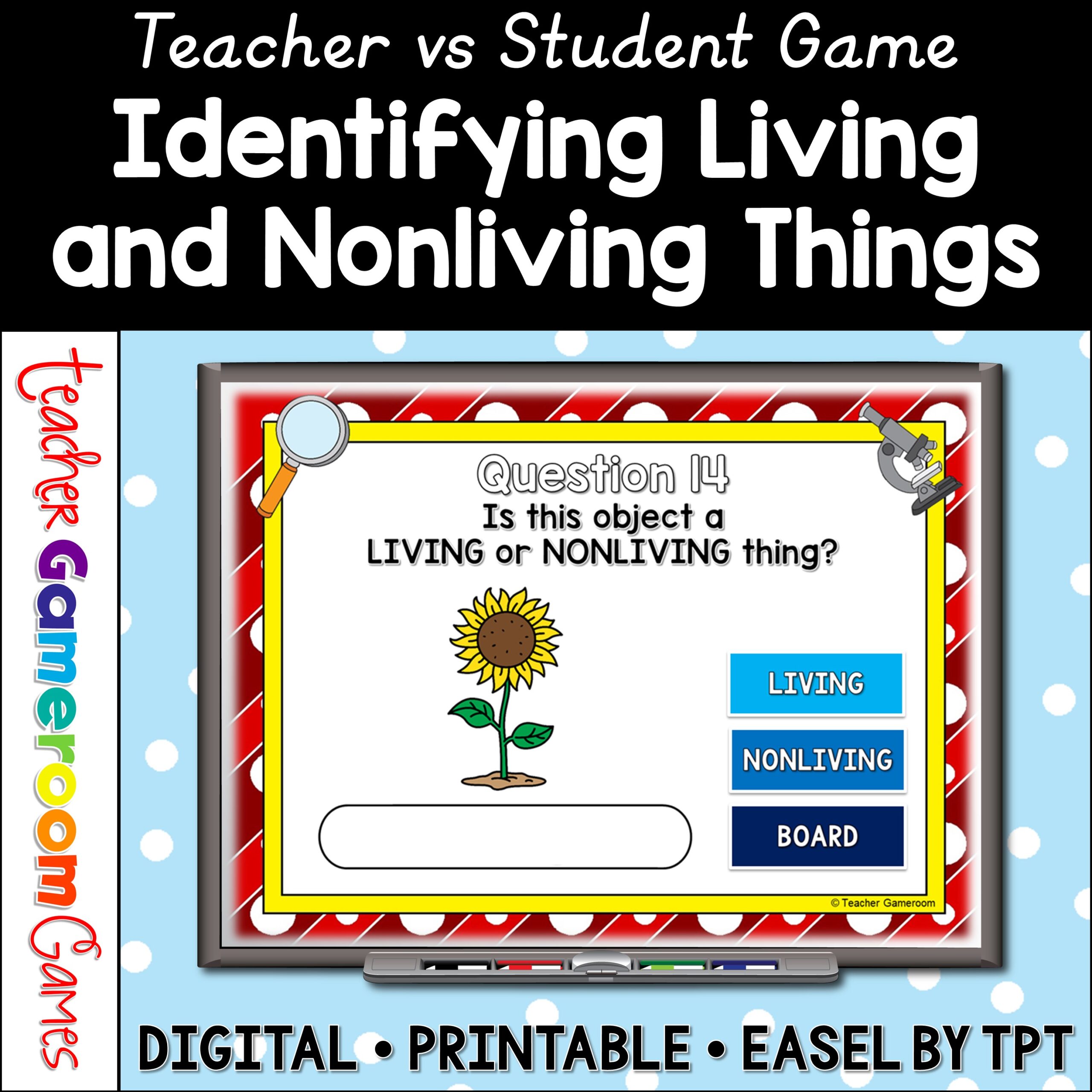
Living and Nonliving Things Teacher vs Student Game

Living And Nonliving Things Teacher Vs Student Game Cover Scaled
What are living and nonliving things? Practice with this fun, digital, game. Students use their knowledge to identify random objects as “Living” or “Nonliving” things. Students click on the buttons and answers are revealed. There are 20 questions in all, and you just click on each question to go to it. The question disappears after you’ve clicked on it, so you know you’ve answered it. The scoreboard allows you to add scores during Slideshow Mode. Answer Key included. Great for a quick morning review or science center activity. Great for individual practice on the iPad or tablet!
Available in Print, PPT, Google, and Easel.
 
Objects included in this game:
  1. ladybug
  2. tractor
  3. milk
  4. girl/kid
  5. teacher/adult
  6. ball
  7. flowers
  8. rocket ship
  9. swingset
  10. alligator
  11. teddy bear
  12. boy/kid
  13. tools
  14. sunflowers
  15. house
  16. tree
  17. hat
  18. clock
  19. bush
  20. waiter/server
 
How many questions? There are 20 questions, and you simply click on each question to go to it. There’s no question board so no keeping track of what questions you have already answered.
 
Set up is quick and easy! Just download, unzip, and click on the game to open. No printing, No cutting. No laminating. No clean up.
 
✨Who can use this? This resources for great for 3rd grade, 4th grade, and 5th grade students. Special education students or students who are below proficiency can benefit from the extra practice. Students who are above proficiency can also benefit from the challenge.
✨How should I use this activity? This is a digital activity. You can use this activity with Microsoft PowerPoint, Google Slides, or Easel by TPT. You can use it as a whole class activity or with small groups on a Smartboard, ActivBoard, or any Interactive Board. You can also send this to student to complete in ELA centers or as classroom assignments.
 
 
This includes an Easel Activity. Send this activity to your student through Google Classroom or and Learning Management system. Students are able to solve the problems on their laptops/tablets and type in their answers. You’ll be able to track their progress and assess their learning as their work through each problem.
 
In this Zip folder you’ll find:
  • 1 PowerPoint to use with PC and MAC computers
  • 1 PDF with a link to a GOOGLE slides version
  • 1 PDF with Printable Task Cards and Recording sheet
  • 1 PDF Answer Key
 
If you like this game, grab these related resources:
  • None
Having issues? Submit any issues in the Q&A Section at the bottom or check out my Frequently Asked Questions on my blog. I will contact you as soon as possible! ⛔️IN ORDER FOR THE BUTTONS TO WORK AND IMAGES TO SHOW UP, THE GAME MUST BE PLAYED IN SLIDESHOW MODE IN MICROSOFT POWERPOINT. ⛔️
Please leave feedback for my product! Earn TPT Credits! Thank you for your purchase!
Happy Teachings!
Terms of Use:
By purchasing this product, you agree not to share, resell, copy, or alter this product in anyway. You agree not share without the purchase of multiple licenses. All sales final. Clip Art is not included as a separate file and is included as part of the background. Cover Designs by Surfer Kids Clip Art. Fonts by Kimberly Geswein. Music by Purple Planet – Smile On.
Video music provided by: Incompetech – Teddy Bear Waltz
Recent Product Updates:
• None
© 2022 Teacher Gameroom (Chandra Martin)
✉️ Need to reach me? Email me: teachergameroom@gmail.com ✉️

Addition to 20 Test Prep Powerpoint Game

Test Prep Addition To 20 Cover

Practice addition facts up to 20 with the Test Prep Powerpoint Game. Students practice adding numbers in this 25 Question game. Includes multiples choice answers (A, B, C, D), room to show work, and animations for no prep work on the teacher’s part. There are 20 questions in all and you just click on each question to go to it. The question disappears after you’ve clicked on it so you know you’ve answered it. Great for a quick test review or as a math center activity. Great for individual practice on the iPad or tablet!

R-Controlled Vowels Teacher vs Student Powerpoint Game

R Controlled Vowels Teacher Vs Student Powerpoint Game Cover

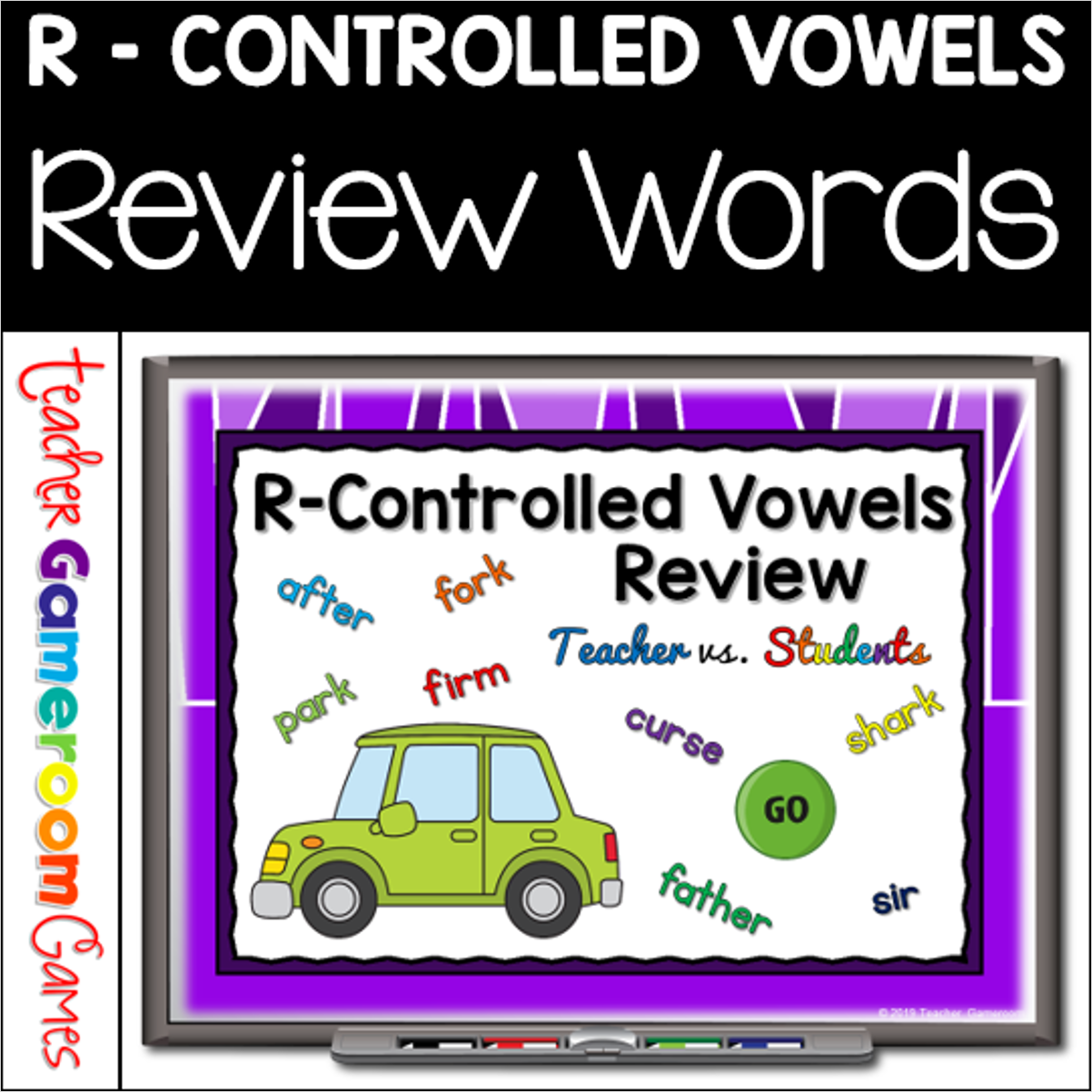
Practice R-Controlled Vowel words with this teacher vs student powerpoint games. Students practice identifying r-controlled words. Game includes 25 multiple choice questions and you just click on each question to go to it. The question disappears after you’ve clicked on it so you know you’ve answered it. There are 2 scoreboards: a touch scoreboard and type in scoreboard. The type-in scoreboard allows you to type in scores during Slideshow Mode. Makes a great for a ELA morning review or Bossy R center activity. Great for individual practice on the iPad or tablet!

R-Controlled Vowels Who Am I Powerpoint Game Bundle

R Controlled Vowels Who Am I Powerpoint Game Bundle Cover

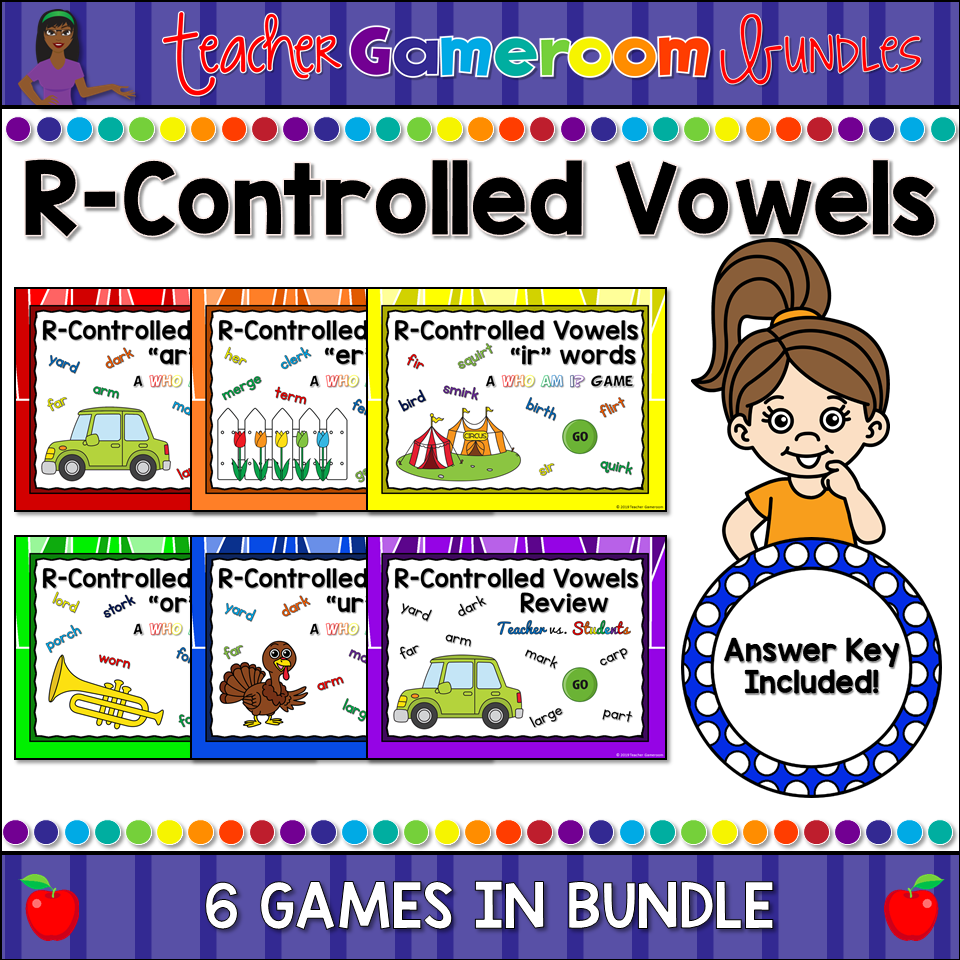
Practice R-Controlled Vowel words with this bundle of “Who Am I” PowerPoint games. Students practice identifying “Bossy R” words by reading the 3 clues for the mystery word. Clues appear automatically and you use the buttons to reveal the answer and navigate through the game. Makes a great for a quick ELA morning review or Bossy R center activity. Great for individual practice on the iPad or tablet!

Tens and Ones with Popsicle Sticks Powerpoint Game

Tens And Ones With Popsicle Stick Teacher Vs Student Powerpoint Game Cover 1

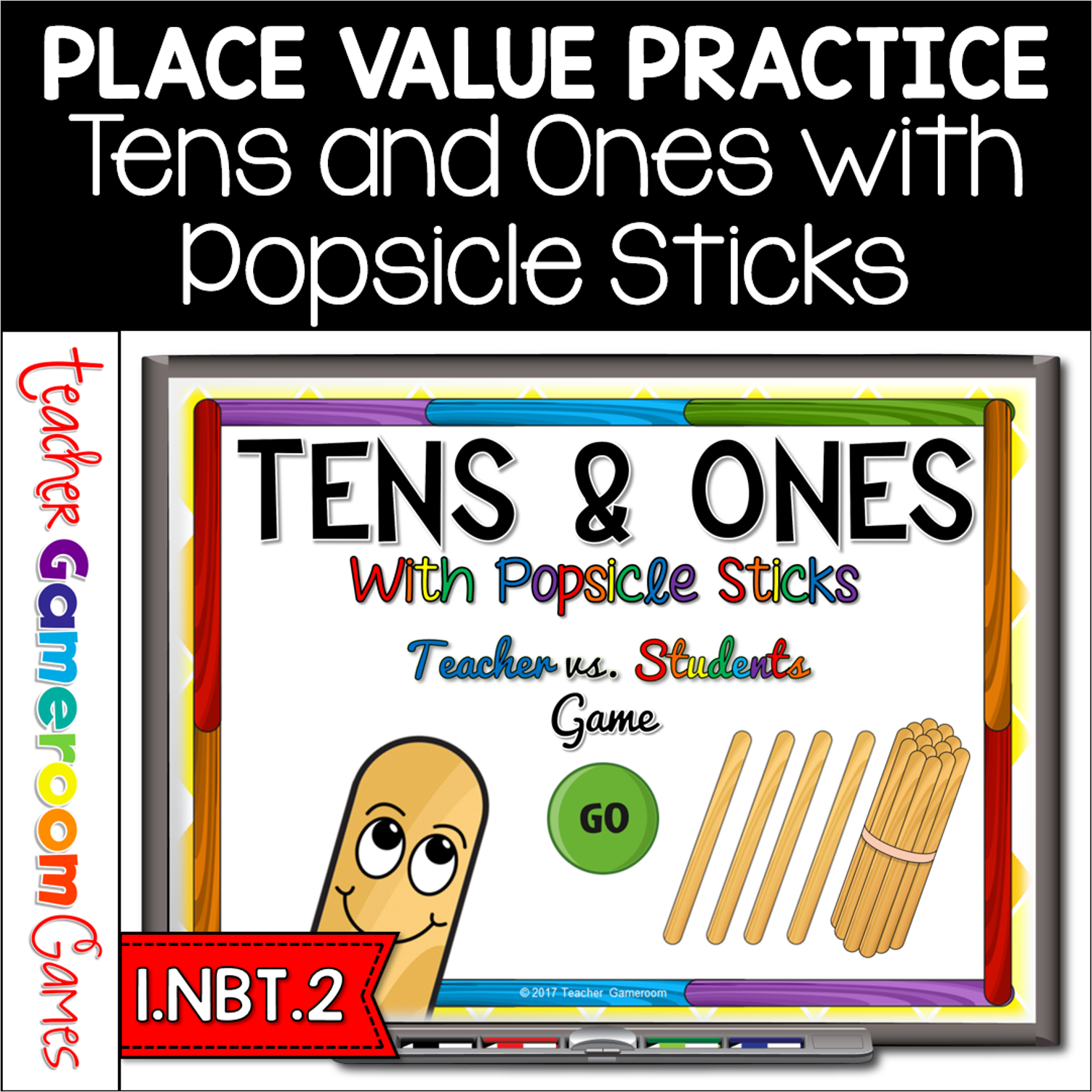
Engage students with this fun, interactive math game. In this teacher vs. student game, students name the tens and ones when given a number popsicle sticks. There are individual sticks, representing ones, and bundles of 10 sticks, representing tens. There are 20 questions and you just click on each question to go to it. The question disappears after you’ve clicked on it so you know you’ve answered it. There are 2 scoreboards: a touch scoreboard and type in scoreboard. The type-in scoreboard allows you to type in scores during Slideshow Mode. Great for a guided math center or rainy day activity. Great for individual practice on the iPad! Extra licenses are $1.25.